<?xml version="1.0" encoding="UTF-8"?>
<!-- This is an index of posts for the search module, generated by idawnlight/typecho-theme-material. -->
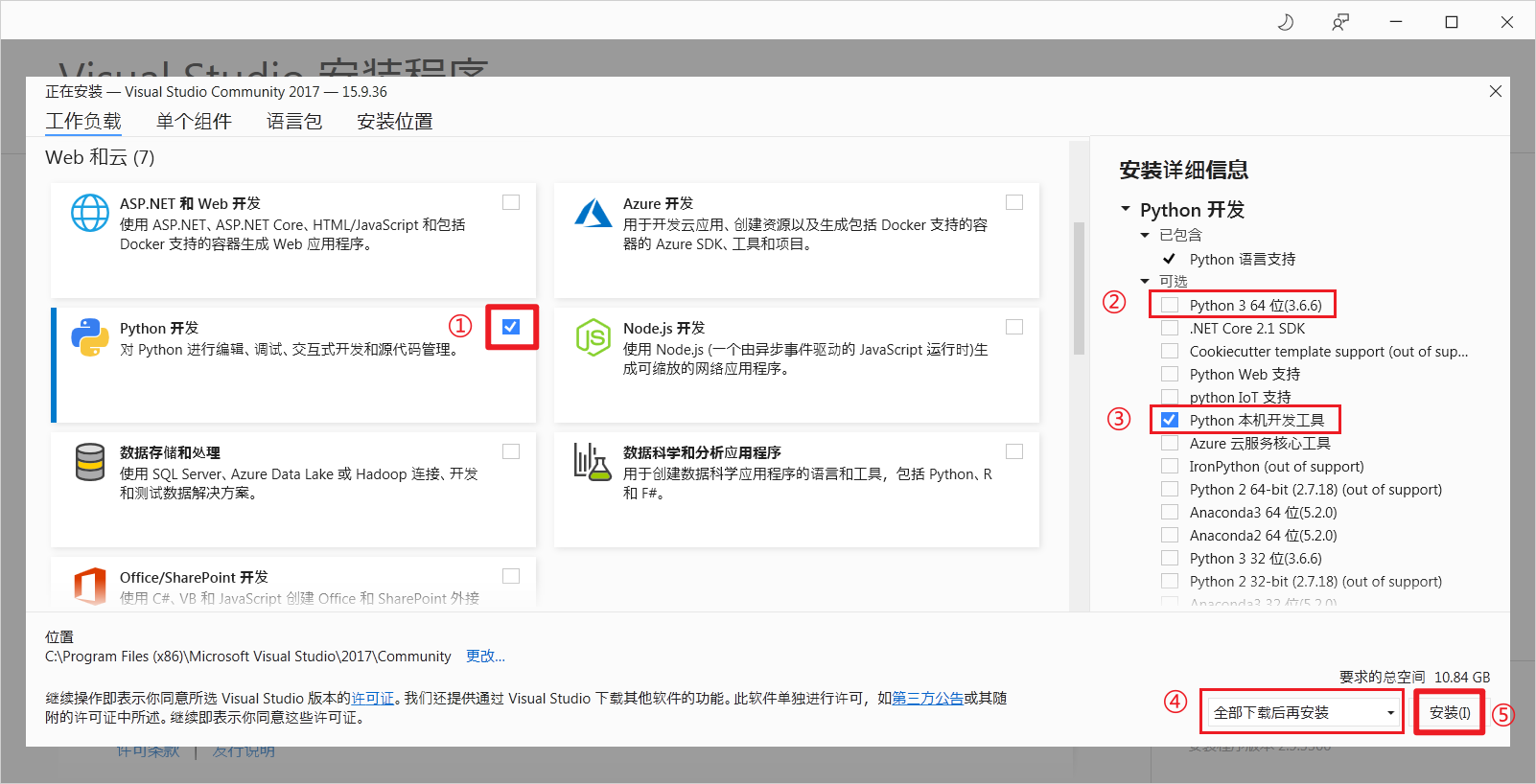
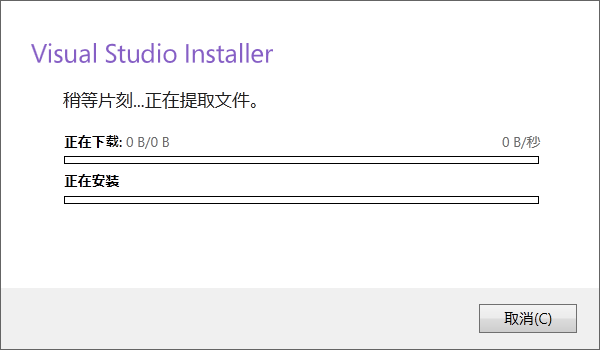
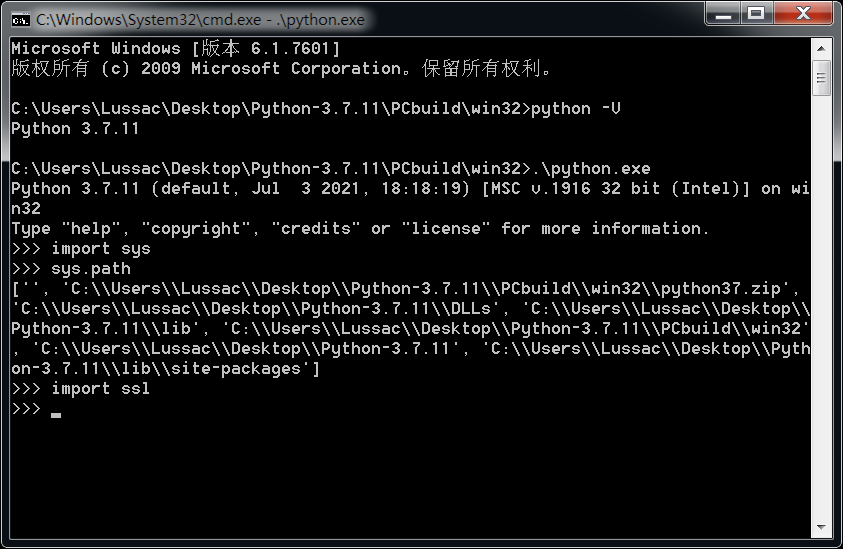
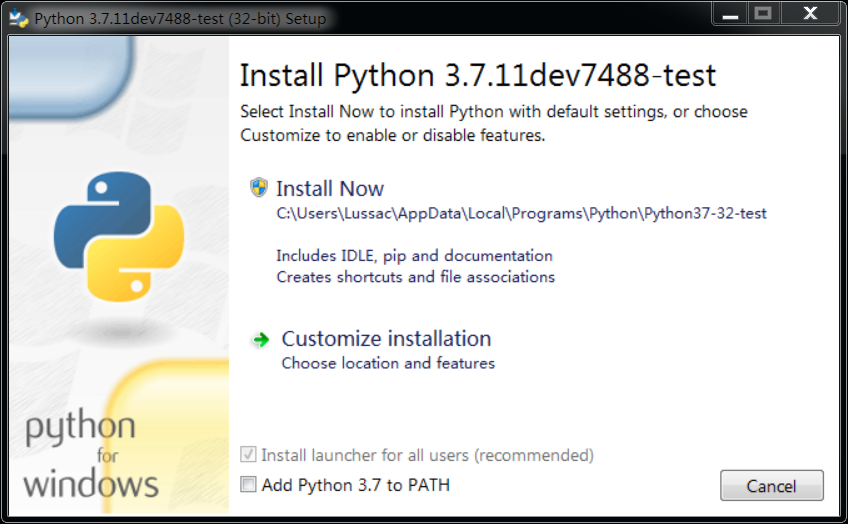
<search><entry><title><![CDATA[为Windows编译Python安装包]]></title><url>https://blog.lussac.net/archives/434/</url><content type="html"><![CDATA[<blockquote><p>Build Python binary installers for Windows.</p></blockquote><p>本文探索了如何编译适用于 Windows 的 Python 二进制安装包。</p><p>[Meting]<br>[Music server="netease" id="422427677" type="song"/]<br>[/Meting]</p><h2>前言</h2><p>Python 官方对于 安全修复版本 (<em>security fix release</em>) 一般不提供 二进制安装包 (<em>binary installer</em>) 。</p><p>例如 <a href="https://www.python.org/downloads/release/python-379/"><code>Python 3.7.9</code></a> 是 <code>Python 3.7.x</code> 系列中最后一个为 Windows 和 macOS 提供二进制安装包的版本， <a href="https://www.python.org/downloads/release/python-3710/"><code>Python 3.7.10</code></a> 及之后的 <code>Python 3.7.x</code> 系列版本则只提供 源代码 (<em>source-only release</em>) 。</p><p>那么如何在 Windows 上安装 当前 (2021-06-28) 最新的 <code>Python 3.7.x</code> 即 <a href="https://www.python.org/downloads/release/python-3711/"><code>Python 3.7.11</code></a> 呢?</p><blockquote><p><a href="#">文末</a> 附下载。</p></blockquote><hr><h2>准备工作</h2><h3>官方文档</h3><p>查阅 <a href="https://docs.python.org/3.7/">官方文档</a> 的 <a href="https://docs.python.org/3.7/using/index.html"><em>Python Setup and Usage</em></a> 一节可以找到题为 <a href="https://docs.python.org/3.7/using/windows.html#compiling-python-on-windows"><em>Compiling Python on Windows</em></a> 的说明：</p><blockquote><p>If you want to compile CPython yourself, first thing you should do is get the <a href="https://www.python.org/downloads/source/">source</a>. You can download either the latest release’s source or just grab a fresh <a href="https://devguide.python.org/setup/#getting-the-source-code">checkout</a>.</p><p>The source tree contains a build solution and project files for Microsoft Visual Studio 2015, which is the compiler used to build the official Python releases. These files are in the PCbuild directory.</p><p>Check <code>PCbuild/readme.txt</code> for general information on the build process.</p></blockquote><p>下载 <a href="https://www.python.org/downloads/release/python-3711/"><code>Python 3.7.11</code></a> 的 源代码 <sup><a href="https://www.python.org/ftp/python/3.7.11/Python-3.7.11.tgz">[1]</a></sup> <sup><a href="https://www.python.org/ftp/python/3.7.11/Python-3.7.11.tar.xz">[2]</a></sup> 并解压，找到 <a href="https://github.com/python/cpython/blob/v3.7.11/PCbuild/readme.txt"><code>PCbuild/readme.txt</code></a> ：</p><blockquote><ul><li>Install Microsoft Visual Studio 2017 with <em>Python workload</em> and <em>Python native development component</em>.</li><li>... requires an installation of Microsoft Visual Studio 2017 (MSVC 14.1) with the <em>Python workload</em> and its optional <em>Python native development</em> component selected. (For command-line builds, Visual Studio 2015 may also be used.)</li><li>To build an installer package, refer to the README in the <code>Tools/msi</code> folder.</li></ul></blockquote><p>再找到 <a href="https://github.com/python/cpython/blob/v3.7.11/Tools/msi/README.txt"><code>Tools/msi/README.txt</code></a> ：</p><blockquote><p>For testing, the installer should be built with the <code>Tools/msi/build.bat</code> script:</p><pre><code>build.bat [-x86] [-x64] [--doc]
</code></pre><p>For an official release, the installer should be built with the <code>Tools/msi/buildrelease.bat</code> script and environment variables:</p><pre><code>set PYTHON=&lt;path to Python 2.7 or 3.4&gt;
set SPHINXBUILD=&lt;path to sphinx-build.exe&gt;
set PATH=&lt;path to Mercurial (hg.exe)&gt;;
         &lt;path to HTML Help Compiler (hhc.exe);%PATH%

buildrelease.bat [-x86] [-x64] [-D] [-B]
    [-o &lt;output directory&gt;] [-c &lt;certificate name&gt;]</code></pre></blockquote><h3>编译环境</h3><p>本文在全新的 <code>Windows_7_SP1_64-bit</code> 虚拟机上进行编译；宿主机为 <code>Windows_10_20H2_64-bit</code> ；目标 Python 版本为 <code>3.7.11</code> 。</p><h3>所需软件</h3><h4>Visual Studio 2017</h4><blockquote><p>虽然 文档 <sup><a href="https://github.com/python/cpython/blob/v3.7.11/PCbuild/readme.txt#L19-L21">[3]</a></sup> 中说 VS2015 可能也行，但经过我的实际测试，VS2015 会在编译开始时的某一步报错，因此仍建议选择安装 VS2017 。</p><p>选择 <em>Professional</em> 或 <em>Enterprise</em> 等付费版本（30天试用期），可以在最后一步 "<a href="#">编译发行版</a>" 时启用 PGO 优化 <sup><a href="https://github.com/python/cpython/blob/v3.7.11/PCbuild/readme.txt#L45-L51">[4]</a></sup> 。  <br>但经过实际测试，<em>Community</em> 版本也可以正常地启用 PGO 优化。</p></blockquote><p>Visual Studio 2017 的安装包可以从 <a href="https://visualstudio.microsoft.com/zh-hans/vs/older-downloads/">此处</a> 下载，但需要注册并登录 Microsoft Azure DevOps 。当前有效的几个下载直链分别是：</p><ul><li><em>Visual Studio Community 2017</em> : <a href="https://download.visualstudio.microsoft.com/download/pr/67f7bfaa-2635-43d9-ba82-26564f458881/39c4a53eca39ef21e54c3d2469197c4fb9bc9728bf9073f66481073b455fbce5/vs_Community.exe"><code>vs_Community.exe</code></a></li><li><em>Visual Studio Professional 2017</em> : <a href="https://download.visualstudio.microsoft.com/download/pr/67f7bfaa-2635-43d9-ba82-26564f458881/42c2609d6a8cfd6471a3c83163bc0a657216c23c915f9c5580f3b783d7de086d/vs_Professional.exe"><code>vs_Professional.exe</code></a></li><li><em>Visual Studio Enterprise 2017</em> : <a href="https://download.visualstudio.microsoft.com/download/pr/67f7bfaa-2635-43d9-ba82-26564f458881/2d77f8d73f89ba5294eb6c0f4114e31acab6df463ce168a8add0e8bff9e9d300/vs_Enterprise.exe"><code>vs_Enterprise.exe</code></a></li></ul><p>该版本的详细信息为 <strong>Visual Studio 2017 (version 15.9.36)</strong> (<em>MSVC 14.16</em>)。</p><h4>Python 3.6+</h4><p>编译 Python 安装包需要先安装 <a href="https://www.python.org/downloads/">Python</a> 3.6 或之后的版本。本文采用 <a href="https://www.python.org/ftp/python/3.7.9/python-3.7.9-amd64.exe"><code>python-3.7.9-amd64.exe</code></a>。  <br>简洁起见，我将 Python 的安装目录设置为 <code>C:\Python\Python37</code> 。你当然可以使用默认设置，但建议安装路径中不要含有空格等特殊字符。另外，记得勾选 <code>Add Python 3.x to PATH</code> 。</p><h4>Git for Windows 2.x</h4><p><a href="https://github.com/git-for-windows/git/releases">Git</a> 的版本并不关键，本文采用 <a href="https://github.com/git-for-windows/git/releases/download/v2.32.0.windows.1/Git-2.32.0-64-bit.exe"><code>Git-2.32.0-64-bit.exe</code></a> 。</p><hr><h2>安装 VS2017</h2><h3>安装流程</h3><p>双击运行 <code>vs_Community.exe</code> 等，即开始自动安装 <code>Visual Studio Installer</code> 。然后选择 工作负载 中的 "<strong>Python 开发</strong> (<em>Python development workload</em>)" 及其可选子项 "<strong>Python 本机开发工具</strong> (<em>Python native development tools component</em>)" ，要求的总空间约为 11 GB 。本文使用默认安装路径。</p><p><img src="https://blog.lussac.net/usr/uploads/2021/07/1005456589.png" alt="vs-install-workload" title="vs-install-workload"></p><p>耐心等待安装完成。</p><p>注意，VS2017 安装完成后无需打开，之后的编译全过程可以在 CMD 命令行中完成。</p><h3>安装指北</h3><p>在全新的 Windows 7 系统上安装 Visual Studio 2017 时可能遇到问题，你可能需要先安装以下两项依赖。</p><h4>.NET Framework 4.6</h4><p>打开 <code>vs_Community.exe</code> 等需要 <code>.NET Framework 4.6</code> 运行时。</p><ul><li>在 <a href="https://dotnet.microsoft.com/download/dotnet-framework/net46">官方下载页面</a> 的 <strong>Advanced downloads</strong> 中选择 <em>Offline installer</em> 的 <a href="https://go.microsoft.com/fwlink/?LinkId=2099384">Runtime</a></li><li>或通过直链下载： <a href="https://download.microsoft.com/download/6/F/9/6F9673B1-87D1-46C4-BF04-95F24C3EB9DA/enu_netfx/NDP46-KB3045557-x86-x64-AllOS-ENU_exe/NDP46-KB3045557-x86-x64-AllOS-ENU.exe"><code>NDP46-KB3045557-x86-x64-AllOS-ENU.exe</code></a></li></ul><h4>Windows Updates</h4><p>VS2017 在线安装时可能卡在 "稍等片刻...正在提取文件" ，有两种可行的解决方案 <sup><a href="https://www.zhihu.com/question/274690199">[5]</a></sup> ：</p><p><img src="https://blog.lussac.net/usr/uploads/2021/07/1118565680.png" alt="vs-install-download" title="vs-install-download"></p><ul><li>修改 DNS 地址 为 <code>114.114.114.114</code> 或 <code>8.8.8.8</code></li><li>(win7) 下载安装系统更新补丁 <a href="https://www.catalog.update.microsoft.com/Search.aspx?q=KB4490628"><code>KB4490628</code></a> 和 <a href="https://www.catalog.update.microsoft.com/Search.aspx?q=KB4474419"><code>KB4474419</code></a></li></ul><hr><h2>编译</h2><h3>必要依赖</h3><p>下载 <a href="https://www.python.org/downloads/release/python-3711/"><code>Python 3.7.11</code></a> 的 源代码 <sup><a href="https://www.python.org/ftp/python/3.7.11/Python-3.7.11.tgz">[1]</a></sup> <sup><a href="https://www.python.org/ftp/python/3.7.11/Python-3.7.11.tar.xz">[2]</a></sup> 并解压。</p><pre><code class="lang-batch"># 尝试首次构建 CPython
$ PCbuild\build.bat</code></pre><p>脚本会首先下载并构建外部依赖，包含 <code>bzip2</code> , <code>sqlite-3</code> , <code>xz</code> , <code>zlib</code> , <code>openssl</code> , <code>tcltk</code> 等。</p><p>你可能会遇到 SSL 相关问题，只需修改 <a href="https://github.com/python/cpython/blob/v3.7.11/PCbuild/get_external.py"><code>PCbuild/get_external.py</code></a> 即可；  <br>另外 <code>get_external.py</code> 将从 GitHub 下载外部依赖的源码，因此你可能还需要为 <code>urllib.request.urlretrieve()</code> 函数指定代理。</p><pre><code class="lang-python">from urllib.request import urlretrieve

# 添加以下两行语句以禁用 SSL
import ssl
ssl._create_default_https_context = ssl._create_unverified_context

# 添加以下三行语句以指定代理
from urllib import request
proxy = request.ProxyHandler({'https': 'http://192.168.1.200:10809'})
opener = request.build_opener(proxy)


def fetch_zip(commit_hash, zip_dir, *, org='python', binary=False, verbose):
    repo = f'cpython-{&quot;bin&quot; if binary else &quot;source&quot;}-deps'
    url = f'https://github.com/{org}/{repo}/archive/{commit_hash}.zip'
    reporthook = None
    if verbose:
        reporthook = print
    zip_dir.mkdir(parents=True, exist_ok=True)
    
    # 添加此句以应用代理（需与指定代理的三行语句同时添加）
    request.install_opener(opener)
    
    filename, headers = urlretrieve(
        url,
        zip_dir / f'{commit_hash}.zip',
        reporthook=reporthook,
    )
    return filename</code></pre><h3>编译 CPython</h3><p>此时 <a href="https://github.com/python/cpython/blob/v3.7.11/PCbuild/build.bat"><code>PCbuild/build.bat</code></a> 应当能正确执行。编译需要一段时间，若能正常编译，则完成后的输出位于 <code>PCbuild/win32</code> 下。双击其中的 <code>python.exe</code> 即可打开 Python 的 REPL 交互式命令行。</p><p><img src="https://blog.lussac.net/usr/uploads/2021/07/1862170985.png" alt="python-repl" title="python-repl"></p><blockquote><p>这一步已经生成了能正常使用的 Python 解释器。如果你不需要编译 Python 的安装包，你可以不进行之后的步骤。</p></blockquote><h3>编译 MSI 安装包</h3><p>编译 MSI 安装包 需要用到 <a href="https://github.com/python/cpython/blob/v3.7.11/Tools/msi/build.bat"><code>Tools/msi/build.bat</code></a> 。</p><pre><code class="lang-batch"># 尝试首次构建 MSI installer
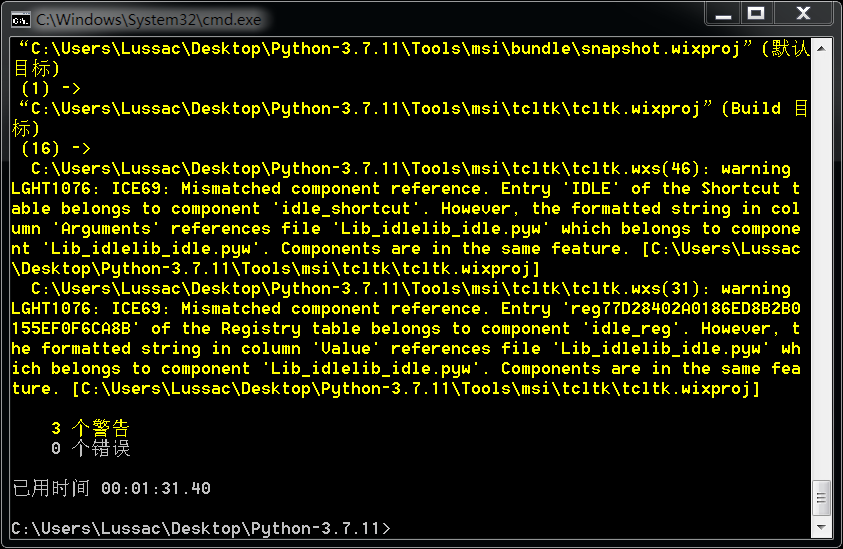
$ Tools\msi\build.bat -x86</code></pre><p>脚本会首先下载二进制依赖到 <code>externals/windows-installer</code> 下，包含 <code>binutils</code> , <code>gpg</code> , <code>htmlhelp</code> , <code>nuget</code> , <code>redist-1</code> , <code>wix</code> 等。</p><p>编译需要一段时间，若能正常编译，则完成后的输出位于 <code>PCbuild/win32/en-us</code> 下。其中包含一系列的 <code>.msi</code> 文件及其对应的 <code>.wixpdb</code> 文件，和最重要的安装程序入口文件 <code>python-3.7.11.7488.exe</code> ，双击打开即可执行 Python 安装流程。</p><p><img src="https://blog.lussac.net/usr/uploads/2021/07/3322555939.png" alt="python-installer-msi" title="python-installer-msi"></p><p>尽管 <code>Tools/msi/build.bat</code> 中提到可以使用 <code>--pack</code> 参数来将 msi 文件打包进 exe 安装程序 <sup><a href="https://github.com/python/cpython/blob/v3.7.11/Tools/msi/README.txt#L100-L101">[6]</a></sup> <sup><a href="https://github.com/python/cpython/blob/v3.7.11/Tools/msi/build.bat#L78">[7]</a></sup> ：</p><pre><code class="lang-batch"># 尝试构建独立的 installer
$ Tools\msi\build.bat -x86 --pack</code></pre><p>但经过我的实际测试发现并不能。可能是由于编译过程中出现了 "3~4 个警告" ？</p><p><img src="https://blog.lussac.net/usr/uploads/2021/07/3583931029.png" alt="python-installer-msi-warnings" title="python-installer-msi-warnings"></p><h3>编译文档</h3><p>在编译发行版前不妨先编译好 <code>python3711.chm</code> 文档，否则你可能在下一步中遇到错误而无法打包。</p><blockquote><p>Specify <code>--doc</code> to build the documentation (<code>.chm</code>) file. If the file is not available, it will simply be excluded from the installer. Ensure <code>%PYTHON%</code> and <code>%SPHINXBUILD%</code> are set when passing this option. You may also set <code>%HTMLHELP%</code> to the Html Help Compiler (<code>hhc.exe</code>), or put HHC on your PATH or in <code>externals/</code>.</p></blockquote><p>而查看 <code>Tools/msi/build.bat</code> 发现编译文档所使用的命令为 <sup><a href="https://github.com/python/cpython/blob/v3.7.11/Tools/msi/build.bat#L42">[8]</a></sup> ：</p><pre><code class="lang-batch">Doc\make.bat htmlhelp
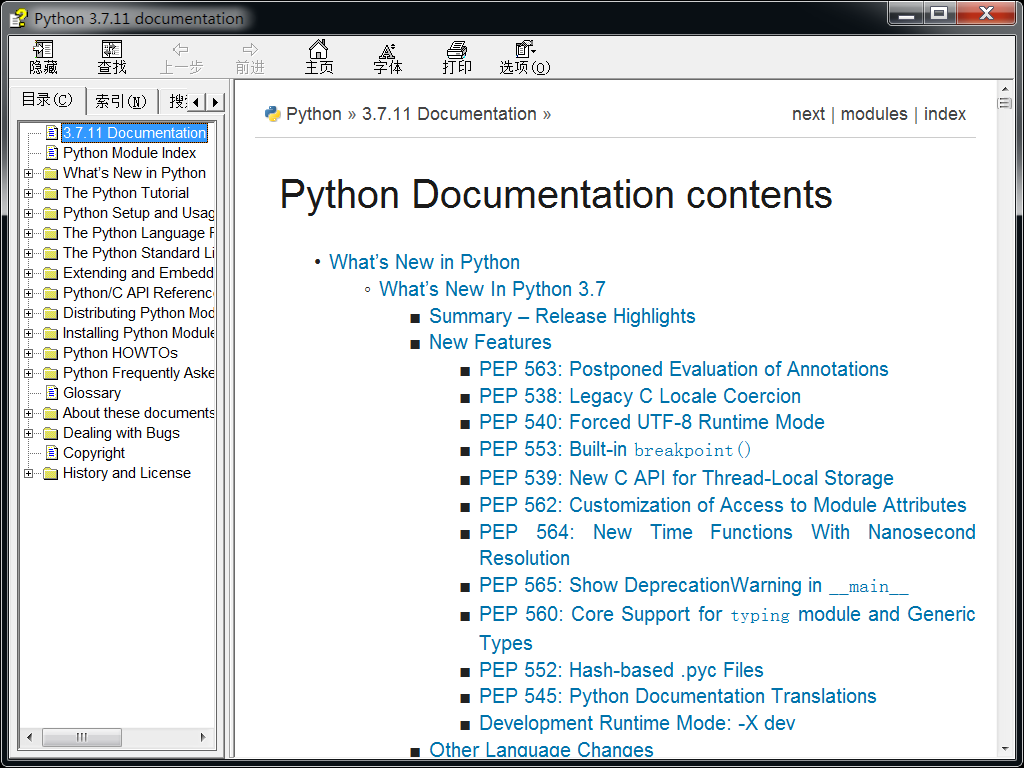
</code></pre><p>因此需要先安装 <code>sphinx-build</code> ，根据我的尝试，可用的版本为 <code>sphinx 1.8</code> <sup><a href="https://github.com/sphinx-doc/sphinx/issues/8353">[9]</a></sup> <sup><a href="https://github.com/sphinx-doc/sphinx/pull/5415">[10]</a></sup> ：</p><pre><code class="lang-batch">pip install &quot;sphinx==1.8&quot;</code></pre><p>这里提供一个批处理脚本，可以在此后的步骤中使用到，建议保存为 <code>env.bat</code> 。其中的内容需要你根据情况自行修改。</p><pre><code class="lang-batch">@echo off

:: 指向之前 Python 3.7.9 安装目录中的 `python.exe`
set PYTHON=C:\Python\Python37\python.exe

:: 指向 `sphinx-build.exe` 的位置，可以通过 `where sphinx` 获得
set SPHINXBUILD=C:\Python\Python37\Scripts\sphinx-build.exe
:: 若文件路径含有空格等特殊字符，则使用引号包括
:: set SPHINXBUILD=&quot;C:\Program Files\Python37\Scripts\sphinx-build.exe&quot;

:: 指向 Python 3.7.11 源代码解压目录中的 `hhc.exe`
set HTMLHELP=C:\Users\Lussac\Desktop\Python-3.7.11\externals\windows-installer\htmlhelp\hhc.exe

:: 将 &quot;Python 3.7.9 安装目录中的 Scripts 目录&quot; 和 &quot;hhc.exe 所在目录&quot; 加入 %PATH%
set &quot;PATH=C:\Python\Python37\Scripts\;C:\Users\Lussac\Desktop\Python-3.7.11\externals\windows-installer\htmlhelp\;%PATH%&quot;</code></pre><p>重新打开一个 CMD 窗口，执行以下命令以构建 <code>chm</code> 文档：</p><pre><code class="lang-batch"># 将 env.bat 拖动到 CMD 窗口中即可自动填充路径
$ C:\Users\Lussac\Desktop\env.bat

$ cd Doc
$ mkdir build\htmlhelp
$ make.bat htmlhelp</code></pre><p>编译需要一段时间，若能正常编译，则完成后的输出为 <code>Doc/build/htmlhelp/python3711.chm</code> 。双击打开即可阅读 <code>Python 3.7.11</code> 文档。</p><p><img src="https://blog.lussac.net/usr/uploads/2021/07/3858339731.png" alt="python-doc" title="python-doc"></p><h3>编译发行版</h3><p>构建 Python 安装包的发行版需要使用 <a href="https://github.com/python/cpython/blob/v3.7.11/Tools/msi/buildrelease.bat"><code>Tools/msi/buildrelease.bat</code></a> 而不是 <code>Tools/msi/build.bat</code> 。</p><blockquote><p>For an official release, the installer should be built with the <code>Tools/msi/buildrelease.bat</code> script and environment variables:</p><pre><code>set PYTHON=&lt;path to Python 2.7 or 3.4&gt;
set SPHINXBUILD=&lt;path to sphinx-build.exe&gt;
set PATH=&lt;path to Mercurial (hg.exe)&gt;;
         &lt;path to HTML Help Compiler (hhc.exe);%PATH%

buildrelease.bat [-x86] [-x64] [-D] [-B]
    [-o &lt;output directory&gt;] [-c &lt;certificate name&gt;]</code></pre></blockquote><p>因此需要先安装 <code>Mercurial</code> ，根据我的尝试，对版本应该没有特殊要求，这里选择最新版 <code>5.8</code> 。</p><pre><code class="lang-batch">$ pip install -U mercurial
# 或
$ pip install &quot;mercurial==5.8&quot;</code></pre><p>根据 <code>Tools/msi/buildrelease.bat</code> 的 <a href="https://github.com/python/cpython/blob/v3.7.11/Tools/msi/buildrelease.bat#L207">帮助说明</a> ，并结合 <a href="https://github.com/python/cpython/blob/v3.7.11/Tools/msi/README.txt"><code>Tools/msi/README.txt</code></a> ，构建 32 位 Python 安装包 所使用的命令为：</p><pre><code class="lang-batch">$ C:\Users\Lussac\Desktop\env.bat

$ cd Tools\msi

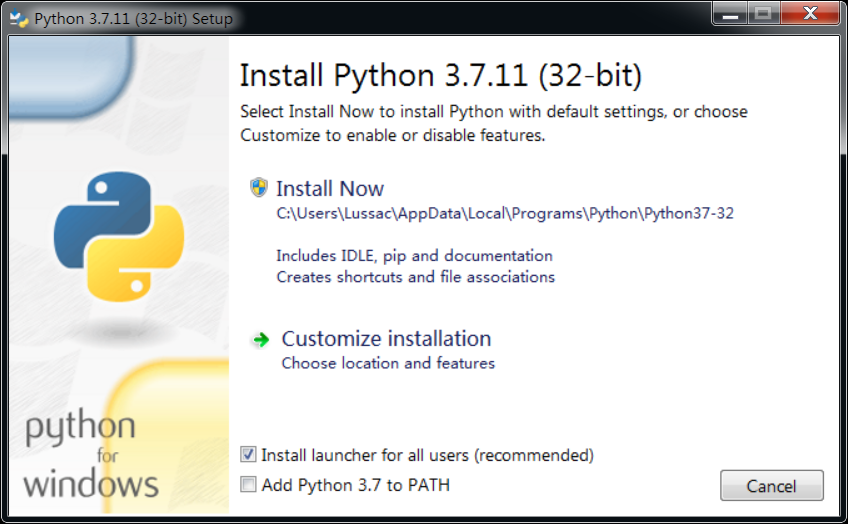
$ buildrelease.bat -x86 --skip-nuget -o C:\Users\Lussac\Desktop\outputs
# 或
$ buildrelease.bat -x86 -D -B --skip-nuget -o C:\Users\Lussac\Desktop\outputs</code></pre><p>其中各个参数的意义为：</p><ul><li><code>-x86</code> : 构建 win32 版本的安装包。替换为 <code>-x64</code> 可构建 amd64 版本的安装包；省略此参数则构建两个版本的安装包。</li><li><code>-D</code> : 跳过文档的重新构建。因为上一步已经构建完成了。但若文档不存在会导致构建失败。</li><li><code>-B</code> : 跳过 CPython 的重新构建。当你不是第一次执行 <code>buildrelease.bat</code> 时可以添加此参数。</li><li><code>-o</code> : 指定输出目录。便于找到编译产物。</li><li><code>--skip-nuget</code> : 跳过 Nuget 包的构建。因为这一步经常卡住，且其对最后生成的 Python 安装包没有影响。</li></ul><p>编译需要一段时间，若能正常编译，则完成后的输出位于 <code>PCbuild/{win32|amd64}/en-us</code> 和 由 <code>-o</code> 参数指定的目录下。其中包含 <code>python-3.7.11.exe</code> , <code>python-3.7.11-embed-win32.zip</code> , <code>python-3.7.11-webinstall.exe</code> 等。双击打开 <code>python-3.7.11.exe</code> 即可正常执行 <code>Python 3.7.11</code> 的安装流程。</p><p><img src="https://blog.lussac.net/usr/uploads/2021/07/2852803075.png" alt="python-installer-exe" title="python-installer-exe"></p><blockquote><p>若想使自己编译的 <code>python-3.x.x-webinstall.exe</code> 能够正常使用，则需要指定 <code>--download</code> 参数并自行使用服务器提供其他 <code>.msi</code> 文件下载。总之不建议使用。</p></blockquote><h3>启用 PGO 优化</h3><blockquote><p>简洁起见，下文将刻意省略 <code>-o</code> 参数，记得自行指定。</p></blockquote><p>构建 64 位 Python 安装包 所使用的命令为：</p><pre><code class="lang-batch">buildrelease.bat -x64 --skip-pgo --skip-nuget</code></pre><p>其中 <code>--skip-pgo</code> 参数为 "构建 64 位安装包时不使用 PGO" 。</p><p>若需启用 PGO 优化，经过测试，须先将 <code>pgort140.dll</code> 复制到 <code>C:\Windows\System32</code> 目录下。</p><blockquote><p><code>pgort140.dll</code> 可以在 VS2017 的安装目录下找到。</p><p>以本文采用的默认安装路径为例，其位于 <code>C:\Program Files (x86)\Microsoft Visual Studio\2017\Community\VC\Tools\MSVC\14.16.27023\bin\Hostx64\x64\pgort140.dll</code> ，其中 <code>Community</code> , <code>14.16.27023</code> , <code>Hostx64</code> 等取决于你所安装的 Visual Studio 版本。其大小约为 55 KB 。</p></blockquote><p>对应的命令为：</p><pre><code class="lang-batch">buildrelease.bat -x64 --pgo -V --skip-nuget</code></pre><p>注意上述命令中的 <code>-V</code> 不是传递给 <code>buildrelease.bat</code> 的参数，而是为 <code>--pgo</code> 参数设置的值，可以看作 <code>--pgo=&quot;-V&quot;</code> 。  <br>其中 <code>--pgo</code> 参数为 "The job to use for PGO training" ，其值将传递给 <code>PCbuild/build.bat</code> 的 <code>--pgo-job</code> 参数 <sup><a href="https://github.com/python/cpython/blob/v3.7.11/Tools/msi/buildrelease.bat#L219">[11]</a></sup> <sup><a href="https://github.com/python/cpython/blob/v3.7.11/PCbuild/build.bat#L50-L51">[12]</a></sup> 。其默认值为 <code>-m test --pgo</code> ，相当于 CPython-x64 编译完成后执行 <code>python -m test --pgo</code> 的测试任务。  <br>这会导致构建时间极大地延长，或卡在某一 test 阶段。因此不妨将其值设置为 <code>-V</code>，即简单地打印版本号信息 ( <code>python -V</code> ) 后即可继续编译 <code>msi</code> 文件。  </p><p>若你不想跳过上述的测试阶段，则可以不使用 <code>--pgo</code> 参数以保持默认值：</p><pre><code class="lang-batch">buildrelease.bat -x64 --skip-nuget</code></pre><p><strong>至此，编译完成。</strong></p><hr><h2>其他</h2><h3>无法打开输入文件 "libffi-7.lib"</h3><p><a href="https://github.com/python/cpython-bin-deps/tree/libffi">cpython-bin-deps</a> 于 2021-08-27 发布了 <code>libffi-3.4.2</code> ，其中 <code>libffi-X.dll</code> 的文件名由 <code>libffi-7.lib</code> 改为了 <code>libffi-8.lib</code> 。而 <code>PCbuild/get_external.bat</code> 中的 libffi <a href="https://github.com/python/cpython/blob/v3.8.12/PCbuild/get_externals.bat#L79">并未指定版本号</a>，即始终下载最新版。于是自 2021-08-27 开始，编译 Cpython <code>3.7.12</code> / <code>3.8.12</code> 等版本时将出现以下错误：</p><pre><code class="lang-shell">  winsound.vcxproj -&gt; C:\Users\Lussac\Desktop\Python-3.8.12\Tools\msi\..\..\PCbuild\\win32\winsound.pyd
  _ctypes.c
  callbacks.c
  callproc.c
  cfield.c
  malloc_closure.c
  stgdict.c
LINK : fatal error LNK1181: 无法打开输入文件“libffi-7.lib” [C:\Users\Lussac\Desktop\Python-3.8.12\PCbuild\_ctypes.vcxproj]

生成失败。</code></pre><p>解决方法：</p><pre><code class="lang-batch">:: 修改 `PCbuild\get_external.bat` ，为 libffi 指定版本号
if NOT &quot;%IncludeLibffi%&quot;==&quot;false&quot;  set binaries=%binaries% libffi-3.3.0

:: 删除 `externals\libffi\` 文件夹并重新下载
$ PCbuild\get_externals.bat

:: 还原 `PCbuild\get_external.bat` ，或丢弃所有修改
$ git checkout .

:: 重命名 `externals\libffi-3.3.0\` 文件夹为 `externals\libffi\`
$ ren externals\libffi-3.3.0 libffi

:: 尝试重新编译 Cpython
$ PCbuild\build.bat</code></pre><p>或者你可以选择更新 VS 项目的构建配置文件，以指定 libffi 版本为 8 。但我暂未尝试，如果你感兴趣，可以参照以下提交来修改：</p><ul><li><a href="https://github.com/python/cpython/pull/28203">Update libffi dll name to libffi-8 · PR#28203 · python/cpython</a></li><li><a href="https://github.com/python/cpython/pull/28146">bpo-45022: Update libffi to 3.4.2 in Windows build · PR#28146 · python/cpython</a></li><li><a href="https://bugs.python.org/issue45022">issue 45022: Update libffi to 3.4.2 - Python tracker</a></li></ul><h3>在 Windows 10 上编译</h3><p>在 Windows 10 上可以正常地编译 CPython 。但在编译 MSI 安装包前，需要通过 "<code>控制面板 -&gt; 程序 -&gt; 启用或关闭 Windows 功能</code>" 来启用 <code>.NET Framework 3.5</code> ，以使 <code>Wix</code> 能正常运行 <sup><a href="https://github.com/python/cpython/blob/v3.7.11/Tools/msi/README.txt#L69-L75">[13]</a></sup> 。</p><p>基于相同原因，你可以在 Windows 10 Sandbox 中编译 CPython ，但无法编译 MSI 安装包。因为你无法在 Windows Sandbox 中通过控制面板来启用 <code>.NET Framework 3.5</code> 。<em>（至少我暂未找到方法）</em> <sup><a href="https://stackoverflow.com/questions/62893811/how-do-you-install-net-2-0-in-windows-sandbox-on-windows-10">[14]</a></sup></p><h3>通过 Build Tools for Visual Studio 编译</h3><p>你甚至可以抛弃 Visual Studio IDE ，使用 Build Tools for Visual Studio 2017 进行编译。</p><p>下载 <a href="https://download.visualstudio.microsoft.com/download/pr/67f7bfaa-2635-43d9-ba82-26564f458881/bb057808eeff7d02561cab636b32397e298c3e770ed278602c46d119fa2e4ee8/vs_BuildTools.exe"><code>vs_BuildTools.exe</code></a> 并运行。选择 工作负载 中的 "<strong>Visual C++ 生成工具</strong>" ，并保持其默认的三个可选子项。安装后即可正常地编译 CPython 。</p><p><img src="https://blog.lussac.net/usr/uploads/2021/07/444437293.png" alt="buildtools-install" title="buildtools-install"></p><p>若需编译 MSI 安装包，则还须额外勾选子项 "<strong>适用于桌面的 VC++ 2015.3 v14.00 (v140) 工具集</strong>"。</p><p>否则你将遇到错误：<code>error MSB8020: 无法找到 v140 的生成工具(平台工具集 =“v140”)</code></p><p><img src="https://blog.lussac.net/usr/uploads/2021/07/2369054995.png" alt="buildtools-msi-errors" title="buildtools-msi-errors"></p><hr><h2>下载</h2><p>这里提供按以上方法自行编译的 Python 安装包的 <a href="https://lussac.lanzoui.com/b00oo85he">下载</a> (访问密码为 <code>lussac</code> ) 。<strong>请勿在生产环境中使用。</strong></p><ul><li><p>编译环境：</p><ul><li><strong>Visual Studio Professional 2017</strong> (version 15.9.36) (<em>MSVC 14.16</em>)</li><li>Windows 7, Service Pack 1, 7601, 64-bit (虚拟机)</li></ul></li><li><p>编译时<strong>实际使用的命令</strong>为：</p><pre><code class="lang-batch"># 使用 git 获取源码（以在 Python REPL 中正确地显示 tag 和 commit-hash）
$ git clone -b v3.7.11 --depth 1 https://github.com/python/cpython.git Python-3.7.11

# 编译时跳过 PGO 测试和 Nuget 包的构建。
$ Tools\msi\buildrelease.bat --pgo -V --skip-nuget -o C:\Users\Lussac\Desktop\outputs &gt; C:\Users\Lussac\Desktop\build.log 2&gt;&amp;1</code></pre></li></ul><p>在宿主机的 Windows 沙盒中重新安装 <code>python-3.7.11-amd64.exe</code> 并执行测试：</p><pre><code class="lang-batch">$ python -m test
...
== Tests result: FAILURE ==

367 tests OK.

6 tests failed:
    test__locale test_distutils test_locale test_os test_webbrowser
    test_winconsoleio

43 tests skipped:
    test_asdl_parser test_clinic test_crypt test_curses test_dbm_gnu
    test_dbm_ndbm test_devpoll test_epoll test_fcntl test_fork1
    test_gdb test_grp test_ioctl test_kqueue test_multiprocessing_fork
    test_multiprocessing_forkserver test_nis test_openpty
    test_ossaudiodev test_pipes test_poll test_posix test_pty test_pwd
    test_readline test_resource test_smtpnet test_socketserver
    test_spwd test_syslog test_threadsignals test_timeout test_tix
    test_tk test_ttk_guionly test_urllib2net test_urllibnet test_wait3
    test_wait4 test_winsound test_xmlrpc_net test_xxtestfuzz
    test_zipfile64

Total duration: 25 min 28 sec
Tests result: FAILURE</code></pre><p>再对比沙盒中 自编译版 <code>Python 3.7.11</code> 和宿主机中 官方版 <code>Python 3.7.9</code> 的测试结果：</p><pre><code class="lang-batch">python -m test --pgo -q &gt;log.txt 2&gt;&amp;1</code></pre><ul><li><p>两者都未通过的：</p><ul><li>test_locale</li><li>test_ssl</li><li>test_winconsoleio</li></ul></li><li><p>自编译版通过而官方版未通过的；</p><ul><li>test_strptime</li><li>test_time</li><li>test_uuid</li></ul></li><li><p>官方版通过而自编译版未通过的：</p><ul><li>test_distutils <sup><a href="https://blog.csdn.net/secretx/article/details/17472107">[15]</a></sup></li></ul></li></ul><h2>参考资料</h2><ol><li><a href="https://docs.python.org/3.7/">Python 3.7.11 documentation</a></li><li><a href="https://pythondev.readthedocs.io/windows.html">Compile CPython on Windows — Python Development 1.0 documentation</a></li><li><a href="https://cpython-core-tutorial.readthedocs.io/en/latest/build_cpython_windows.html">Build CPython on Windows — Tutorial to contribute to the CPython project</a></li><li><a href="https://devguide.python.org/setup/#compile-and-build">Getting Started - Python Developer's Guide</a></li><li><a href="https://github.com/python/cpython">GitHub - python/cpython</a></li><li><a href="https://blog.csdn.net/jiedichina/article/details/83784997">Python3.7源码在windows（VS2015）下的编译和安装 - CSDN</a></li><li><a href="https://stackoverflow.com/questions/41405728/">What does <code>--enable-optimizations</code> do while compiling python? - Stack Overflow</a></li><li><p>Visual Studio 的离线安装 :</p><ul><li><a href="https://docs.microsoft.com/zh-cn/visualstudio/install/create-an-offline-installation-of-visual-studio?view=vs-2017">创建脱机安装 - Visual Studio (Windows) | Microsoft Docs</a></li><li><a href="https://docs.microsoft.com/zh-cn/visualstudio/install/use-command-line-parameters-to-install-visual-studio?view=vs-2017">使用命令行参数安装 Visual Studio | Microsoft Docs</a></li><li><a href="https://docs.microsoft.com/en-us/visualstudio/install/workload-component-id-vs-community?view=vs-2017&preserve-view=true">Visual Studio Community workload and component IDs | Microsoft Docs</a></li></ul></li><li><a href="https://developercommunity.visualstudio.com/t/pgoport140dll-not-found/313392"><code>pgort140.dll</code> not found - Visual Studio Feedback</a></li><li><p>cannot open file 'python37.lib' :</p><ul><li><a href="https://github.com/microsoft/vcpkg/issues/5097">boost_python debug links to python3 release · Issue #5097 · microsoft/vcpkg · GitHub</a></li><li><a href="https://stackoverflow.com/questions/59126760/">Building a Python-C-Extension on Windows with a debug Python installation - Stack Overflow</a></li><li><a href="https://blog.csdn.net/weixin_43788499/article/details/84933210">LNK1104 无法打开文件 'python37_d.lib' 解决办法 - CSDN</a></li></ul></li><li><a href="https://blog.csdn.net/secretx/article/details/17472107">彻底解决 error: Unable to find vcvarsall.bat - CSDN</a></li><li><a href="https://stackoverflow.com/questions/42280553/">How to build embeddable Python - Stack Overflow</a></li></ol>]]></content><categories><category>Python</category><category>Programming</category></categories><tags><tag>Python</tag><tag>Visual Studio</tag><tag>Windows</tag></tags></entry><entry><title><![CDATA[在Windows上构建嵌入式git以用于clone和pull]]></title><url>https://blog.lussac.net/archives/383/</url><content type="html"><![CDATA[<h1>在 Windows 上构建嵌入式 git 以用于 clone 和 pull</h1><p>在编写应用程序时，我们可能需要或倾向于使用 git 来克隆 GitHub 上的仓库，但又不希望要求用户必须提前安装完整的 Git 。如何构建一个嵌入式、绿色便携的 git 以供 <code>git clone</code> 和 <code>git pull</code> ？</p><p>[Meting]<br>[Music server="netease" id="760058" type="song"/]<br>[/Meting]</p><h2>获取 <a href="https://github.com/LussacZheng/git-embed">git-embed</a></h2><p><a href="https://github.com/LussacZheng/git-embed"><img src="https://img.shields.io/github/stars/LussacZheng/git-embed?style=social" alt="GitHub Stars" title="GitHub Stars"></a></p><p><img src="https://img.shields.io/badge/platform-Windows-brightgreen?logo=windows" alt="platform" title="platform">  <img src="https://img.shields.io/github/v/release/LussacZheng/git-embed?include_prereleases&label=build" alt="GitHub release" title="GitHub release">  <a href="https://github.com/git-for-windows/git"><img src="https://img.shields.io/github/v/release/git-for-windows/git?label=git&color=f14e32&logo=git" alt="Latest version of Git" title="Latest version of Git"></a>  <a href="https://github.com/LussacZheng/git-embed/releases"><img src="https://img.shields.io/github/downloads/LussacZheng/git-embed/total?color=green&logo=github" alt="GitHub All Releases" title="GitHub All Releases"></a></p><p>从 <a href="https://github.com/LussacZheng/git-embed/releases">GitHub Releases 页面</a> 下载最新发布的的 "git-embed" 。国内用户可以从 <a href="https://lussac.lanzous.com/b00no862j">这里</a> 下载。</p><hr><h2>尝试</h2><ul><li>一种方式是使用 <a href="https://libgit2.org/">libgit2</a> ，其支持任何能够调用 C语言库 的<a href="https://github.com/libgit2/libgit2#language-bindings">编程语言</a>。</li><li>另一种方法是从 <a href="https://github.com/git-for-windows/git/releases">git-for-windows</a> 中提取出能完成 <code>git clone</code> 和 <code>git pull</code> 的最小程序集。</li></ul><p>本文将尝试第二种方式。出于兼容性考虑，选择从 32 位的 Git 中提取构建，即 <code>Git-2.26.2-32-bit.exe</code> 、 <code>MinGit-2.26.2-32-bit.zip</code> 或 <code>PortableGit-2.26.2-32-bit.7z.exe</code> 。下文以 <code>PortableGit-2.26.2-32-bit.7z.exe</code> 为例。（其实 <code>MinGit-2.xx.x-xx-bit.zip</code> 更为合适）</p><h3>git.exe</h3><p>通过在已完整安装 Git 的 Windows 上运行 <code>git --exec-path</code> 可以知道 <code>git.exe</code> 位于 Git 安装目录下的 <code>mingw64/libexec/git-core/</code> 文件夹下。故可以（用 7-zip, WinRAR 等 ）打开 <code>PortableGit-2.26.2-32-bit.7z.exe</code> 并解压之。准备一个未安装 Git 的 Windows7 虚拟机，复制 <code>mingw32/libexec/git-core/git.exe</code> 到虚拟机任意文件夹内。</p><h3>DLL 依赖</h3><p>可以预见只有一个 <code>git.exe</code> 必然无法完成 <code>git clone</code> 和 <code>git pull</code> ，我们需要找到还有哪些必要的 <code>dll</code> 库文件。  <br>在当前目录打开 CMD 尝试执行 <code>git</code> 命令：</p><pre><code class="lang-shell">$ git

无法启动此程序，因为计算机中丢失 libiconv-2.dll。尝试重新安装该程序以解决此问题。</code></pre><p>据此不断把 <code>mingw32/libexec/git-core/</code> 中相应的 <code>.dll</code> 文件复制到虚拟机内，与 <code>git.exe</code> 同一级目录即可。对于 <code>v2.26.2</code> ，可知必须的 <code>dll</code> 库文件有：</p><ul><li>libiconv-2.dll</li><li>libgcc_s_dw2-1.dll</li><li>libwinpthread-1.dll</li><li>libintl-8.dll</li><li>libpcre2-8-0.dll</li><li>zlib1.dll</li><li>libssp-0.dll</li></ul><p>现在 git 能正确显示帮助信息了：</p><pre><code class="lang-shell">$ git
usage: git [--version] [--help] [-C &lt;path&gt;] [-c &lt;name&gt;=&lt;value&gt;]
           [--exec-path[=&lt;path&gt;]] [--html-path] [--man-path] [--info-path]
           [-p | --paginate | -P | --no-pager] [--no-replace-objects] [--bare]
           [--git-dir=&lt;path&gt;] [--work-tree=&lt;path&gt;] [--namespace=&lt;name&gt;]
           &lt;command&gt; [&lt;args&gt;]

These are common Git commands used in various situations:

...</code></pre><p>目前整体文件大小约为 5.15 MB ，经 zip 压缩后约为 2.58 MB 。</p><h3>git clone</h3><p>现在来测试 <code>git clone</code> 能否成功执行：</p><pre><code class="lang-shell">$ git clone https://github.com/LussacZheng/video-downloader-deploy.git
Cloning into 'video-downloader-deploy'...
warning: templates not found in /mingw32/share/git-core/templates
fatal: unable to find remote helper for 'https'</code></pre><p><code>templates</code> 的警告暂且不管。实际上只需要复制 <code>mingw32/share/git-core/templates/</code> 文件夹到 <code>git.exe</code> 所在目录，并指定 <code>--template</code> 参数即可：</p><pre><code class="lang-shell">$ git clone https://github.com/LussacZheng/video-downloader-deploy.git --template ./templates
Cloning into 'video-downloader-deploy'...
fatal: unable to find remote helper for 'https'</code></pre><p>所以下文我会省略 <code>--template</code> 参数并刻意删去 <code>warning: templates not found...</code> 的警告信息。</p><p>而这个关于 <code>https</code> 的报错，我搜索到两种解决方案，先看最简单的方案。</p><h4>https错误 解决方案1</h4><p>将仓库地址中的 <code>https://</code> 替换为 <code>git://</code> ，即：</p><pre><code class="lang-shell">$ git clone git://github.com/LussacZheng/video-downloader-deploy.git
Cloning into 'video-downloader-deploy'...
error: cannot spawn git: No such file or directory
fatal: fetch-pack: unable to fork off index-pack
fatal: read error: Bad file descriptor</code></pre><p>在 StackOverflow 上找到了<a href="https://stackoverflow.com/questions/12042363/cygwin-git-fork-error-on-pull">类似的问题</a>。经尝试，只需要将 <code>git.exe</code> 所在目录加入环境变量 <code>PATH</code> 即可。</p><p>对于 CMD 窗口，可以使用 <code>set</code> 命令：（ <code>.\</code> 是当前目录，实际嵌入后需要根据情况修改，如 <code>set &quot;PATH=%PATH%;D:\my\path\to\git\dir&quot;</code> ）</p><pre><code class="lang-cmd">&gt; set &quot;PATH=%PATH%;.\&quot;
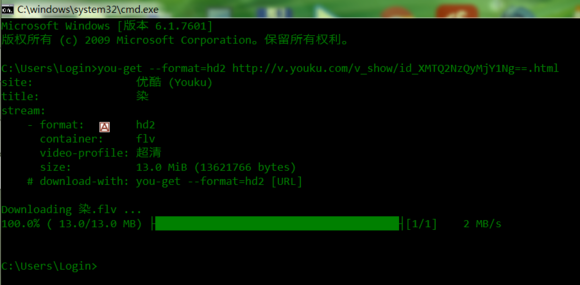
&gt; git clone git://github.com/LussacZheng/video-downloader-deploy.git
Cloning into 'video-downloader-deploy'...
remote: Enumerating objects: 70, done.
remote: Counting objects: 100% (70/70), done.
remote: Compressing objects: 100% (48/48), done.
remote: Total 70 (delta 33), reused 53 (delta 21), pack-reused 0Receiving objects:  34% (24/70), 1

Receiving objects: 100% (70/70), 15.56 KiB | 14.00 KiB/s, done.
Resolving deltas: 100% (33/33), done.</code></pre><p>可以看到已经能够成功 <code>clone</code> 了。</p><h4>https错误 解决方案2</h4><p><code>git clone https://...</code> 命令执行时实际上会调用 <code>git-remote-https.exe</code> 。另外 <code>git-remote-http.exe</code> 等同理。  <br>既然如此，便将 <code>git-remote-https.exe</code> 复制到文件夹内。</p><pre><code class="lang-shell">$ git-remote-https

无法启动此程序，因为计算机中丢失 libcurl-4.dll。尝试重新安装该程序以解决此问题。</code></pre><p>相似地，可以试出其还依赖于以下 <code>dll</code> 文件：</p><ul><li>libcurl-4.dll</li><li>libcrypto-1_1.dll</li><li>libidn2-0.dll</li><li>libunistring-2.dll</li><li>libnghttp2-14.dll</li><li>libssh2-1.dll</li><li>libssl-1_1.dll</li></ul><p>只不过这样一来，会导致整体文件大小增加约 8.16 MB 。</p><pre><code class="lang-cmd">REM set &quot;PATH=%PATH%;.\&quot;

&gt; git clone https://github.com/LussacZheng/video-downloader-deploy.git
Cloning into 'video-downloader-deploy'...
fatal: unable to access 'https://github.com/LussacZheng/video-downloader-deploy.git/': error setting certificate verify locations:
  CAfile: C:/Users/admin/Desktop/git/ssl/certs/ca-bundle.crt
  CApath: none</code></pre><p>对于 SSL 证书问题，可以：</p><ol><li><p>复制 <code>mingw32/ssl/certs/ca-bundle.crt</code> 文件并指定 <code>-c http.sslcainfo=path/to/crt</code> ：</p><pre><code class="lang-shell">$ git clone https://github.com/LussacZheng/video-downloader-deploy.git -c http.sslcainfo=ca-bundle.crt
Cloning into 'video-downloader-deploy'...
remote: Enumerating objects: 70, done.
remote: Counting objects: 100% (70/70), done.
remote: Compressing objects: 100% (48/48), done.
remote: Total 70 (delta 33), reused 53 (delta 21),    pack-reused 0R
Receiving objects: 100% (70/70), 15.56 KiB | 3.89 MiB/s,    done.
Resolving deltas: 100% (33/33), done.</code></pre><pre><code>`ca-bundle.crt` 会导致整体文件大小增加约 195 KB 。
</code></pre></li><li><p>或者还可以通过 <code>-c http.sslverify=false</code> 来取消 SSL 认证：</p><pre><code class="lang-shell">$ git clone https://github.com/LussacZheng/video-downloader-deploy.git -c http.sslverify=false</code></pre></li></ol><h3>git pull</h3><p>现在来测试 <code>git pull</code> 能否成功执行。  </p><p>可以创建一个测试项目，先在虚拟机内 <code>clone</code> 再在宿主机上 <code>commit, push</code> 一次。之后即可测试 <code>git pull</code> 。</p><pre><code class="lang-shell">$ git pull
remote: Enumerating objects: 6, done.
remote: Counting objects: 100% (6/6), done.
remote: Compressing objects: 100% (4/4), done.
remote: Total 4 (delta 0), reused 4 (delta 0), pack-reused 0
Unpacking objects: 100% (4/4), 1.06 KiB | 20.00 KiB/s, done.
From https://github.com/LussacZheng/test
   b65c4e3..2141f21  pull-test  -&gt; origin/pull-test
Updating b65c4e3..2141f21
Fast-forward
 another.txt     | 5 +++++
 new.txt         | 2 ++
 test.bat        | 6 ------
 3 files changed, 7 insertions(+), 6 deletions(-)
 create mode 100644 another.txt
 delete mode 100644 test.bat

$ git pull
Already up to date.</code></pre><p>没有出现问题。</p><h2>自动化提取与构建</h2><p>我用 Node.js 简单写了一个自动化脚本，能够自动下载最新版本的 <code>MinGit-&lt;version&gt;-&lt;arch&gt;-bit.zip</code> 并从中提取构建出四种版本的 "git-embed" 。源码和发布文件都可以在 <a href="https://github.com/LussacZheng/git-embed">LussacZheng/git-embed</a> 上找到，欢迎 Star, Issue 与 PR !</p><h2>参考资料</h2><h3>Part 1 - 嵌入式 Git</h3><ol><li><a href="https://git-scm.com/book/en/v2/Appendix-B%3A-Embedding-Git-in-your-Applications-Command-line-Git">Embedding Git in your Applications</a> / <a href="https://git-scm.com/book/zh/v2/%E9%99%84%E5%BD%95-B%3A-%E5%9C%A8%E4%BD%A0%E7%9A%84%E5%BA%94%E7%94%A8%E4%B8%AD%E5%B5%8C%E5%85%A5-Git-%E5%91%BD%E4%BB%A4%E8%A1%8C-Git-%E6%96%B9%E5%BC%8F">中文</a></li><li><a href="https://groups.google.com/forum/#!msg/msysgit/BugV7r6eFyY/HljgvGph218J">minimal required files to just use git-clone</a> - Google 网上论坛</li><li><a href="https://stackoverflow.com/questions/38611862/minimum-set-of-portable-git-binary-filesfor-windows-for-clone-and-pull-onl">Minimum set of portable Git binary files(for Windows) for <code>clone</code> and <code>pull</code> only</a> - Stack Overflow</li><li><a href="https://stackoverflow.com/search?q=portable+git">Posts containing 'portable git'</a> - Stack Overflow</li><li><a href="https://github.com/msysgit/msysgit/wiki/Why-Is--libexec--so-huge%3F">Why Is libexec so huge? · msysgit/msysgit Wiki</a></li><li>GitHub · <a href="https://github.com/git-for-windows/git">git-for-windows/git</a> , <a href="https://github.com/msysgit/msysgit">msysgit/msysgit</a></li></ol><h3>Part 2 - Git 细节问题</h3><ol><li><a href="https://stackoverflow.com/questions/47618534/fatal-unable-to-find-remote-helper-for-https">git - fatal: Unable to find remote helper for 'https'</a> - Stack Overflow</li><li><a href="https://stackoverflow.com/questions/12042363/cygwin-git-fork-error-on-pull">Cygwin git fork() error on pull</a> - Stack Overflow</li><li><a href="https://stackoverflow.com/questions/3778042/github-error-cloning-my-private-repository">git - Github: error cloning my private repository</a> - Stack Overflow</li></ol>]]></content><categories><category>Tool</category></categories><tags><tag>GitHub</tag><tag>Git</tag></tags></entry><entry><title><![CDATA[Windows Terminal v0.11 发布：重大更新，配置文件更改]]></title><url>https://blog.lussac.net/archives/347/</url><content type="html"><![CDATA[<blockquote><p>4月23日消息，微软发布 Windows Terminal v0.11 预览版，迎来一些更新。据悉，这将是 Windows Terminal 1.0 正式版发布前的最后一次主要更新。并且，从现在到正式版发布，所有后续调整均是对本次主要更新的修订。</p><p>Windows Terminal现在包括对非英语 UI 语言的支持，并且微软建议你将设置文件移出 app 文件夹，以使其生成新文件，然后再将设置复制回。</p><p>（以上内容复制自网络新闻）</p></blockquote><p>[Meting]<br>[Music server="netease" id="22688487" type="song"/]<br>[/Meting]</p><hr><h2>参考资料</h2><ul><li>Issue: <a href="https://github.com/microsoft/terminal/issues/5458">MEGATHREAD: Breaking settings changes in version 0.11!</a></li><li><a href="https://github.com/microsoft/terminal/blob/master/doc/cascadia/SettingsSchema.md">Settings.json Documentation</a></li></ul><h2>配置文件 <code>settings.json</code></h2><p>现在配置文件由 <code>profiles.json</code> 重命名为 <code>settings.json</code> 。为了迁移到新的配置文件，你可以复制备份一份原配置文件，删除 <code>settings.json</code> 后重新打开 Windows Terminal 。它会在原目录下重新生成一份新的  <code>settings.json</code> 。之后再根据自己的需要，将原配置文件中的一些修改复制过来。</p><p>下面摘要一些重点：</p><h3>全局设置 <code>globals</code></h3><p><code>globals</code> 对象取消，其中所有属性移出到根对象上，即与 <code>$schema</code> , <code>profiles</code> 等属性平级。</p><p>值得注意的是， <code>defaultProfile</code> 属性现在也在根对象上。</p><pre><code class="lang-json">{
    &quot;defaultProfile&quot;: &quot;{0caa0dad-35be-5f56-a8ff-afceeeaa6101}&quot;,
    &quot;initialCols&quot;: 200,
    &quot;initialRows&quot;: 65,
    &quot;copyOnSelect&quot;: false,
    &quot;copyFormatting&quot;: false,

    // ......

    &quot;keybindings&quot;: [
        // ......
    ],
    &quot;profiles&quot;: {
        // ......
    }
}</code></pre><h3>快捷键绑定 <code>keybindings</code></h3><p>你可以根据 VSCode 的智能提示，改正一些错误的配置项。</p><p>例如 <code>newTab</code> 和 <code>switchToTab</code> 等修改了配置格式。</p><pre><code class="lang-json">&quot;keybindings&quot;:
    [
        { &quot;command&quot;: {&quot;action&quot;: &quot;copy&quot;, &quot;singleLine&quot;: false }, &quot;keys&quot;: &quot;ctrl+c&quot; },
        { &quot;command&quot;: &quot;paste&quot;, &quot;keys&quot;: &quot;ctrl+v&quot; },
        { &quot;command&quot;: &quot;find&quot;, &quot;keys&quot;: &quot;ctrl+shift+f&quot; },

        // ......

        { &quot;command&quot;: { &quot;action&quot;: &quot;newTab&quot;, &quot;index&quot;: 0 }, &quot;keys&quot;: &quot;ctrl+shift+1&quot; },
        { &quot;command&quot;: { &quot;action&quot;: &quot;newTab&quot;, &quot;index&quot;: 1 }, &quot;keys&quot;: &quot;ctrl+shift+2&quot; },
        { &quot;command&quot;: { &quot;action&quot;: &quot;newTab&quot;, &quot;index&quot;: 2 }, &quot;keys&quot;: &quot;ctrl+shift+3&quot; },
        { &quot;command&quot;: { &quot;action&quot;: &quot;newTab&quot;, &quot;index&quot;: 3 }, &quot;keys&quot;: &quot;ctrl+shift+4&quot; },
        { &quot;command&quot;: { &quot;action&quot;: &quot;newTab&quot;, &quot;index&quot;: 4 }, &quot;keys&quot;: &quot;ctrl+shift+5&quot; },
        { &quot;command&quot;: { &quot;action&quot;: &quot;newTab&quot;, &quot;index&quot;: 5 }, &quot;keys&quot;: &quot;ctrl+shift+6&quot; },
        { &quot;command&quot;: { &quot;action&quot;: &quot;newTab&quot;, &quot;index&quot;: 6 }, &quot;keys&quot;: &quot;ctrl+shift+7&quot; },
        { &quot;command&quot;: { &quot;action&quot;: &quot;newTab&quot;, &quot;index&quot;: 7 }, &quot;keys&quot;: &quot;ctrl+shift+8&quot; },
        { &quot;command&quot;: { &quot;action&quot;: &quot;newTab&quot;, &quot;index&quot;: 8 }, &quot;keys&quot;: &quot;ctrl+shift+9&quot; },

        { &quot;command&quot;: { &quot;action&quot;: &quot;switchToTab&quot;, &quot;index&quot;: 0 }, &quot;keys&quot;: &quot;ctrl+alt+1&quot; },
        { &quot;command&quot;: { &quot;action&quot;: &quot;switchToTab&quot;, &quot;index&quot;: 1 }, &quot;keys&quot;: &quot;ctrl+alt+2&quot; },
        { &quot;command&quot;: { &quot;action&quot;: &quot;switchToTab&quot;, &quot;index&quot;: 2 }, &quot;keys&quot;: &quot;ctrl+alt+3&quot; },
        { &quot;command&quot;: { &quot;action&quot;: &quot;switchToTab&quot;, &quot;index&quot;: 3 }, &quot;keys&quot;: &quot;ctrl+alt+4&quot; },
        { &quot;command&quot;: { &quot;action&quot;: &quot;switchToTab&quot;, &quot;index&quot;: 4 }, &quot;keys&quot;: &quot;ctrl+alt+5&quot; },
        { &quot;command&quot;: { &quot;action&quot;: &quot;switchToTab&quot;, &quot;index&quot;: 5 }, &quot;keys&quot;: &quot;ctrl+alt+6&quot; },
        { &quot;command&quot;: { &quot;action&quot;: &quot;switchToTab&quot;, &quot;index&quot;: 6 }, &quot;keys&quot;: &quot;ctrl+alt+7&quot; },
        { &quot;command&quot;: { &quot;action&quot;: &quot;switchToTab&quot;, &quot;index&quot;: 7 }, &quot;keys&quot;: &quot;ctrl+alt+8&quot; },
        { &quot;command&quot;: { &quot;action&quot;: &quot;switchToTab&quot;, &quot;index&quot;: 8 }, &quot;keys&quot;: &quot;ctrl+alt+9&quot; }
    ]</code></pre><p>参照：</p><ul><li><a href="https://github.com/microsoft/terminal/issues/3600#issuecomment-608654738">https://github.com/microsoft/terminal/issues/3600#issuecomment-608654738</a></li><li><a href="https://github.com/microsoft/terminal/issues/5458#issuecomment-619566967">https://github.com/microsoft/terminal/issues/5458#issuecomment-619566967</a></li><li><a href="https://github.com/microsoft/terminal/issues/5458#issuecomment-620007342">https://github.com/microsoft/terminal/issues/5458#issuecomment-620007342</a></li></ul><h2>配置分享</h2><pre><code class="lang-json">{
  &quot;$schema&quot;: &quot;https://aka.ms/terminal-profiles-schema&quot;,
  
  &quot;defaultProfile&quot;: &quot;{此处值为'profiles.list'中所需终端的guid}&quot;,
  &quot;initialCols&quot;: 100,
  &quot;initialRows&quot;: 25,
  &quot;theme&quot;: &quot;system&quot;,
  &quot;showTabsInTitlebar&quot;: true,
  &quot;showTerminalTitleInTitlebar&quot;: true,
  
  &quot;copyOnSelect&quot;: false,
  &quot;copyFormatting&quot;: false,
  
  &quot;profiles&quot;: {
    &quot;defaults&quot;: {
      // Put settings here that you want to apply to all profiles.
      &quot;colorScheme&quot;: &quot;MaterialDark&quot;,
      &quot;acrylicOpacity&quot;: 0.7,
      &quot;background&quot;: &quot;#222222&quot;,
      &quot;backgroundImage&quot;: &quot;F:\\MyPicture\\壁纸\\Wallpaper.png&quot;,
      &quot;backgroundImageOpacity&quot;: 0.5,
      &quot;backgroundImageStretchMode&quot;: &quot;fill&quot;,
      &quot;cursorColor&quot;: &quot;#FFFFFF&quot;,
      &quot;cursorShape&quot;: &quot;bar&quot;,
      &quot;fontFace&quot;: &quot;JetBrains Mono&quot;,
      &quot;fontSize&quot;: 11,
      &quot;historySize&quot;: 9001,
      &quot;padding&quot;: &quot;3, 0, 3, 0&quot;,
      &quot;snapOnInput&quot;: true,
      &quot;useAcrylic&quot;: true
    },
    &quot;list&quot;: [
      {
        // CMD
        // ...自定义...
      },
      {
        // PowerShell
        // ...自定义...
      },
      {
        // Ubuntu in WSL
        &quot;guid&quot;: &quot;{此处保持默认}&quot;,
        &quot;hidden&quot;: false,
        &quot;name&quot;: &quot;WSL - Ubuntu&quot;,
        &quot;source&quot;: &quot;Windows.Terminal.Wsl&quot;,
        // https://www.ixiqin.com/2019/08/windows-terminal-wsl-configuration/
        // https://github.com/microsoft/terminal/issues/1183
        &quot;commandline&quot;: &quot;ubuntu&quot;,
        &quot;startingDirectory&quot;: &quot;~&quot;
        // &quot;startingDirectory&quot;: &quot;//wsl$/Ubuntu/home/lussac&quot;,
      },
      {
        // Azure Cloud Shell
        // ...自定义...
      }
    ]
  },
  &quot;schemes&quot;: [
      // 更多主题配色，另见：
      // https://github.com/mbadolato/iTerm2-Color-Schemes/tree/master/windowsterminal
      {
        &quot;name&quot;: &quot;Material&quot;,
        &quot;black&quot;: &quot;#212121&quot;,
        &quot;red&quot;: &quot;#b7141f&quot;,
        &quot;green&quot;: &quot;#457b24&quot;,
        &quot;yellow&quot;: &quot;#f6981e&quot;,
        &quot;blue&quot;: &quot;#134eb2&quot;,
        &quot;purple&quot;: &quot;#560088&quot;,
        &quot;cyan&quot;: &quot;#0e717c&quot;,
        &quot;white&quot;: &quot;#efefef&quot;,
        &quot;brightBlack&quot;: &quot;#424242&quot;,
        &quot;brightRed&quot;: &quot;#e83b3f&quot;,
        &quot;brightGreen&quot;: &quot;#7aba3a&quot;,
        &quot;brightYellow&quot;: &quot;#ffea2e&quot;,
        &quot;brightBlue&quot;: &quot;#54a4f3&quot;,
        &quot;brightPurple&quot;: &quot;#aa4dbc&quot;,
        &quot;brightCyan&quot;: &quot;#26bbd1&quot;,
        &quot;brightWhite&quot;: &quot;#d9d9d9&quot;,
        &quot;background&quot;: &quot;#eaeaea&quot;,
        &quot;foreground&quot;: &quot;#232322&quot;
      },
      {
        &quot;name&quot;: &quot;MaterialDark&quot;,
        &quot;black&quot;: &quot;#212121&quot;,
        &quot;red&quot;: &quot;#b7141f&quot;,
        &quot;green&quot;: &quot;#457b24&quot;,
        &quot;yellow&quot;: &quot;#f6981e&quot;,
        &quot;blue&quot;: &quot;#134eb2&quot;,
        &quot;purple&quot;: &quot;#560088&quot;,
        &quot;cyan&quot;: &quot;#0e717c&quot;,
        &quot;white&quot;: &quot;#efefef&quot;,
        &quot;brightBlack&quot;: &quot;#424242&quot;,
        &quot;brightRed&quot;: &quot;#e83b3f&quot;,
        &quot;brightGreen&quot;: &quot;#7aba3a&quot;,
        &quot;brightYellow&quot;: &quot;#ffea2e&quot;,
        &quot;brightBlue&quot;: &quot;#54a4f3&quot;,
        &quot;brightPurple&quot;: &quot;#aa4dbc&quot;,
        &quot;brightCyan&quot;: &quot;#26bbd1&quot;,
        &quot;brightWhite&quot;: &quot;#d9d9d9&quot;,
        &quot;background&quot;: &quot;#232322&quot;,
        &quot;foreground&quot;: &quot;#e5e5e5&quot;
      }
  ],
  &quot;keybindings&quot;: [
    // ...自定义...
  ]
}</code></pre><hr><p><em>本文尚未编辑完成 ...</em></p>]]></content><categories><category>Tool</category></categories><tags/></entry><entry><title><![CDATA[使用tunasync搭建GitHub Releases镜像站]]></title><url>https://blog.lussac.net/archives/342/</url><content type="html"><![CDATA[<p>本文将叙述如何使用 <a href="https://github.com/tuna/tunasync">tunasync</a> 搭建一个 GitHub Releases 镜像站并提供 HTTP 下载服务。（只同步若干个指定仓库的 Released Assets ）</p><p>[Meting]<br>[Music server="netease" id="528423473" type="song"/]<br>[/Meting]</p><hr><h2>前言</h2><p><a href="https://github.com/LussacZheng/video-downloader-deploy">video-downloader-deploy</a> 执行配置 <a href="https://github.com/ytdl-org/youtube-dl/releases">youtube-dl</a>, <a href="https://github.com/iawia002/annie/releases">annie</a> 等时需要从 GitHub Releases 下载文件，对于国内网络，下载速度可能极其缓慢甚至无法下载。此前采用的办法为：让用户手动下载文件并放入指定目录，然后继续配置流程。但这样会使得整体流程略显繁琐，一些用户甚至可能直接放弃。</p><p>更好的解决办法是通过镜像源，提供更高速度的直链下载。例如配置 Python-embed 时就是从 <a href="https://npm.taobao.org/mirrors/python/">淘宝 NPM 镜像站的 Python 镜像</a> 下载；而配置 you-get 时是从 <a href="https://mirrors.tuna.tsinghua.edu.cn/pypi/web/packages/">清华开源镜像站的 PyPI 镜像</a> 下载。</p><p>现有四种方法提供直链下载：</p><ol><li>GitHub <code>raw.githubusercontent.com</code></li><li>Coding <code>{user}.coding.net/p/{proj}/d/{repo}/git/raw</code></li><li>用服务器自行搭建一个镜像站</li><li>使用付费 CDN 服务</li></ol><p>使用 GitHub raw 的下载速度与从 Release 下载的速度相差无几；而鉴于 video-downloader-deploy 没有任何收益，不应当使用付费的 CDN 服务。虽然 Coding raw 的国内下载速度很快，也不像 Gitee 一样需要登录才能下载，但查阅其服务条款后发现，似乎没有涉及到使用 raw 功能提供下载服务的条款，暂时不敢滥用。总之自行搭建镜像站就成为了最终选择。</p><blockquote><p><a href="https://github.com/tuna/tunasync">tunasync</a> 是 <a href="https://mirrors.tuna.tsinghua.edu.cn/">清华大学 TUNA 镜像源</a> 目前使用的镜像方案。</p></blockquote><p>tunasync 提供多种可配置项，可以通过 rsync 或 shell/python 脚本完成多种同步任务。许多常见站点的同步脚本可以在 <a href="https://github.com/tuna/tunasync-scripts">tuna/tunasync-scripts</a> 中找到。</p><hr><h2>准备</h2><h3>系统环境</h3><p>CentOS 7 x64, 1 vCore CPU, 1 GB RAM, 25 GB SSD. </p><p>由于仅需同步 GitHub Releases 上的 Assets 等一些小文件，并非 Linux 系统镜像之类的大文件，因此对系统配置和硬盘大小没有什么要求，一台基本 VPS 的配置即可。</p><h3>安装依赖</h3><p>本文以 CentOS 7 为例， Debian/Ubuntu 等其他系统大同小异，自行修改相关命令即可。<strong>简洁起见，下文所有命令均省略 <code>sudo</code> ，如遇权限问题，请自行添加。</strong></p><pre><code class="lang-bash">$ yum install python3 python-pip
$ pip3 install --upgrade requests</code></pre><blockquote><p>注意：下文用到的<code> github-release.py</code> 中使用了 “字符串插值(formatted string literals, f-strings)”，需要 Python 3.6 及以上的版本才能解析运行。</p></blockquote><h3>创建目录</h3><p>除了 tunasync, tunasynctl 主程序放在 <code>/usr/bin/</code> 目录下，服务脚本放在 <code>/etc/init.d/</code> 目录下，其余所有相关文件均放在 <code>/srv/tunasync/</code> 目录下。你可以自由选择目录，只需修改对应文件中的相关路径即可。</p><ul><li>程序路径：/usr/bin/</li><li>服务脚本：/etc/init.d/tunasync-manager, /etc/init.d/tunasync-worker</li><li>镜像路径：/srv/tunasync/</li><li>配置文件：/srv/tunasync/data/conf/</li><li>同步脚本：/srv/tunasync/data/scripts/</li><li>tunasync日志：/srv/tunasync/log/tunasync/</li><li>Nginx日志：/srv/tunasync/log/nginx/</li></ul><p>整体目录结构为：</p><pre><code class="lang-bash">$ tree /srv/tunasync/
/srv/tunasync/
|-- web                          # css/js/img 等静态资源文件
|   `-- style.css
|-- data                         # tunasync 相关文件
|   |-- conf                     # tunasync 配置文件
|   |   |-- manager.conf
|   |   `-- worker.conf
|   |-- scripts                  # tunasync 同步脚本
|   |   `-- github-release.py
|-- github-release               # 所同步的镜像文件
|   |-- iawia002
|   |   `-- annie
|   `-- ytdl-org
|       `-- youtube-dl
|-- log
|   |-- tunasync                 # tunasync 运行日志
|   |   `-- github-release
|   `-- nginx                    # nginx 运行日志
|-- index.html                   # 镜像站主页
`-- manager.db                   # 数据库文件</code></pre><p>另一种方案是把同步下来的镜像路径独立出来，例如 <code>/srv/mirrors/</code> ，这样后续 Nginx 的配置文件中就不需要排除 <code>data/</code> , <code>log/</code> 等目录。</p><p>按以下命令创建目录即可：</p><pre><code class="lang-bash"># mkdir /srv/tunasync/
$ mkdir -p /srv/tunasync/data/conf/
$ mkdir -p /srv/tunasync/data/scripts/
$ mkdir -p /srv/tunasync/web/
$ mkdir -p /srv/tunasync/log/tunasync/
$ mkdir -p /srv/tunasync/log/nginx/</code></pre><hr><h2>部署</h2><h3>编辑配置文件</h3><p>请先阅读 <a href="https://github.com/tuna/tunasync/blob/master/docs/zh_CN/get_started.md">tunasync 上手指南</a> 和 <a href="https://github.com/tuna/tunasync/blob/master/docs/zh_CN/workers.conf">worker 配置示例文件</a> 再继续。</p><pre><code class="lang-bash">$ cd /srv/tunasync/data/
$ vi conf/manager.conf
$ vi conf/worker.conf</code></pre><p>实际配置文件如下（ TOML 语法规范）：</p><ol><li><p><code>/srv/tunasync/data/conf/manager.conf</code></p><pre><code class="lang-toml">debug = false

[server]
addr = &quot;127.0.0.1&quot;
port = 12345
ssl_cert = &quot;&quot;
ssl_key = &quot;&quot;

[files]
db_type = &quot;bolt&quot;
db_file = &quot;/srv/tunasync/manager.db&quot;
ca_cert = &quot;&quot;</code></pre></li><li><p><code>/srv/tunasync/data/conf/worker.conf</code></p><pre><code class="lang-toml">[global]
name = &quot;mirror_worker&quot;
log_dir = &quot;/srv/tunasync/log/tunasync/{{.Name}}&quot;
mirror_dir = &quot;/srv/tunasync&quot;
# 并发线程数
concurrent = 10
# 同步周期，分钟
interval = 1440

[manager]
api_base = &quot;http://localhost:12345&quot;
token = &quot;&quot;
ca_cert = &quot;&quot;

[cgroup]
enable = false
base_path = &quot;/sys/fs/cgroup&quot;
group = &quot;tunasync&quot;

[server]
hostname = &quot;localhost&quot;
listen_addr = &quot;127.0.0.1&quot;
listen_port = 6000
ssl_cert = &quot;&quot;
ssl_key = &quot;&quot;

[[mirrors]]
name = &quot;github-release&quot;
provider = &quot;command&quot;
upstream = &quot;https://api.github.com/repos/&quot;
# https://github.com/tuna/tunasync-scripts/blob/master/github-release.py
command = &quot;/srv/tunasync/data/scripts/github-release.py&quot;
interval = 1440
docker_image = &quot;tunathu/tunasync-scripts:latest&quot;

# vim: ft=toml</code></pre></li></ol><h3>自定义同步脚本</h3><pre><code class="lang-bash">$ wget -P scripts/ https://raw.githubusercontent.com/tuna/tunasync-scripts/master/github-release.py
$ chmod +x scripts/github-release.py
$ vi scripts/github-release.py</code></pre><p>修改 <code>github-release.py</code> 中的 <code>REPOS</code> 数组，改为需要同步的仓库即可：</p><pre><code class="lang-python">REPOS = [&quot;soimort/you-get&quot;,
         &quot;ytdl-org/youtube-dl&quot;,
         &quot;iawia002/annie&quot;,
         ]</code></pre><p>可以先检验一下此脚本能否正常运行：</p><pre><code class="lang-bash">$ python3 scripts/github-release.py</code></pre><p>如果只是提示 <code>Exception: Working Directory is None</code> 而不是其他类型的错误则说明一切正常。</p><h3>部署 tunasync 及其服务脚本</h3><p>将 tunasync 编译好的程序放在 <code>/usr/bin/</code> 目录下。</p><pre><code class="lang-bash">$ wget https://github.com/tuna/tunasync/releases/download/v0.3.7/tunasync-linux-bin.tar.gz
$ tar -xzvf tunasync-linux-bin.tar.gz
$ mv tunasync /usr/bin/
$ mv tunasynctl /usr/bin/</code></pre><p>从 <a href="https://github.com/whsir/tunasync-bin">whsir/tunasync-bin</a> 下载服务启动停止脚并赋予执行权限。</p><pre><code class="lang-bash">$ wget -P /etc/init.d/ https://raw.githubusercontent.com/whsir/tunasync-bin/master/tunasync-manager
$ wget -P /etc/init.d/ https://raw.githubusercontent.com/whsir/tunasync-bin/master/tunasync-worker
$ chmod +x /etc/init.d/tunasync-manager
$ chmod +x /etc/init.d/tunasync-worker</code></pre><p>按照 whsir/tunasync-bin 的说明，修改脚本中配置文件路径。</p><pre><code class="lang-bash">$ vi /etc/init.d/tunasync-manager
$ vi /etc/init.d/tunasync-worker</code></pre><p>两个文件中 <code>OPTIONS=</code> 所在的一行分别改为：</p><pre><code class="lang-bash">OPTIONS=&quot;manager --config /srv/tunasync/data/conf/manager.conf&quot;
OPTIONS=&quot;worker --config /srv/tunasync/data/conf/worker.conf&quot;</code></pre><p>启动服务:</p><pre><code class="lang-bash">$ /etc/init.d/tunasync-manager start
$ /etc/init.d/tunasync-worker start

# or

$ service tunasync-manager start
$ service tunasync-worker start</code></pre><p>启动服务之前也可以先以 debug 模式运行，看看有没有什么错误：</p><pre><code class="lang-bash">$ /etc/init.d/tunasync-manager start
$ tunasync worker --config /srv/tunasync/data/conf/worker.conf --debug</code></pre><hr><h2>提供 HTTP 服务</h2><h3>安装 Nginx</h3><p>本文以 Nginx 为例，选择 Apache, Caddy 等服务器亦可。</p><p>首先安装 Nginx ，这里就使用预编译包来安装了。请按照 <a href="https://nginx.org/en/linux_packages.html">官方说明</a> 去操作。</p><pre><code class="lang-bash">$ sudo yum install yum-utils
$ vi /etc/yum.repos.d/nginx.repo</code></pre><p><code>/etc/yum.repos.d/nginx.repo</code> 的文件内容如下：</p><pre><code>[nginx-stable]
name=nginx stable repo
baseurl=http://nginx.org/packages/centos/$releasever/$basearch/
gpgcheck=1
enabled=1
gpgkey=https://nginx.org/keys/nginx_signing.key
module_hotfixes=true

[nginx-mainline]
name=nginx mainline repo
baseurl=http://nginx.org/packages/mainline/centos/$releasever/$basearch/
gpgcheck=1
enabled=0
gpgkey=https://nginx.org/keys/nginx_signing.key
module_hotfixes=true</code></pre><pre><code class="lang-bash">$ yum install nginx
$ systemctl enable nginx
$ systemctl start nginx</code></pre><p>此时访问服务器的 IP 地址应该能看到 Nginx 的欢迎界面。CentOS 需要注意防火墙问题，可以选择放行 80 端口或禁用防火墙：</p><pre><code class="lang-bash">$ firewall-cmd --permanent --add-port=80/tcp
$ firewall-cmd --reload
$ systemctl restart firewalld.service

# or

$ systemctl stop firewalld</code></pre><h3>配置 Nginx</h3><p>查看 Nginx 配置文件的位置：</p><pre><code class="lang-bash">$ nginx -t</code></pre><p>显示配置文件为 <code>/etc/nginx/nginx.conf</code> ，并 include 了 <code>/etc/nginx/conf.d/</code> 目录。</p><pre><code class="lang-bash">$ vi /etc/nginx/conf.d/tunasync.conf</code></pre><p><code>/etc/nginx/conf.d/tunasync.conf</code> 的文件内容如下：</p><pre><code class="lang-nginx">server {
    listen 80 default_server;
    server_name _;
    root /srv/tunasync;
    location ~ ^/(github-release) {
      index  index.html index.htm;
      autoindex on;
      autoindex_exact_size off;
      autoindex_localtime on;
    }

    error_page   500 502 503 504  /50x.html;
    location ~ .*\.(gif|jpg|jpeg|png|bmp|swf)$
    {
        expires      30d;
    }

    location ~ .*\.(js|css)?$
    {
        expires      12h;
    }

    access_log  /srv/tunasync/log/nginx/tunasync_access.log;
    error_log /srv/tunasync/log/nginx/tunasync_error.log;
}</code></pre><p>检测配置文件是否正确并重启 Nginx ：</p><pre><code class="lang-bash">$ nginx -t
$ systemctl restart nginx</code></pre><p>现在使用浏览器访问 <code>http://xx.xx.xx.xx/github-release/</code> 就能看到目录结构了。</p><p>再给首页添加一个简单的 HTML 页面即可，可以参照 <a href="https://github.com/weyo/mirrors">weyo/mirrors</a> 进行修改简化。</p><hr><h2>参考资料</h2><ol><li><a href="https://github.com/tuna/tunasync/blob/master/docs/zh_CN/tips.md">tunasync 上手指南 - 你可能会用到的操作</a></li><li><a href="https://github.com/tuna/tunasync-scripts">GitHub - tuna/tunasync-scripts</a>: Custom scripts for mirror jobs</li><li><a href="https://www.jianshu.com/p/14e8b4456aca">使用 tunasync 搭建开源镜像站 - 简书</a></li><li><a href="https://blog.whsir.com/post-5094.html">通过tunasync搭建镜像仓库 - 吴昊博客</a></li><li><a href="https://yangfannie.com/1643.html">Linux下使用tunasync搭建内网镜像站 | 聂扬帆博客</a></li><li><a href="https://github.com/tuna/mirror-web/">GitHub - tuna/mirror-web</a>: Source code of the web interface of <code>https://mirrors.tuna.tsinghua.edu.cn</code></li><li><p>Upgrade Python on Debian (3.5 =&gt; 3.6+)</p><ul><li><a href="https://www.vultr.com/docs/upgrade-python-on-debian">Upgrade Python on Debian - Vultr.com</a></li><li><a href="https://www.jianshu.com/p/ce85f5bd900f">pip 解决 ImportError: cannot import name 'main'</a></li><li><a href="https://blog.csdn.net/itdabaotu/article/details/83142918">Command '('lsb_release', '-a')' returned non-zero exit status 1</a></li></ul></li><li><a href="https://jinfeijie.cn/post-805.html">github release 下载代理 – Strcpy²</a></li></ol>]]></content><categories><category>Tool</category><category>VPS</category><category>Linux</category></categories><tags><tag>GitHub</tag><tag>tunasync</tag></tags></entry><entry><title><![CDATA[使用PyInstaller打包You-Get]]></title><url>https://blog.lussac.net/archives/315/</url><content type="html"><![CDATA[<p>获取 <a href="https://github.com/LussacZheng/you-get.exe">you-get.exe</a></p><p>[Meting]<br>[Music server="netease" id="496774187" type="song"/]<br>[/Meting]</p><hr><blockquote><p><a href="https://github.com/pyinstaller/pyinstaller">PyInstaller</a> bundles a Python application and all its dependencies into a single package. The user can run the packaged app without installing a Python interpreter or any modules.</p></blockquote><p>本文将叙述如何使用 PyInstaller 将 you-get 打包为可独立运行的 exe 程序 (Windows)。</p><hr><h2>Preparation</h2><p>依次安装以下依赖或运行相应命令。</p><ol><li><a href="https://www.python.org/downloads/windows/">Python 3.7-3.9</a>  <br>   根据 PyInstaller 的<a href="https://github.com/pyinstaller/pyinstaller#requirements-and-tested-platforms">说明文档</a>，其目前(2020-11-18)支持的 Python 版本为 3.5-3.9。若需创建32位的可执行文件，请在32位Python环境下运行PyInstaller。</li><li><p>PyInstaller</p><pre><code class="lang-shell"># 可以加上使用镜像源的参数： --index-url=https://pypi.tuna.tsinghua.edu.cn/simple
$ pip install pyinstaller</code></pre></li><li><p><a href="https://git-scm.com/">Git</a> clone</p><pre><code class="lang-shell">$ git clone https://github.com/soimort/you-get.git</code></pre></li></ol><blockquote><p>此外，下文在测试时(2020-02-18)，使用的各程序版本为：</p><ul><li>Python: <code>3.7.6</code></li><li>you-get: <code>0.4.1403</code></li><li>PyInstaller: <code>3.6</code></li></ul></blockquote><h2>Options</h2><p>根据 <a href="https://pyinstaller.readthedocs.io/en/stable/usage.html"><em>Using PyInstaller — PyInstaller 3.6 documentation</em></a> 所述，打包一个简单 Python 程序的命令为：</p><pre><code class="lang-shell">pyinstaller myscript.py</code></pre><p>添加 <code>-F</code> 参数即可打包为单个可执行文件：</p><pre><code class="lang-shell">pyinstaller -F myscript.py</code></pre><p>PyInstaller 会自动在当前目录下生成 <code>build/</code> , <code>dist/</code> , <code>myscript.spec</code> ，并且打包好的 <code>myscript.exe</code> 文件就在 <code>dist/</code> 目录下。</p><p>但要打包 you-get 这样的项目，需要处理其中一些模块依赖的问题。虽然 PyInstaller 能够自行分析项目的模块依赖，但对于一些特殊情况，需要提供额外参数来解决模块依赖的问题。</p><h2>Attempt</h2><blockquote><p>你可以 <a href="#final-command">跳过</a> 这一节，直接查看最终的命令。本节将叙述最终命令中各参数的意义。</p></blockquote><p>首先进入 <code>git clone</code> 下来的 you-get 项目目录</p><pre><code class="lang-shell">$ cd you-get
$ ls
CHANGELOG.rst    LICENSE.txt  README.md   setup.py*  you-get*
contrib/         Makefile     README.rst  src/       you-get.json
CONTRIBUTING.md  MANIFEST.in  setup.cfg   tests/     you-get.plugin.zsh*</code></pre><p>尝试使用 PyInstaller 直接打包：</p><pre><code class="lang-shell">&gt; pyinstaller -F you-get</code></pre><p>打包成功后，尝试运行则报错 <code>No module named 'you_get'</code> ：</p><pre><code class="lang-shell">&gt; cd dist
&gt; you-get.exe -V

Traceback (most recent call last):
  File &quot;you-get&quot;, line 9, in &lt;module&gt;
ModuleNotFoundError: No module named 'you_get'
[13528] Failed to execute script you-get</code></pre><p>查阅 <a href="https://pyinstaller.readthedocs.io/en/stable/when-things-go-wrong.html#helping-pyinstaller-find-modules"><em>Helping PyInstaller Find Modules</em></a> 后得知，由于 <code>./you-get</code> 中使用了 <code>sys.path</code> ，需要通过 <code>--path</code> 参数为 PyInstaller 指明 you_get 这个模块在哪（即 <code>./src</code> 目录下）。</p><pre><code class="lang-shell">&gt; cd ..
&gt; pyinstaller -F --path=src you-get
&gt; cd dist
&gt; you-get.exe -V

you-get: version 0.4.1403, a tiny downloader that scrapes the web.</code></pre><p>可以看到已经能正确输出版本号了，接下来试试获取视频信息：</p><pre><code class="lang-shell">&gt; you-get.exe -i https://www.bilibili.com/video/av59988590/

you-get: [error] oops, something went wrong.
    # Omit for Brevity...
you-get:   (4) Run the command with '--debug' option,
you-get:       and report this issue with the full output.</code></pre><p>直接报错了，试试加上 <code>--debug</code> 参数：</p><pre><code class="lang-shell">&gt; you-get.exe -i https://www.bilibili.com/video/av59988590/ --debug

you-get: version 0.4.1403, a tiny downloader that scrapes the web.
    # Omit for Brevity...
ModuleNotFoundError: No module named 'you_get.extractors'
[1536] Failed to execute script you-get</code></pre><p>那就尝试导入 <code>you_get.extractors</code></p><pre><code class="lang-shell">&gt; cd ..
&gt; pyinstaller -F --path=src you-get --hidden-import=you_get.extractors

&gt; cd dist

# 直接下载 (正常)
&gt; you-get.exe -i https://www.bilibili.com/video/av59988590/
&gt; you-get.exe -o D:/test https://www.bilibili.com/video/av59988590/

# 下载长一点的视频试试 (调用 FFmpeg 合并也没有问题)
&gt; you-get.exe --format=dash-flv360 https://www.bilibili.com/bangumi/play/ep285906

# 试试别的视频网站 (正常下载)
&gt; you-get.exe https://v.qq.com/x/cover/rjae621myqca41h.html

# 试试使用代理 (正常下载)
&gt; you-get.exe -x 127.0.0.1:10809 https://www.youtube.com/watch?v=Ie5qE1EHm_w

# 调用播放器 (能够唤起 PotPlayer 播放视频)
&gt; you-get.exe -p D:/MyProgram/PotPlayer/PotPlayerMini64.exe https://v.qq.com/x/cover/rjae621myqca41h.html

# 下载播放列表 (正常下载)
&gt; you-get.exe -l --format=dash-flv360 https://www.bilibili.com/bangumi/play/ep285906 
</code></pre><p>似乎一切正常，但为了避免潜在问题，不妨将 <code>src/you_get/cli_wrapper/</code> ,  <code>src/you_get/processor/</code> , <code>src/you_get/util/</code> 也都导入并打包：</p><pre><code class="lang-shell">&gt; pyinstaller -F --path=src you-get --hidden-import=you_get.extractors --hidden-import=you_get.cli_wrapper --hidden-import=you_get.processor --hidden-import=you_get.util

70 INFO: PyInstaller: 3.6
71 INFO: Python: 3.7.6
    # Omit for Brevity...
4255 INFO: Analyzing hidden import 'you_get.extractors'
4979 INFO: Analyzing hidden import 'you_get.cli_wrapper'
4979 INFO: Processing module hooks...
    # Omit for Brevity...
8347 INFO: Building EXE from EXE-00.toc completed successfully.</code></pre><p>可以看到即使提供了四个 <code>--hidden-import</code> 参数，其导入时只用到了 <code>you_get.extractors</code> 和 <code>you_get.cli_wrapper</code> ，即便更换顺序也同样如此:</p><pre><code class="lang-shell">&gt; pyinstaller -F --path=src you-get --hidden-import=you_get.processor --hidden-import=you_get.cli_wrapper --hidden-import=you_get.util --hidden-import=you_get.extractors</code></pre><p>暂不清楚其与下面的打包命令的结果有何不同，可能需要深入了解 PyInstaller 的工作原理和 You-Get 内部模块间的调用关系才能知晓。</p><pre><code class="lang-shell">&gt; pyinstaller -F --path=src you-get --hidden-import=you_get.extractors --hidden-import=you_get.cli_wrapper</code></pre><hr><h2>Issues</h2><h3>网站支持</h3><p>目前即使是 "通过 pip 安装的 you-get" 也似乎无法下载爱奇艺；解析腾讯视频只有单一清晰度。对此请通过 <a href="https://github.com/iawia002/annie">annie</a> 下载。</p><pre><code class="lang-shell">$ you-get --format=LD https://www.iqiyi.com/v_19ruzj8gv0.html</code></pre><h3>特殊情况</h3><p>对于某些视频网站（如西瓜视频），使用 "通过 pip 安装的 you-get" 能正常下载，而使用 "以上文方法打包的 you-get.exe" 则无法下载，例如：</p><pre><code class="lang-shell"># 正常下载
$ you-get https://www.ixigua.com/i6701579536644964872

# 无法下载
&gt; you-get.exe https://www.ixigua.com/i6701579536644964872 --debug

you-get: version 0.4.1403, a tiny downloader that scrapes the  web.
    # Omit for Brevity...
ModuleNotFoundError: No module named 'you_get.extractors.ixigua'
[12120] Failed to execute script you-get</code></pre><p>根据提示导入 <code>you_get.extractors.ixigua</code> 重新打包后，能够正常下载。</p><pre><code class="lang-shell">&gt; pyinstaller -F --path=src you-get --hidden-import=you_get.extractors --hidden-import=you_get.cli_wrapper --hidden-import=you_get.processor --hidden-import=you_get.util --hidden-import=you_get.extractors.ixigua

# 正常下载
&gt; you-get.exe https://www.ixigua.com/i6701579536644964872 </code></pre><p>导致需要额外导入单个站点模块的原因可能是 <code>src/you_get/extractors/__init__.py</code> 中没有以下语句：</p><pre><code class="lang-python">from .ixigua import *</code></pre><p>若加上这一句后再执行打包，则无需 <code>--hidden-import=you_get.extractors.ixigua</code> 也能正常下载。</p><pre><code class="lang-shell">&gt; pyinstaller -F --path=src you-get --hidden-import=you_get.extractors --hidden-import=you_get.cli_wrapper --hidden-import=you_get.processor --hidden-import=you_get.util

# 正常下载
&gt; you-get.exe https://www.ixigua.com/i6701579536644964872</code></pre><p>与之相同的，在 <code>src/you_get/extractors/</code> 目录下有对应 extractor (100) 却未在 <code>src/you_get/extractors/__init__.py</code> (88) 中 <code>import</code> 的站点有：</p><ol><li>baomihua.py</li><li>giphy.py</li><li>huomaotv.py</li><li>iwara.py</li><li>ixigua.py</li><li>missevan.py</li><li>qie_video.py</li><li>qq_egame.py</li><li>toutiao.py</li><li>vidto.py</li><li>ximalaya.py</li><li>yizhibo.py</li></ol><p>此外还有一些出现在 Release 的 <code>you-get-0.4.1403.tar.gz</code> 中，却不在 GitHub 源码中的 extractors (10)，包含：</p><ol><li>_blip.py</li><li>_catfun.py</li><li>_coursera.py</li><li>_dongting.py</li><li>_jpopsuki.py</li><li>_qianmo.py</li><li>_songtaste.py</li><li>_thvideo.py</li><li>_vid48.py</li><li>_videobam.py</li></ol><p>这些 extractors 均以 <code>_</code> 开头，而（参照 <code>Makefile</code>）直接运行 <code>python setup.py sdist</code>生成的  <code>dist/you-get-0.4.1403.tar.gz</code> 则不包含这些 extractors 。 暂不知其原因。</p><p>根据上文分析，可以想到解决办法为：将 <code>&quot;you-get-0.4.1403.tar.gz&quot; you-get-0.4.1403/src/you_get/extractors/</code> 中以 <code>_</code> 开头的 <code>py</code> 文件复制到 clone 目录对应位置，并编辑 <code>src/you_get/extractors/__init__.py</code> ，在其中逐一导入这些模块，最后再重新打包。</p><pre><code class="lang-python"># 为 src/you_get/extractors/__init__.py 文件追加以下语句
from .baomihua import *
from .giphy import *
from .huomaotv import *
from .iwara import *
from .ixigua import *
from .missevan import *
from .qie_video import *
from .qq_egame import *
from .toutiao import *
from .vidto import *
from .ximalaya import *
from .yizhibo import *

from ._blip import *
from ._catfun import *
from ._coursera import *
from ._dongting import *
from ._jpopsuki import *
from ._qianmo import *
from ._songtaste import *
from ._thvideo import *
from ._vid48 import *
from ._videobam import *</code></pre><hr><span id="final-command"></span><h2>Final command</h2><p>综上所述，<strong>最后打包的命令为</strong>：</p><pre><code class="lang-shell">&gt; pyinstaller -F --path=src you-get --hidden-import=you_get.extractors --hidden-import=you_get.cli_wrapper --hidden-import=you_get.processor --hidden-import=you_get.util</code></pre><hr><h2>参考资料</h2><ol><li><p>Using PyInstaller — PyInstaller 3.6 documentation</p><ul><li><a href="https://pyinstaller.readthedocs.io/en/stable/usage.html#options">Options</a></li><li><a href="https://pyinstaller.readthedocs.io/en/stable/usage.html#capturing-windows-version-data">Capturing Windows Version Data</a></li></ul></li><li><p>When Things Go Wrong — PyInstaller 3.6 documentation</p><ul><li><a href="https://pyinstaller.readthedocs.io/en/stable/when-things-go-wrong.html#helping-pyinstaller-find-modules">Helping PyInstaller Find Modules</a></li></ul></li><li><a href="https://my.oschina.net/cxy46957/blog/1606313">pyinstaller 打包you-get命令 - OSCHINA</a></li></ol>]]></content><categories><category>Tool</category><category>Python</category><category>Programming</category></categories><tags><tag>you-get</tag><tag>Python</tag><tag>PyInstaller</tag></tags></entry><entry><title><![CDATA[[GitHub] video-downloader-deploy]]></title><url>https://blog.lussac.net/archives/150/</url><content type="html"><![CDATA[<p><a href="https://github.com/LussacZheng/video-downloader-deploy"><img src="https://img.shields.io/github/stars/LussacZheng/video-downloader-deploy?style=social" alt="GitHub Stars" title="GitHub Stars"></a>  <a href="https://gitee.com/lussac/video-downloader-deploy"><img src="https://gitee.com/lussac/video-downloader-deploy/badge/star.svg?theme=dark" alt="Gitee Stars" title="Gitee Stars"></a></p><hr><h1><a href="https://github.com/LussacZheng/video-downloader-deploy">视频下载器 一键配置脚本</a> (Windows)</h1><p><img src="https://img.shields.io/badge/language-batchfile-c1f12e" alt="language" title="language">  <img src="https://img.shields.io/badge/platform-Windows_7/8/10;_32/64--bit-brightgreen?logo=windows" alt="platform" title="platform">  <img src="https://img.shields.io/github/repo-size/LussacZheng/video-downloader-deploy?logo=github" alt="GitHub repo size" title="GitHub repo size">  <img src="https://img.shields.io/github/package-json/v/LussacZheng/video-downloader-deploy_info?color=important" alt="version" title="version">  <img src="https://img.shields.io/github/last-commit/LussacZheng/video-downloader-deploy?color=red" alt="GitHub last commit" title="GitHub last commit"></p><p>快速配置和使用 <strong><a href="https://github.com/soimort/you-get">You-Get</a> , <a href="https://github.com/ytdl-org/youtube-dl">Youtube-dl</a> , <a href="https://github.com/iawia002/lux">Lux</a> (原 annie) , 和 <a href="https://ffmpeg.org">FFmpeg</a></strong> 的一键配置脚本。</p><p>[Meting]<br>[Music server="netease" id="453843751" type="song"/]<br>[/Meting]</p><hr><h1>更新日志 / ChangeLog</h1><h1>v1.8.1</h1><blockquote><p>2023-11-06 <a href="https://github.com/LussacZheng/video-downloader-deploy/commit/89ab0c7b8dd92ad59730a330bd3d1561a1076fb9"><code>89ab0c7</code></a></p></blockquote><p><strong>Sources</strong></p><ul><li>Lux upgraded 20231106 (v0.21.0 -&gt; v0.22.0)</li></ul><blockquote><p>2023-10-09 <a href="https://github.com/LussacZheng/video-downloader-deploy/commit/771062d2982e3d0eaa9e5f6fc729794216b1647c"><code>771062d</code></a></p></blockquote><p><strong>Sources</strong></p><ul><li>Lux upgraded 20231009 (v0.20.0 -&gt; v0.21.0)</li></ul><blockquote><p>2023-09-13 <a href="https://github.com/LussacZheng/video-downloader-deploy/commit/a6cd4f8a8dc90f38835940687be624933caa7202"><code>3ddddfb</code></a></p></blockquote><p><strong>Sources</strong></p><ul><li>Lux upgraded 20230913 (v0.19.0 -&gt; v0.20.0)</li></ul><blockquote><p>2023-07-06 <a href="https://github.com/LussacZheng/video-downloader-deploy/commit/3ddddfb602b1441219916c49a4dae422f58f4f7d"><code>3ddddfb</code></a></p></blockquote><p><strong>Sources</strong></p><ul><li>Lux upgraded 20230706 (v0.18.0 -&gt; v0.19.0)</li></ul><blockquote><p>2023-04-20 <a href="https://github.com/LussacZheng/video-downloader-deploy/commit/aac2cf36aa54752eef96a67b4af1d154543ba72d"><code>aac2cf3</code></a></p></blockquote><p><strong>Sources</strong></p><ul><li>Lux upgraded 20230420 (v0.17.2 -&gt; v0.18.0)</li></ul><blockquote><p>2023-03-28 <a href="https://github.com/LussacZheng/video-downloader-deploy/commit/2c2fb2d07e169673ba679992ba6ead4fb6a81ca0"><code>2c2fb2d</code></a></p></blockquote><p><strong>Update</strong></p><ul><li>lux 变更了 GitHub Release Assets 的文件名中的 <code>arch</code> 部分，例如 <code>lux_0.17.2_Windows_64-bit.zip -&gt; lux_0.17.2_Windows_x86_64.zip</code>, <code>lux_0.17.2_Windows_32-bit.zip -&gt; lux_0.17.2_Windows_i386.zip</code> 。据此更新了 lux 下载链接的格式。该问题曾导致：通过 <code>Deploy.bat -&gt; [3]更新所有视频下载器</code> 升级 lux 时，因为文件名格式的变化导致了下载链接的格式改变，脚本通过错误的链接无法下载到 lux 的新发行版。另见 <a href="https://github.com/iawia002/lux/commit/59b79eec4fdf0539918028144aba5fb44aea9aa1"><code>lux@59b79ee</code></a> 和 <code>2021-08-28#a925ddc</code> 。</li></ul><p><strong>Sources</strong></p><ul><li>Lux upgraded 20230328 (v0.17.1 -&gt; v0.17.2)</li></ul><blockquote><p>2023-03-27 <a href="https://github.com/LussacZheng/video-downloader-deploy/commit/80b598076adc8bf7b752e2a2f088b0ed8db57b96"><code>80b5980</code></a></p></blockquote><p><strong>Sources</strong></p><ul><li>Lux upgraded 20230327 (v0.17.0 -&gt; v0.17.1)</li></ul><blockquote><p>2023-03-08 <a href="https://github.com/LussacZheng/video-downloader-deploy/commit/2e9e2e6836e93ba1c9dead9364cf297c39bc47b7"><code>2e9e2e6</code></a></p></blockquote><p><strong>Sources</strong></p><ul><li>FFmpeg upgraded 20230304 (v5.1.2 -&gt; v6.0)</li><li>Lux upgraded 20230308 (v0.16.0 -&gt; v0.17.0)</li></ul><blockquote><p>2022-12-12 <a href="https://github.com/LussacZheng/video-downloader-deploy/commit/a2e1c81f2d0c2ea32e0b154a6fb4b360db9d10f7"><code>a2e1c81</code></a></p></blockquote><p><strong>Sources</strong></p><ul><li>YouGet upgraded 20221212 (v0.4.1620 -&gt; v0.4.1650)</li></ul><blockquote><p>2022-11-09 <a href="https://github.com/LussacZheng/video-downloader-deploy/commit/2ff0f1450f91f29f42fcd225f42b548ee967de87"><code>2ff0f14</code></a> , <a href="https://github.com/LussacZheng/video-downloader-deploy/commit/ee8ee6be53a9055a636d9d957550d8813b2b4412"><code>ee8ee6b</code></a></p></blockquote><p><strong>Fix</strong></p><ul><li>由于网页细节改版，更新了 <code>res\dev\AutoGenerateLatestSourcesLists.bat</code> 从 HTML 中提取 lux，ffmpeg, pip 发行时间(LatestReleasedTime) 的步骤，并同步修改了 <code>res\dev\GitHubActions.yml</code> 。另见 <code>2022-06-02#4dda77c</code> 。</li></ul><p><strong>Sources</strong></p><ul><li>Lux upgraded 20221107 (v0.15.0 -&gt; v0.16.0)</li></ul><blockquote><p>2022-10-01 <a href="https://github.com/LussacZheng/video-downloader-deploy/commit/0e5bd1ec2feeac65066afb740cca5d6181d79b8e"><code>0e5bd1e</code></a></p></blockquote><p><strong>Update</strong></p><ul><li>补上了上次提交时 README 中忘记修改的 FFmpeg Builds 链接。</li></ul><blockquote><p>2022-09-28 <a href="https://github.com/LussacZheng/video-downloader-deploy/commit/c551420cc08ed001b0b410366541e3bcf6326bd6"><code>c551420</code></a> , <a href="https://github.com/LussacZheng/video-downloader-deploy/commit/985b92a86cbdb41bca29303b1df994ca19670f7a"><code>985b92a</code></a></p></blockquote><p><strong>Fix</strong></p><ul><li>由于 Windows 11 双击运行 <code>bat</code> 脚本时默认使用 Windows Terminal 打开，修复了通过 Windows Terminal 运行 <code>下载视频.bat</code> 时(可能的)背景颜色没有完全设置为白色的问题。</li></ul><p><strong>Update & Sources</strong></p><ul><li>使用来自 <a href="https://www.gyan.dev/ffmpeg/builds">"gyan.dev"</a> 的构建的 FFmpeg ，得益于 <code>gyan.dev</code> 提供的恒定的下载链接，现在部署 FFmpeg 时无需更新 <code>res\sources.txt</code> 也始终能下载到最新发行版的 FFmpeg (v4.1.3 -&gt; <strong>Always Latest Version</strong>) ；</li><li>注意，由于 <a href="https://github.com/GyanD/codexffmpeg">GyanD</a> 和 <a href="https://github.com/BtbN/FFmpeg-Builds">BtbN</a> 都未提供 32 位的 FFmpeg Builds，因此32位系统仍使用 GitHub Release 中备份的 <code>ffmpeg-4.3.1-win32-shared.zip</code> ；</li><li>并据此同步修改了 <code>res\dev\AutoGenerateLatestSourcesLists.bat</code> 和 <code>res\dev\GitHubActions.yml</code> 。</li></ul><h2>v1.8.0</h2><blockquote><p>2022-07-02 <a href="https://github.com/LussacZheng/video-downloader-deploy/commit/d0abbba5a019469ced79be78bdfec65561d1dc28"><code>d0abbba</code></a></p></blockquote><p><strong>Sources</strong></p><ul><li>Sources: YouGet upgraded 20220702 (v0.4.1612 -&gt; v0.4.1620)</li></ul><blockquote><p>2022-06-26 <a href="https://github.com/LussacZheng/video-downloader-deploy/commit/1ee07cb3c70587d1bc743fff2c8388fdec6f4f9e"><code>1ee07cb</code></a></p></blockquote><p><strong>Update</strong></p><ul><li><p>将 <a href="https://npm.taobao.org">淘宝 npm</a> 域名切换为了 <a href="https://npmmirror.com">npmmirror</a> 。<br>详见公告：</p><ul><li><a href="https://zhuanlan.zhihu.com/p/465424728">https://zhuanlan.zhihu.com/p/465424728</a></li><li><a href="https://zhuanlan.zhihu.com/p/430580607">https://zhuanlan.zhihu.com/p/430580607</a></li></ul></li></ul><blockquote><p>2022-06-02 <a href="https://github.com/LussacZheng/video-downloader-deploy/commit/37611f74b89ead1d002cf04f68d887b5ed8476f6"><code>37611f7</code></a> , <a href="https://github.com/LussacZheng/video-downloader-deploy/commit/4dda77c35e043588b13fdb6502ed8e22cd2f6843"><code>4dda77c</code></a></p></blockquote><p><strong>Fix</strong></p><ul><li>由于 GitHub Releases 网页细节改版，更新了 <code>res\dev\AutoGenerateLatestSourcesLists.bat</code> 从 HTML 中提取 lux 发行时间(LatestReleasedTime) 的步骤，并同步修改了 <code>res\dev\GitHubActions.yml</code> 。另见 <code>2021-11-04#1fbb26a</code> 。</li></ul><p><strong>Sources</strong></p><ul><li>Sources: YouGet upgraded 20220530 (v0.4.1602 -&gt; v0.4.1612)</li></ul><blockquote><p>2022-05-05 <a href="https://github.com/LussacZheng/video-downloader-deploy/commit/072b72e62ca0bb7ff28da5aea7e0fd5cb59ddb57"><code>072b72e</code></a></p></blockquote><p><strong>Sources</strong></p><ul><li>Lux upgraded 20220505 (v0.14.0 -&gt; v0.15.0)</li></ul><blockquote><p>2022-04-23 <a href="https://github.com/LussacZheng/video-downloader-deploy/commit/ce1ee0e6f4a5ebd7070cfbc5664283f2ff2290b9"><code>ce1ee0e</code></a></p></blockquote><p><strong>Sources</strong></p><ul><li>YouGet upgraded 20220423 (v0.4.1555 -&gt; v0.4.1602)</li></ul><blockquote><p>2022-03-17 <a href="https://github.com/LussacZheng/video-downloader-deploy/commit/aebea3552c3951667fccebf1cf6aba81aad1f6e2"><code>aebea35</code></a> , <a href="https://github.com/LussacZheng/video-downloader-deploy/commit/d01074a5101ac3679b7bc4e790914535157ab457"><code>d01074a</code></a> , <a href="https://github.com/LussacZheng/video-downloader-deploy/commit/7217051b435b0c465b01b073cc7cc41ad1343ddc"><code>7217051</code></a></p></blockquote><p><strong>Fix</strong></p><ul><li>由于 "annie" 被其作者更名为 "lux" ，修改了脚本中关于 annie 的部署、更新等流程。</li><li>确保仍在使用 annie (v0.11.0) 的用户可以正确地升级到 lux 。</li><li>更新版本号到 <code>1.8.0</code> ，以提醒用户更新，从而正常地升级 lux/annie 。</li></ul><p><strong>Sources</strong></p><ul><li>Lux/Annie upgraded 20220314 (v0.11.0 -&gt; v0.14.0)</li></ul><h2>v1.7.0-<em>beta4</em> <del>(测试状态)</del></h2><blockquote><p>2021-12-18 <a href="https://github.com/LussacZheng/video-downloader-deploy/commit/fe40025b9734080952886656c8da1c494826a865"><code>fe40025</code></a> , <a href="https://github.com/LussacZheng/video-downloader-deploy/commit/5b049b811c1e3f571b46bd6a703b6d7872f63abf"><code>5b049b8</code></a></p></blockquote><p><strong>Fix</strong></p><ul><li>由于 PyPI 上 youtube-dl 提供的下载文件的顺序发生更改，导致 <code>res\dev\AutoGenerateLatestSourcesLists.bat</code> 无法从 HTML 中提取到所需文件的下载链接。现在将根据文件名定位精确地解析链接，而不是依赖于硬编码的顺序，因为顺序可能随时调整。并据此同步修改了 <code>res\dev\GitHubActions.yml</code> 。</li></ul><p><strong>Sources</strong></p><ul><li>YoutubeDL upgraded 20211217 (v2021.06.06 -&gt; v2021.12.17)</li></ul><blockquote><p>2021-11-04 <a href="https://github.com/LussacZheng/video-downloader-deploy/commit/9556c8316d33d176ad9ab2dc2e0b39e4d35b6f3b"><code>9556c83</code></a> , <a href="https://github.com/LussacZheng/video-downloader-deploy/commit/1fbb26a98b0022093e0a2fac5e219b524c277d60"><code>1fbb26a</code></a></p></blockquote><p><strong>Fix</strong></p><ul><li>由于 GitHub Releases 网页细节改版，更新了 <code>res\dev\AutoGenerateLatestSourcesLists.bat</code> 从 HTML 中提取 annie 发行时间(LatestReleasedTime) 的步骤，并同步修改了 <code>res\dev\GitHubActions.yml</code> 。</li></ul><p><strong>Sources</strong></p><ul><li>YouGet upgraded 20211104 (v0.4.1545 -&gt; v0.4.1555)</li></ul><blockquote><p>2021-08-28 <a href="https://github.com/LussacZheng/video-downloader-deploy/commit/a925ddc4a71f08261aa6a824efa0f406c66039c1"><code>a925ddc</code></a> , <a href="https://github.com/LussacZheng/video-downloader-deploy/commit/aaa2fcbc70da419b75adb1ace2de31c9a372a355"><code>aaa2fcb</code></a> , <a href="https://github.com/LussacZheng/video-downloader-deploy/commit/dc1d1ff87199841fc8581f0d4254d7cfae80026e"><code>dc1d1ff</code></a> , <a href="https://github.com/LussacZheng/video-downloader-deploy/commit/6acf806992be09f5929cacad7dd039c295b75491"><code>6acf806</code></a></p></blockquote><p><strong>Fix</strong></p><ul><li>现在 annie 的 Git 仓库的 tag 会包含字母 <code>v</code> ，例如最新版为 <code>v0.11.0</code> ，与此前的标签格式不一致（如 <code>0.10.2</code> , <code>0.9.8</code> ）。据此更新了 annie 下载链接的格式。该问题曾导致：通过 <code>Deploy.bat -&gt; [3]更新所有视频下载器</code> 升级 annie 时，因为标签格式的变化导致了下载链接的格式改变，脚本通过错误的链接无法下载到 annie 的新发行版。</li><li><p>此外 annie 还修改了 <code>annie -v</code> 命令的输出样式：</p><pre><code class="lang-shell"># 此前形如
annie: version 0.10.3, A fast, simple and clean video downloader.

# 现在则为
annie: version v0.11.0, A fast, simple and clean video downloader.</code></pre><p>因此现在解析 annie 的版本号时需要去掉额外的字母 <code>v</code> 。</p></li></ul><p><strong>Update</strong></p><ul><li>更新版本号到 <code>1.7.0-beta4</code> ，以提醒用户更新，从而正常地升级 annie 。</li></ul><p><strong>Sources</strong></p><ul><li>Annie upgraded 20210828 (v0.10.3 -&gt; v0.11.0)</li></ul><details><summary>
<blockquote><p>2020-11-26 ~ 2021-08-15</p></blockquote>
<p><strong>Sources</strong><ul><li>YoutubeDL & YouGet upgraded</li></ul></p>
</summary><blockquote><p>2021-08-15 <a href="https://github.com/LussacZheng/video-downloader-deploy/commit/836d3026b0f573bf31d687fef9e22e86cc84cdd6"><code>836d302</code></a></p></blockquote><p><strong>Sources</strong></p><ul><li>YouGet upgraded 20210815 (v0.4.1536 -&gt; v0.4.1545)</li></ul><blockquote><p>2021-07-15 <a href="https://github.com/LussacZheng/video-downloader-deploy/commit/130eb0044d6143e8f910bf956d1e07df7b0dd0c1"><code>130eb00</code></a></p></blockquote><p><strong>Update</strong></p><ul><li>由于本次 you-get 更新后， <a href="https://mirrors.tuna.tsinghua.edu.cn/">清华大学镜像站</a> 因未知原因未能及时同步，临时使用 <a href="https://developer.aliyun.com/mirror/">阿里云镜像站</a> 作为 you-get 的默认镜像源。另见 <code>2020-03-30#fc3bbc1</code> 。</li></ul><blockquote><p>2021-07-12 <a href="https://github.com/LussacZheng/video-downloader-deploy/commit/1943a742f890422250eb9c2335112d91387dcc1e"><code>1943a74</code></a></p></blockquote><p><strong>Sources</strong></p><ul><li>YouGet upgraded 20210712 (v0.4.1527 -&gt; v0.4.1536)</li></ul><blockquote><p>2021-06-06 <a href="https://github.com/LussacZheng/video-downloader-deploy/commit/c36b866f24b0dba9099040799d460b0f38a98aa1"><code>c36b866</code></a></p></blockquote><p><strong>Sources</strong></p><ul><li>YoutubeDL upgraded 20210606 (v2021.05.16 -&gt; v2021.06.06)</li></ul><blockquote><p>2021-06-03 <a href="https://github.com/LussacZheng/video-downloader-deploy/commit/31364a0c5a1c752fa5dfb3dd0155c4f498709e2c"><code>31364a0</code></a></p></blockquote><p><strong>Sources</strong></p><ul><li>YouGet upgraded 20210602 (v0.4.1525 -&gt; v0.4.1527)</li></ul><blockquote><p>2021-05-27 <a href="https://github.com/LussacZheng/video-downloader-deploy/commit/f0bf376b76d008617900fdcb6925186c373ba7d1"><code>f0bf376</code></a></p></blockquote><p><strong>Sources</strong></p><ul><li>YouGet upgraded 20210524 (v0.4.1520 -&gt; v0.4.1525)</li></ul><blockquote><p>2021-05-17 <a href="https://github.com/LussacZheng/video-downloader-deploy/commit/58db1bd2af780b333fafec5827fa85e036edf4cc"><code>58db1bd</code></a></p></blockquote><p><strong>Sources</strong></p><ul><li>YoutubeDL upgraded 20210516 (v2021.04.26 -&gt; v2021.05.16)</li></ul><blockquote><p>2021-05-12 <a href="https://github.com/LussacZheng/video-downloader-deploy/commit/c39b18e9a9ac2c785d293639d64da7ff7cc46637"><code>c39b18e</code></a></p></blockquote><p><strong>Update</strong></p><ul><li>由于蓝奏云更换了其分享外链的域名，故更新了 README 和 <a href="https://github.com/LussacZheng/video-downloader-deploy/wiki/_compare/f083a62a91ed10696dbe455e16652c0489d8e0c2...621ee54e99d32f0c12ce427d61b661e3ada236ab">Wiki</a> 中已过期的网盘链接。</li></ul><blockquote><p>2021-04-26 <a href="https://github.com/LussacZheng/video-downloader-deploy/commit/a4cfc6f010f02f64c90ece2b33596d1116b980a9"><code>a4cfc6f</code></a></p></blockquote><p><strong>Sources</strong></p><ul><li>YoutubeDL upgraded 20210426 (v2021.04.17 -&gt; v2021.04.26)</li></ul><blockquote><p>2021-04-17 <a href="https://github.com/LussacZheng/video-downloader-deploy/commit/e7bc63826207f1293de0b7f4cd77768bd494131f"><code>e7bc638</code></a></p></blockquote><p><strong>Sources</strong></p><ul><li>YoutubeDL upgraded 20210417 (v2021.04.07 -&gt; v2021.04.17)</li></ul><blockquote><p>2021-04-07 <a href="https://github.com/LussacZheng/video-downloader-deploy/commit/9ad9e9757cc597dff145b062a86e8b75d0c33a90"><code>9ad9e97</code></a></p></blockquote><p><strong>Sources</strong></p><ul><li>YoutubeDL upgraded 20210407 (v2021.04.01 -&gt; v2021.04.07)</li></ul><blockquote><p>2021-04-01 <a href="https://github.com/LussacZheng/video-downloader-deploy/commit/ff9ac1ec2b9b6413afb500662f64f7e4d328ebd9"><code>ff9ac1e</code></a></p></blockquote><p><strong>Sources</strong></p><ul><li>YoutubeDL upgraded 20210401 (v2021.03.31 -&gt; v2021.04.01)</li></ul><blockquote><p>2021-03-31 <a href="https://github.com/LussacZheng/video-downloader-deploy/commit/477ce19a09d445ba68934bce4feda6008c0a0b10"><code>477ce19</code></a></p></blockquote><p><strong>Sources</strong></p><ul><li>YoutubeDL upgraded 20210331 (v2021.03.25 -&gt; v2021.03.31)</li></ul><blockquote><p>2021-03-30 <a href="https://github.com/LussacZheng/video-downloader-deploy/commit/38c542689214dd542149f99a566847644ece7615"><code>38c5426</code></a></p></blockquote><p><strong>Sources</strong></p><ul><li>YouGet upgraded 20210329 (v0.4.1500 -&gt; v0.4.1520)</li></ul><blockquote><p>2021-03-25 <a href="https://github.com/LussacZheng/video-downloader-deploy/commit/6812cf49f5f224100d0a06c0e02436902e152d07"><code>6812cf4</code></a></p></blockquote><p><strong>Sources</strong></p><ul><li>YoutubeDL upgraded 20210325 (v2021.03.14 -&gt; v2021.03.25)</li></ul><blockquote><p>2021-03-14 <a href="https://github.com/LussacZheng/video-downloader-deploy/commit/104fa052188fccbc831471dbb14c44a24fa9c266"><code>104fa05</code></a></p></blockquote><p><strong>Sources</strong></p><ul><li>YoutubeDL upgraded 20210314 (v2021.03.03 -&gt; v2021.03.14)</li></ul><blockquote><p>2021-03-03 <a href="https://github.com/LussacZheng/video-downloader-deploy/commit/b9f53d323b4b6072de8f0f02bb68d2f3cfc5fdc4"><code>b9f53d3</code></a></p></blockquote><p><strong>Sources</strong></p><ul><li>YoutubeDL upgraded 20210303 (v2021.03.02 -&gt; v2021.03.03)</li></ul><blockquote><p>2021-03-02 <a href="https://github.com/LussacZheng/video-downloader-deploy/commit/f588680304301f62dec3a735b538ef3328cb641a"><code>f588680</code></a></p></blockquote><p><strong>Sources</strong></p><ul><li>YoutubeDL upgraded 20210302 (v2021.02.22 -&gt; v2021.03.02)</li></ul><blockquote><p>2021-02-22 <a href="https://github.com/LussacZheng/video-downloader-deploy/commit/e82018b517503eac2bef70a367c45232dcb98345"><code>e82018b</code></a></p></blockquote><p><strong>Sources</strong></p><ul><li>YoutubeDL upgraded 20210222 (v2021.02.10 -&gt; v2021.02.22)</li></ul><blockquote><p>2021-02-11 <a href="https://github.com/LussacZheng/video-downloader-deploy/commit/dea9bc2ac5a423db14b9781406a5be7fe64fd8de"><code>dea9bc2</code></a></p></blockquote><p><strong>Sources</strong></p><ul><li>YoutubeDL upgraded 20210210 (v2021.02.04.1 -&gt; v2021.02.10)</li></ul><blockquote><p>2021-02-04 <a href="https://github.com/LussacZheng/video-downloader-deploy/commit/fbab9317d96427731b8c5ea6dda5d804ae76afe4"><code>fbab931</code></a> , <a href="https://github.com/LussacZheng/video-downloader-deploy/commit/fd961041107581f114d46894c6b8f39aeeabd5b5"><code>fd96104</code></a></p></blockquote><p><strong>Sources</strong></p><ul><li>YoutubeDL upgraded 20210204 (v2021.01.24 -&gt; v2021.02.04.1)</li></ul><blockquote><p>2021-01-24 <a href="https://github.com/LussacZheng/video-downloader-deploy/commit/d7997a4633b9ecd64cf356f036f544d219b4374e"><code>d7997a4</code></a></p></blockquote><p><strong>Sources</strong></p><ul><li>YoutubeDL upgraded 20210124 (v2021.01.16 -&gt; v2021.01.24)</li></ul><blockquote><p>2021-01-16 <a href="https://github.com/LussacZheng/video-downloader-deploy/commit/773ff852cc1c4173896fe007bcb1d76c21c172ee"><code>773ff85</code></a></p></blockquote><p><strong>Sources</strong></p><ul><li>YoutubeDL upgraded 20210116 (v2021.01.08 -&gt; v2021.01.16)</li></ul><blockquote><p>2021-01-08 <a href="https://github.com/LussacZheng/video-downloader-deploy/commit/7ceb65ed79877afac2a281d21e2135313d7167dd"><code>7ceb65e</code></a></p></blockquote><p><strong>Sources</strong></p><ul><li>YoutubeDL upgraded 20210108 (v2021.01.03 -&gt; v2021.01.08)</li></ul><blockquote><p>2021-01-03 <a href="https://github.com/LussacZheng/video-downloader-deploy/commit/7f4f4f0e54c701e05705828b6a703e64fd92b897"><code>7f4f4f0</code></a></p></blockquote><p><strong>Sources</strong></p><ul><li>YoutubeDL upgraded 20210103 (v2020.12.31 -&gt; v2021.01.03)</li></ul><blockquote><p>2020-12-31 <a href="https://github.com/LussacZheng/video-downloader-deploy/commit/bc08cb335b112bebcc250c9d6e016cbd4435b71d"><code>bc08cb3</code></a></p></blockquote><p><strong>Sources</strong></p><ul><li>YoutubeDL upgraded 20201231 (v2020.12.29 -&gt; v2020.12.31)</li></ul><blockquote><p>2020-12-29 <a href="https://github.com/LussacZheng/video-downloader-deploy/commit/75b6f1355af3f0815355cf49548a92c5402ec239"><code>75b6f13</code></a></p></blockquote><p><strong>Sources</strong></p><ul><li>YoutubeDL upgraded 20201229 (v2020.12.26 -&gt; v2020.12.29)</li></ul><blockquote><p>2020-12-26 <a href="https://github.com/LussacZheng/video-downloader-deploy/commit/6a9508a3545b0c5ec9f42d9abf2394c1a270231a"><code>6a9508a</code></a></p></blockquote><p><strong>Sources</strong></p><ul><li>YoutubeDL upgraded 20201226 (v2020.12.22 -&gt; v2020.12.26)</li><li>YouGet upgraded 20201227 (v0.4.1488 -&gt; v0.4.1500)</li></ul><blockquote><p>2020-12-22 <a href="https://github.com/LussacZheng/video-downloader-deploy/commit/00821ef857c1118c7b76f1721d08786cd3fecc36"><code>00821ef</code></a></p></blockquote><p><strong>Sources</strong></p><ul><li>YoutubeDL upgraded 20201222 (v2020.12.14 -&gt; v2020.12.22)</li></ul><blockquote><p>2020-12-14 <a href="https://github.com/LussacZheng/video-downloader-deploy/commit/7792908132f1879445da67477e693231861b6c3d"><code>7792908</code></a></p></blockquote><p><strong>Sources</strong></p><ul><li>YoutubeDL upgraded 20201214 (v2020.12.12 -&gt; v2020.12.14)</li></ul><blockquote><p>2020-12-12 <a href="https://github.com/LussacZheng/video-downloader-deploy/commit/e89c0601f48c7a94f9d758b950d08a8d1b551210"><code>e89c060</code></a></p></blockquote><p><strong>Sources</strong></p><ul><li>YoutubeDL upgraded 20201212 (v2020.12.09 -&gt; v2020.12.12)</li></ul><blockquote><p>2020-12-09 <a href="https://github.com/LussacZheng/video-downloader-deploy/commit/a1c2281f879b3067ac73fcd68f5b5e1cfd6b487d"><code>a1c2281</code></a></p></blockquote><p><strong>Sources</strong></p><ul><li>YoutubeDL upgraded 20201209 (v2020.12.07 -&gt; v2020.12.09)</li></ul><blockquote><p>2020-12-07 <a href="https://github.com/LussacZheng/video-downloader-deploy/commit/4f39f738120d600e766133192aa40463cdbd7381"><code>4f39f73</code></a></p></blockquote><p><strong>Sources</strong></p><ul><li>YoutubeDL upgraded 20201207 (v2020.12.05 -&gt; v2020.12.07)</li></ul><blockquote><p>2020-12-05 <a href="https://github.com/LussacZheng/video-downloader-deploy/commit/ed137e25193246ab6d4656f91a43b34fa8465084"><code>ed137e2</code></a></p></blockquote><p><strong>Sources</strong></p><ul><li>YoutubeDL upgraded 20201205 (v2020.12.02 -&gt; v2020.12.05)</li></ul><blockquote><p>2020-12-02 <a href="https://github.com/LussacZheng/video-downloader-deploy/commit/3247a3b59c72ec413251fd01bc74cfd6999c6784"><code>3247a3b</code></a></p></blockquote><p><strong>Sources</strong></p><ul><li>YoutubeDL upgraded 20201202 (v2020.11.29 -&gt; v2020.12.02)</li></ul><blockquote><p>2020-11-29 <a href="https://github.com/LussacZheng/video-downloader-deploy/commit/869bed25c69dbde744c4ecea080828aa8788b020"><code>869bed2</code></a></p></blockquote><p><strong>Sources</strong></p><ul><li>YoutubeDL upgraded 20201129 (v2020.11.26 -&gt; v2020.11.29)</li></ul><blockquote><p>2020-11-26 <a href="https://github.com/LussacZheng/video-downloader-deploy/commit/70629f7bfe66ff558fd50d8e45ce9537f36537bd"><code>70629f7</code></a></p></blockquote><p><strong>Sources</strong></p><ul><li>YoutubeDL upgraded 20201126 (v2020.11.24 -&gt; v2020.11.26)</li></ul><hr>
</details><blockquote><p>2020-11-24 <a href="https://github.com/LussacZheng/video-downloader-deploy/commit/b427c18279a5788da0f4405bdd4ee9da7a9aa8eb"><code>b427c18b</code></a> , <a href="https://github.com/LussacZheng/video-downloader-deploy/commit/40c0d2f11f76dbd8ef3ef6d8bedd6286cc3163a3"><code>40c0d2f</code></a></p></blockquote><p><strong>Update</strong></p><ul><li>根据 <code>2020-11-18#0f82dc3</code> 和 <code>2020-11-22#7b80ce2</code> 更新了 GitHub Actions 的流程(workflow)。</li></ul><p><strong>Sources</strong></p><ul><li>YoutubeDL upgraded 20201124 (v2020.11.21.1 -&gt; v2020.11.24)</li></ul><blockquote><p>2020-11-22 <a href="https://github.com/LussacZheng/video-downloader-deploy/commit/3ccf15b5875591743a2d24312332f0a47a00dfa7"><code>3ccf15b</code></a> , <a href="https://github.com/LussacZheng/video-downloader-deploy/commit/7b80ce20d492b3a63839b6e8a93d9410e0c17fdc"><code>7b80ce2</code></a></p></blockquote><p><strong>Fix</strong></p><ul><li>修改了 <code>res\dev\AutoGenerateLatestSourcesLists.bat</code> 中提取 youtube-dl 发行时间(LatestReleasedTime) 的步骤。</li></ul><p><strong>Sources</strong></p><ul><li>YoutubeDL upgraded 20201121 (v2020.11.19 -&gt; v2020.11.21.1)</li></ul><blockquote><p>2020-11-19 <a href="https://github.com/LussacZheng/video-downloader-deploy/commit/a4a75d988b6f53bbf456a7a6fc34dc31cfbf551c"><code>a4a75d9</code></a> , <a href="https://github.com/LussacZheng/video-downloader-deploy/commit/25cb91b6967bb2e2c1fe7722596edadc5867a0b7"><code>25cb91b</code></a></p></blockquote><p><strong>Sources</strong></p><ul><li>YouGet upgraded 20201118 (v0.4.1475 -&gt; v0.4.1488)</li><li>YoutubeDL upgraded 20201119 (v2020.11.18 -&gt; v2020.11.19)</li></ul><blockquote><p>2020-11-18 <a href="https://github.com/LussacZheng/video-downloader-deploy/commit/ed1ff274024db06d67d8576c9f766e144585f295"><code>ed1ff27</code></a> , <a href="https://github.com/LussacZheng/video-downloader-deploy/commit/0f82dc3e4da18386fd8ba0ef94b064c3c1bfb476"><code>0f82dc3</code></a></p></blockquote><p><strong>Update</strong></p><ul><li>由于 <code>2020-10-27#6a6076f</code> 对 youtube-dl 部署流程的改变，相应地更新了 <code>res\dev\AutoGenerateLatestSourcesLists.bat</code> 中的相关部分。</li></ul><p><strong>Sources</strong></p><ul><li>YoutubeDL upgraded 20201118 (v2020.11.17 -&gt; v2020.11.18)</li></ul><blockquote><p>2020-11-17 <a href="https://github.com/LussacZheng/video-downloader-deploy/commit/c3a3826c1c34da887e7845bb8326af29bad29750"><code>c3a3826</code></a> , <a href="https://github.com/LussacZheng/video-downloader-deploy/commit/b6eee35014c06c17d4b0bc3643aac27117170d36"><code>b6eee35</code></a> , <a href="https://github.com/LussacZheng/video-downloader-deploy/commit/8dca540331ded4c1510da3aa13d6bb78e64e8fa3"><code>8dca540</code></a></p></blockquote><p><strong>Fix</strong></p><ul><li>修复了：升级 youtube-dl 时，若远程仓库的 <code>res/sources.txt</code> 尚未更新，由于未正确处理 <code>CMD 变量延迟</code> 引起的错误。</li></ul><p><strong>Update</strong></p><ul><li>更新版本号到 <code>1.7.0-beta3</code> 。</li></ul><p><strong>Sources</strong></p><ul><li>YoutubeDL upgraded 20201117 (v2020.11.12 -&gt; v2020.11.17)</li></ul><blockquote><p>2020-11-12 <a href="https://github.com/LussacZheng/video-downloader-deploy/commit/3a66af61593f223148e602b547b63a3c09c56ce5"><code>3a66af6</code></a></p></blockquote><p><strong>Sources</strong></p><ul><li>YoutubeDL upgraded 20201112 (v2020.11.01.1 -&gt; v2020.11.12)</li></ul><blockquote><p>2020-11-02 <a href="https://github.com/LussacZheng/video-downloader-deploy/commit/5408b03fb0c47b68fb2d24f68f125b3cb59e95a6"><code>5408b03</code></a></p></blockquote><p><strong>Sources</strong></p><ul><li>YoutubeDL upgraded 20201101 (v2020.09.20 -&gt; v2020.11.01 -&gt; v2020.11.01.1)</li></ul><blockquote><p>2020-10-28 <a href="https://github.com/LussacZheng/video-downloader-deploy/commit/36c7dc1314d106a931375bbff599ec1d18035a0e"><code>36c7dc1</code></a> , <a href="https://github.com/LussacZheng/video-downloader-deploy/commit/de995839371f23e21f09414e19124c80d302c4bb"><code>de99583</code></a> , <a href="https://github.com/LussacZheng/video-downloader-deploy/commit/e0c21f0cf7a2242474ac654f6ffb8aeb44fcb50f"><code>e0c21f0</code></a></p></blockquote><p><strong>Fix</strong></p><ul><li>当无法获取更新信息时（如仓库关闭、网络错误等），跳过该项的升级(Upgrade)流程。</li><li>改正了 <code>2020-10-28#de99583</code> 提交中拼写错误。</li></ul><p><strong>Sources</strong></p><ul><li>YouGet upgraded 20201028 (v0.4.1456 -&gt; v0.4.1475)</li></ul><blockquote><p>2020-10-27 <a href="https://github.com/LussacZheng/video-downloader-deploy/commit/6a6076ffba7df2b3ce69252004fd48d7532bb4d7"><code>6a6076f</code></a> , <a href="https://github.com/LussacZheng/video-downloader-deploy/commit/ede37960b13254646a20469c6f90bbca553fcc0c"><code>ede3796</code></a> , <a href="https://github.com/LussacZheng/video-downloader-deploy/commit/4ca0b3230fb99b7c66f7dbd8cb02149d83db1447"><code>4ca0b32</code></a></p></blockquote><p><strong>Refactor</strong></p><ul><li>近日 <a href="https://github.com/ytdl-org/youtube-dl">ytdl-org/youtube-dl</a> 被 <a href="https://github.com/github/dmca/blob/master/2020/10/2020-10-23-RIAA.md">DMCA 关闭</a> 而暂时无法访问，但仍可以从 <a href="https://pypi.org/project/youtube_dl/">PyPI</a> 和 <a href="https://yt-dl.org/">yt-dl官网</a> 下载。  <br>  据此，相应地改变了 youtube-dl 的下载、部署、升级流程，现在部署 youtube-dl 采用与 you-get 相似的流程。另见 <code>2020-03-03#1621c8e</code> 。</li><li>得益于 PyPI 的国内镜像源，国内用户下载 <code>youtube_dl.*.tar.gz</code> 时应该会比之前从 GitHub Releases 下载快很多。</li></ul><p><strong>Fix</strong></p><ul><li>改正了一个与 <code>endlocal</code> 命令相关的错误。</li><li>因所需文件由 <code>youtube-dl.*.tar.gz</code> 变为 <code>youtube_dl.*.tar.gz</code> ，新增了该文件的自动移动和补全命名。另见 <code>2020-04-25#84b2759</code> 。</li></ul><h2>v1.6.2</h2><blockquote><p>2020-10-10 <a href="https://github.com/LussacZheng/video-downloader-deploy/commit/b809a33e700631198c3115ed5c36951ec8ce0a3f"><code>7278eef</code></a></p></blockquote><p><strong>Update</strong></p><ul><li>改正了别名 <code>proxy use</code> 相关代码注释中的使用举例。</li></ul><blockquote><p>2020-09-26 <a href="https://github.com/LussacZheng/video-downloader-deploy/commit/39aba3c8b139951ba2662fa228cb7c70327f44c7"><code>39aba3c</code></a> , <a href="https://github.com/LussacZheng/video-downloader-deploy/commit/5fd9011ed56f7793a7f78aef7c79334284722fd0"><code>5fd9011</code></a></p></blockquote><p><strong>Add</strong></p><ul><li>为默认别名 <code>proxy</code> 新增子命令 <code>proxy use</code> ：现在你可以通过 <code>proxy use</code> 命令，快速为当前窗口指定代理（临时，关闭窗口后设置即丢失）。详见 <a href="https://github.com/LussacZheng/video-downloader-deploy/issues/16">Issue #16</a> 。  <br>  重新导入默认别名，在启动脚本（指 <code>下载视频/Download_Video.bat</code> 等）中输入 <code>proxy help</code> 即可获取详细的帮助信息。</li></ul><p><strong>Update</strong></p><ul><li>部署(deploy) FFmpeg 时，若检测到“FFmpeg已存在”，则显示其所在路径，并且会分别列出 内部(在 <code>usr\ffmpeg\</code> 目录下的) 和 外部(用户自行部署的) 的 FFmpeg 所在的位置。另见 <code>2020-08-29#31a9ca1</code> , <code>2020-05-16#b8ec6c0</code> 和 <code>2020-04-10#461db00</code> 。</li></ul><h2>v1.6.1</h2><blockquote><p>2020-09-20 <a href="https://github.com/LussacZheng/video-downloader-deploy/commit/7278eeffd2b884de595679087630fa6f466a5cdc"><code>7278eef</code></a></p></blockquote><p><strong>Sources</strong></p><ul><li>YoutubeDL upgraded 20200920 (v2020.09.14 -&gt; v2020.09.20)</li></ul><blockquote><p>2020-09-19 <a href="https://github.com/LussacZheng/video-downloader-deploy/commit/1e8e8619fd00ed3c3eed84c0e50133b3115b7a0a"><code>1e8e861</code></a></p></blockquote><p><strong>Sources</strong></p><ul><li>由于 Zeranoe FFmpeg Builds 网站关闭，暂时使用 GitHub Releases 来提供 FFmpeg 的下载。详见 <a href="https://github.com/LussacZheng/video-downloader-deploy/issues/14">Issue #14</a></li></ul><blockquote><p>2020-09-14 <a href="https://github.com/LussacZheng/video-downloader-deploy/commit/2e8e8e46e12c0132b23811c71e9ed57668078c80"><code>2e8e8e4</code></a></p></blockquote><p><strong>Sources</strong></p><ul><li>YoutubeDL upgraded 20200914 (v2020.09.06 -&gt; v2020.09.14)</li></ul><blockquote><p>2020-09-10 <a href="https://github.com/LussacZheng/video-downloader-deploy/commit/3e2a0fc7e1327cd9eb7c95fb625366b71cf3b25b"><code>3e2a0fc</code></a></p></blockquote><p><strong>Sources</strong></p><ul><li><p>FFmpeg 现不再使用 <code>static</code> 版 而改为使用 <code>shared</code> 版。理由有二：</p><ul><li><code>ffmpeg-4.3.1-win64-static.zip</code> 因未知原因被 Zeranoe FFmpeg Builds 删除，访问其 <a href="https://ffmpeg.zeranoe.com/builds/win64/static/ffmpeg-4.3.1-win64-static.zip">下载链接</a> 仅返回 <code>404 Not Found</code> ；</li><li><code>ffmpeg-4.3.1-win64-shared.zip</code> 文件大小仅为 <code>static</code> 版的 40% ，下载更快。</li></ul></li></ul><blockquote><p>2020-09-06 <a href="https://github.com/LussacZheng/video-downloader-deploy/commit/5ac99ac6139e0115176beeed89d58f7934e16f95"><code>5ac99ac</code></a></p></blockquote><p><strong>Sources</strong></p><ul><li>YoutubeDL upgraded 20200906 (v2020.07.28 -&gt; v2020.09.06)</li></ul><blockquote><p>2020-08-29 <a href="https://github.com/LussacZheng/video-downloader-deploy/commit/e0eacfeaf54188abc19decd84653e7678c49b348"><code>e0eacfe</code></a> , <a href="https://github.com/LussacZheng/video-downloader-deploy/commit/31a9ca1102fc1d6b287ef77ed78402ed65954d03"><code>31a9ca1</code></a></p></blockquote><p><strong>Add</strong></p><ul><li>部署(deploy) FFmpeg 时，若检测到“FFmpeg已存在”，则显示其所在路径。另见 <code>2020-05-16#b8ec6c0</code> 和 <code>2020-04-10#461db00</code> 。</li></ul><p><strong>Update</strong></p><ul><li>完善说明文档(README)：添加了默认别名 <code>proxy</code> 的相关描述。另见 <code>2020-08-13#4b711d3</code> 。</li></ul><blockquote><p>2020-08-19 <a href="https://github.com/LussacZheng/video-downloader-deploy/commit/1bda4d8110d809dea3242fff1334ce2ec4829758"><code>1bda4d8</code></a></p></blockquote><p><strong>Sources</strong></p><ul><li>Python upgraded 20200817 (v3.7.8 -&gt; v3.7.9)</li></ul><blockquote><p>2020-08-13 <a href="https://github.com/LussacZheng/video-downloader-deploy/commit/4b711d3c7895014f7521eb0a2381647f12159804"><code>4b711d3</code></a> , <a href="https://github.com/LussacZheng/video-downloader-deploy/commit/e1f681dc9b07d523feade45208d81e2654b33f99"><code>e1f681d</code></a></p></blockquote><p><strong>Add</strong></p><ul><li>新增默认别名 <code>proxy</code> ：现在你可以通过 <code>proxy</code> 命令，无需通过 <code>Deploy.bat -&gt; [6]高级设置 -&gt; [3]设置全局代理 -&gt; T</code> 就能快速启用/禁用代理。  <br>  重新导入默认别名，在启动脚本（指 <code>下载视频/Download_Video.bat</code> 等）中输入 <code>proxy help</code> 即可获取详细的帮助信息。</li></ul><p><strong>Fix</strong></p><ul><li>改正了别名 <code>proxy</code> 打印帮助信息的方式。  <br>  该问题曾导致：当根目录的绝对路径含有空格时， <code>proxy.cmd</code> 无法正确的读取并输出自身文件头部的帮助信息。</li></ul><h2>v1.6.0</h2><blockquote><p>2020-08-10 <a href="https://github.com/LussacZheng/video-downloader-deploy/commit/ea6b526d2f720049f2e117d023b2269ea155ebd6"><code>ea6b526</code></a></p></blockquote><p><strong>Update</strong></p><ul><li>完善说明文档(README)：列举了几个常用的别名作为参考；添加了项目相关的 License 链接。</li></ul><blockquote><p>2020-08-05 <a href="https://github.com/LussacZheng/video-downloader-deploy/commit/4d952db7f8e99b9fe4de06a963ca9404913d8eac"><code>4d952db</code></a></p></blockquote><p><strong>Sources</strong></p><ul><li>FFmpeg upgraded 20200805 (v4.3.1 rebuild)</li></ul><blockquote><p>2020-07-31 <a href="https://github.com/LussacZheng/video-downloader-deploy/commit/63dc20dccd558504d1ad5383a4520f2f376efad6"><code>63dc20d</code></a></p></blockquote><p><strong>Sources</strong></p><ul><li>FFmpeg upgraded 20200729 (v4.3 -&gt; v4.3.1)</li></ul><blockquote><p>2020-07-28 <a href="https://github.com/LussacZheng/video-downloader-deploy/commit/2ea7e59fa97b729dcb669176921fe848a264676c"><code>2ea7e59</code></a> , <a href="https://github.com/LussacZheng/video-downloader-deploy/commit/44d3b794b5fc46ff8485bcc1a22d9a3255f9a712"><code>44d3b79</code></a> , <a href="https://github.com/LussacZheng/video-downloader-deploy/commit/378c48dd781a6817c2150beccb2d78bd0bfc0ac3"><code>378c48d</code></a></p></blockquote><p><strong>Add</strong></p><ul><li><p>改进了添加别名(alias)的流程:</p><ul><li>当别名与命令完全相同时，拒绝添加该别名，因为这会导致无限循环调用。</li><li>当要添加的别名已存在时，要求确认以覆盖。</li></ul></li></ul><p><strong>Fix</strong></p><ul><li>改正了 <code>44d3b79</code> 提交中两处因 <code>goto</code> 误用为 <code>call</code> 引起的错误。</li></ul><p><strong>Sources</strong></p><ul><li>YoutubeDL upgraded 20200728 (v2020.06.16.1 -&gt; v2020.07.28)</li></ul><blockquote><p>2020-07-19 <a href="https://github.com/LussacZheng/video-downloader-deploy/commit/165b0e981a28073cea78cbc6cac598738a9b33e1"><code>165b0e9</code></a></p></blockquote><p><strong>Sources</strong></p><ul><li>YouGet upgraded 20200719 (v0.4.1432 -&gt; v0.4.1456)</li></ul><blockquote><p>2020-07-15 <a href="https://github.com/LussacZheng/video-downloader-deploy/commit/d7b0ecd73825e64ea2a8a478512295e98123e819"><code>d7b0ecd</code></a></p></blockquote><p><strong>Sources</strong></p><ul><li>Annie upgraded 20200715 (v0.10.2 -&gt; v0.10.3)</li></ul><blockquote><p>2020-07-11 <a href="https://github.com/LussacZheng/video-downloader-deploy/commit/4ae876755de9589839df1936dbe4edb309229119"><code>4ae8767</code></a> , <a href="https://github.com/LussacZheng/video-downloader-deploy/commit/9636cd16af819cb831c1ed1ce47d8641be5bcff1"><code>9636cd1</code></a></p></blockquote><p><strong>Add</strong></p><ul><li><p>新增菜单项：“别名(alias)管理”。现在你可以：为繁琐冗长的命令设置别名，类似于 Linux 中的 <code>alias gpsm='git push origin master'</code> 。注意事项详见 GitHub 项目主页。  <br>  分享几个可能比较常用的 alias:</p><ul><li>alias open="explorer .\" （打开当前目录，即 <code>Download</code> 文件夹）</li><li>alias yb="youtube-dl -f bestvideo+bestaudio" （使用 youtube-dl 下载最佳清晰度）</li><li>alias yf="youtube-dl --proxy socks5://127.0.0.1:10808 -F " （使用 youtube-dl 查看所有可下载的清晰度，同时启用代理）</li><li>...</li></ul></li></ul><p><strong>Fix</strong></p><ul><li>补充改正了本次提交中一处条件检查遗漏和一处变量未重置引起的错误。</li></ul><h2>v1.5.2</h2><blockquote><p>2020-06-30 <a href="https://github.com/LussacZheng/video-downloader-deploy/commit/7b576fb6ac31802cff5f3028072820b1d873d220"><code>7b576fb</code></a> , <a href="https://github.com/LussacZheng/video-downloader-deploy/commit/be1607e5e228e01c926d3079e4f1d04cb9b9cb3c"><code>be1607e</code></a></p></blockquote><p><strong>Sources</strong></p><ul><li>Python upgraded 20200627 (v3.7.7 -&gt; v3.7.8)</li><li>FFmpeg upgraded 20200629 (v4.3 rebuild)</li></ul><blockquote><p>2020-06-25 <a href="https://github.com/LussacZheng/video-downloader-deploy/commit/41e385444928d55057139259831f5fd4a7114617"><code>41e3854</code></a> , <a href="https://github.com/LussacZheng/video-downloader-deploy/commit/099d3f1e097fb14d83d72b3d9b21d5bf763ff790"><code>099d3f1</code></a></p></blockquote><p><strong>Sources</strong></p><ul><li>FFmpeg upgraded 20200624 (v4.2.3 -&gt; v4.3)</li><li>Annie upgraded 20200625 (v0.10.1 -&gt; v0.10.2)</li></ul><blockquote><p>2020-06-16 <a href="https://github.com/LussacZheng/video-downloader-deploy/commit/3ef97d85e2e3442562e7f09fcc5c95cc2bbdd029"><code>3ef97d8</code></a></p></blockquote><p><strong>Sources</strong></p><ul><li>YoutubeDL upgraded 20200616</li></ul><blockquote><p>2020-06-06 <a href="https://github.com/LussacZheng/video-downloader-deploy/commit/93692ad927ea05dafdfdcf8d22fad18a40bea10f"><code>93692ad</code></a></p></blockquote><p><strong>Sources</strong></p><ul><li>YoutubeDL upgraded 20200606</li></ul><blockquote><p>2020-06-05 <a href="https://github.com/LussacZheng/video-downloader-deploy/commit/63586ad17086f6a7192c9157c3ba5ef5d24e4483"><code>63586ad</code></a></p></blockquote><p><strong>Sources</strong></p><ul><li>Annie upgraded 20200605</li></ul><blockquote><p>2020-05-30 <a href="https://github.com/LussacZheng/video-downloader-deploy/commit/73710b99153cc20c4f83bbc5704bd2509fb12406"><code>73710b9</code></a></p></blockquote><p><strong>Sources</strong></p><ul><li>Annie upgraded 20200529</li></ul><blockquote><p>2020-05-29 <a href="https://github.com/LussacZheng/video-downloader-deploy/commit/93eb9e6621e04b824706b85442181c8a7b98b98f"><code>93eb9e6</code></a></p></blockquote><p><strong>Sources</strong></p><ul><li>YoutubeDL upgraded 20200529</li></ul><blockquote><p>2020-05-28 <a href="https://github.com/LussacZheng/video-downloader-deploy/commit/c5399731ad02b551134ccdead11c44208509d16c"><code>c539973</code></a></p></blockquote><p><strong>Sources</strong></p><ul><li>FFmpeg upgraded 20200527</li></ul><blockquote><p>2020-05-27 <a href="https://github.com/LussacZheng/video-downloader-deploy/commit/c69c72f7ad19e63cbf92e9d140095b9a280e146b"><code>c69c72f</code></a> , <a href="https://github.com/LussacZheng/video-downloader-deploy/commit/9dc9157c5b9276ecdc00b99be2163863df5fe119"><code>9dc9157</code></a> , <a href="https://github.com/LussacZheng/video-downloader-deploy/commit/cfa369a3e6440eff4254d0070acd9cfdabfc7dfd"><code>cfa369a</code></a> , <a href="https://github.com/LussacZheng/video-downloader-deploy/commit/7d9c8e9c0045deb61129f31316f039bb8b35646c"><code>7d9c8e9</code></a></p></blockquote><p><strong>Add</strong></p><ul><li>现在 <code>Deploy.bat</code> 和 启动脚本（指 <code>下载视频/Download_Video.bat</code> 等） 已可以从其他目录中被调用(call/run in CMD)，而不是必须从根目录双击运行。但须注意，尽管可以如此调用，但这会清空(clear)当前 CMD 窗口的所有历史内容！</li><li>在启动脚本的第一行添加了关于文件编码属性(emacs-like-style)的注释。</li></ul><p><strong>Update</strong></p><ul><li>更换了更详细的平台(platform)信息徽章。即显式声明此脚本支持 Windows 7/8/10 的 32/64 位系统。</li></ul><h2>v1.5.1</h2><blockquote><p>2020-05-22 <a href="https://github.com/LussacZheng/video-downloader-deploy/commit/d46b1af7f4ae2b1fca2c3bd95913cbe353cba081"><code>d46b1af</code></a></p></blockquote><p><strong>Fix</strong></p><ul><li>改正了 <code>res\dev\GitHubActions.yml</code> 中的一处命令拼写错误。</li></ul><blockquote><p>2020-05-21 <a href="https://github.com/LussacZheng/video-downloader-deploy/commit/070ae507f6e2ef444c4d14d1bc87299325ca13dd"><code>070ae50</code></a></p></blockquote><p><strong>Fix</strong></p><ul><li>由于 FFmpeg Builds 网页细节改版，更新了 <code>res\dev\AutoGenerateLatestSourcesLists.bat</code> 从 HTML 中提取 发行时间(LatestReleasedTime) 的步骤，并同步修改了 <code>res\dev\GitHubActions.yml</code> 。</li></ul><blockquote><p>2020-05-16 <a href="https://github.com/LussacZheng/video-downloader-deploy/commit/b8ec6c0f3eb8857708e90c108dc0473b8637ae63"><code>b8ec6c0</code></a></p></blockquote><p><strong>Add</strong></p><ul><li>增加“强制配置FFmpeg”：当检测到“FFmpeg已存在”时，询问用户是否仍要“下载部署FFmpeg”。</li></ul><h2>v1.5.0</h2><blockquote><p>2020-05-08 <a href="https://github.com/LussacZheng/video-downloader-deploy/commit/0a584a99eada99a2cdb8d755690deed989cc7696"><code>0a584a9</code></a></p></blockquote><p><strong>Sources</strong></p><ul><li>YoutubeDL upgraded 20200508</li></ul><blockquote><p>2020-05-06 <a href="https://github.com/LussacZheng/video-downloader-deploy/commit/0b426d429f5eb99630979c317f58539649017a97"><code>0b426d4</code></a></p></blockquote><p><strong>Update</strong></p><ul><li>改正了一些文本和注释中的拼写错误</li></ul><blockquote><p>2020-05-03 <a href="https://github.com/LussacZheng/video-downloader-deploy/commit/4f706850559dbec34eb685ec1b41e8c4d5a5c4c4"><code>4f70685</code></a></p></blockquote><p><strong>Sources</strong></p><ul><li>YoutubeDL upgraded 20200503</li></ul><blockquote><p>2020-04-25 <a href="https://github.com/LussacZheng/video-downloader-deploy/commit/84b27591cf326c9c11184e03d9176c45de08defc"><code>84b2759</code></a> , <a href="https://github.com/LussacZheng/video-downloader-deploy/commit/4777c59976ecb5521926bdd14728f525879cf379"><code>4777c59</code></a> , <a href="https://github.com/LussacZheng/video-downloader-deploy/commit/9b104842bd0195d39fb1530f321321c2e8c37d8a"><code>9b10484</code></a></p></blockquote><p><strong>Notice</strong></p><ul><li>现在你手动下载的 youtube-dl, annie, ffmpeg 等压缩包无需自行放入 <code>res\download\</code> 文件夹，只需要放在根目录（与 <code>Deploy.bat</code> 同一目录）下即可。</li></ul><p><strong>Fix</strong></p><ul><li>在部署 youtube-dl 的过程中，当解压 <code>youtube-dl-*.tar.gz</code> 时，通过 <code>ping 127.0.0.1</code> 来实现等待若干秒（解压完成后）再移动文件夹。该问题曾导致：在初始配置时，在 <code>youtube-dl-*.tar.gz</code> 解压未完成时就尝试移动文件夹所导致的“拒绝访问”和 youtube-dl 部署失败。</li></ul><p><strong>Add</strong></p><ul><li>现在手动下载的 youtube-dl, annie, ffmpeg 等压缩包无需自行放入 <code>res\download\</code> 文件夹，脚本会自动检查根目录是否有相应文件，并移动到 <code>res\download\</code> 下。  <br>  形如 <code>youtube-dl*.tar.gz</code> , <code>annie*Windows*.zip</code> , <code>ffmpeg*.zip</code> , <code>python*embed*.zip</code> , <code>you-get*.tar.gz</code> 都会被识别。甚至针对 被蓝奏网盘和谐后的 <code>-dl*.tar.gz</code> 文件，会先重命名后再移动。（也就是说，从蓝奏网盘下载的形如 <code>-dl-2020.03.24.tar.gz</code> 不再需要你自行重命名为 <code>youtube-dl-2020.03.24.tar.gz</code> 了。）</li></ul><p><strong>Update</strong></p><ul><li>根据以上更新修改了 Wiki 等的相关内容。</li></ul><h2>v1.4.7</h2><blockquote><p>2020-04-18 <a href="https://github.com/LussacZheng/video-downloader-deploy/commit/3bfe6089118f2b57153aef6ababd06ac11888464"><code>3bfe608</code></a></p></blockquote><p><strong>Refactor</strong></p><ul><li>将 <code>Deploy.bat</code> 中所有的 <code>:Get_*</code> 方法提取重构为 <code>res\scripts\Getter.bat</code> ，统一调用方式。</li><li>将 <code>Deploy.bat</code> 中所有的 <code>:Common*</code> 方法提取重构为 <code>res\scripts\Download.bat</code> ，统一调用方式。现在 wget 不经由 <code>Deploy.bat</code> 调用。</li></ul><p><strong>Others</strong></p><ul><li>今天是该项目创建一周年。尽管该项目创建于 <a href="https://github.com/LussacZheng/video-downloader-deploy/tree/302da4bcfb69be131df80e1827704eada9552cde"><code>20190418</code></a> ，但其实目前项目的基本架构源于 <a href="https://github.com/LussacZheng/video-downloader-deploy/tree/20a269c5488f21afc7d4d4369967151882636c0e"><code>20190602#20a269c</code></a> ，即 <code>embed</code> 分支。</li><li><p>一些简单的数据统计 (Apr 18, 2019 – Apr 18, 2020)：</p><ul><li>Stargazers: 76</li><li>Commits: 125</li><li>Additions: 9441 ++ ( <a href="https://github.com/LussacZheng/video-downloader-deploy/commit/1759dc5e64757d166ca3bbdbf57d00a58d9cdbda">In fact</a>, 31754-22313=9441)</li><li>Deletions: 6318 --</li><li>Contributions:<br>  <img src="https://s1.ax1x.com/2020/04/18/JedrtA.png" alt="Contributions" title="Contributions"></li></ul></li></ul><h2>v1.4.6</h2><blockquote><p>2020-04-10 <a href="https://github.com/LussacZheng/video-downloader-deploy/commit/461db0014490bdd3e6b39c3570c2a056daaf7021"><code>461db00</code></a> , <a href="https://github.com/LussacZheng/video-downloader-deploy/commit/604b878fdb4c05bb8984bcb5cac2372ac739a814"><code>604b878</code></a></p></blockquote><p><strong>Fix</strong></p><ul><li>改正了判断 FFmpeg 是否存在的方式。现在使用 <code>where ffmpeg</code> 命令而不是查找 <code>%PATH%</code> 中是否含有 <code>ffmpeg</code> 字符串。  <br>  该问题曾可能导致：若用户将 <code>ffmpeg.exe</code> 放在任意路径（例如 <code>C:\ff123mpeg\bin\ffmpeg.exe</code> ），且环境变量对应配置正确时，脚本却认为 <code>ffmpeg</code> 不存在；或当 <code>%PATH%</code> 中含有带 <code>ffmpeg</code> 字符串的路径（例如 <code>C:\ffmpeg\bin</code> ），但路径下没有 <code>ffmpeg.exe</code> 时，脚本却认为 <code>ffmpeg</code> 已存在。</li></ul><p><strong>Add</strong></p><ul><li>现在通过 <code>Deploy.bat -&gt; [6]高级设置 -&gt; [3]设置全局代理 -&gt; Y/N</code> 恢复默认的代理地址 或 自定义代理地址 时，会自动启用全局代理。即免去了重新打开脚本再切换到启用状态的步骤。</li></ul><p><strong>Update</strong></p><ul><li>更新了 README 中的使用方法说明，同步至与 <a href="https://blog.lussac.net/archives/121/">博客文章</a> 一致。</li></ul><p><strong>Locale</strong></p><ul><li>在 README 的首行添加了 “繁体中文” 字样。尽管目前并没有繁中版本的 README 。</li><li><strong>[补充说明]</strong> 若日后有必要添加除简中、英语之外其他语言的 README ,为了确保根目录文件尽可能的少，应当新建 <code>doc\</code> 将之放入。甚至 <code>README_en.md</code> 都可以移出根目录。</li></ul><h2>v1.4.5</h2><blockquote><p>2020-04-09 <a href="https://github.com/LussacZheng/video-downloader-deploy/commit/94a0b1f6a853a29467747d3b8b9a6759a8e8f7ff"><code>94a0b1f</code></a>  <br>2020-04-08 <a href="https://github.com/LussacZheng/video-downloader-deploy/commit/cb2aaa5f0c94d5ad0bfc968f1047a08d3a150886"><code>cb2aaa5</code></a></p></blockquote><p><strong>Locale</strong></p><ul><li>应需新增 <strong>繁體中文</strong> 支持 （详见 <a href="https://github.com/LussacZheng/video-downloader-deploy/issues/7">Issue #7</a>）</li></ul><h2>v1.4.4</h2><blockquote><p>2020-03-30 <a href="https://github.com/LussacZheng/video-downloader-deploy/commit/f770d5f9e5d4b6784416667aecc5eb257cedca0e"><code>f770d5f</code></a> , <a href="https://github.com/LussacZheng/video-downloader-deploy/commit/fc3bbc12892f2c02b6e8c8705b853a1381874bd5"><code>fc3bbc1</code></a></p></blockquote><p><strong>Sources</strong></p><ul><li>YouGet upgraded 20200330</li></ul><p><strong>Update</strong></p><ul><li>由于 <a href="https://mirrors.tuna.tsinghua.edu.cn/">清华大学镜像站</a> 的同步更为及时，已用其代替 <a href="https://developer.aliyun.com/mirror/">阿里云镜像站</a> 作为 you-get 的主要镜像源。另见 <code>20191229#0ddfd42</code> 。</li><li>在 <code>res\sources.txt</code> 中新增了一条 you-get 的镜像源，为 华为云镜像(<a href="https://mirrors.huaweicloud.com">HuaweiCloud</a>) 。</li><li>据此同步更新了 <code>res\sources.txt</code> 和 <code>res\dev\AutoGenerateLatestSourcesLists.bat</code> 。</li></ul><blockquote><p>2020-03-24 <a href="https://github.com/LussacZheng/video-downloader-deploy/commit/b74c002ff581c135d16a518e041cadac07102b08"><code>b74c002</code></a> , <a href="https://github.com/LussacZheng/video-downloader-deploy/commit/eddefcbd269343e813d0acfcc3c7508896216d75"><code>eddefcb</code></a></p></blockquote><p><strong>Sources</strong></p><ul><li>YouGet upgraded 20200323</li><li>YoutubeDL upgraded 20200324</li></ul><blockquote><p>2020-03-20 <a href="https://github.com/LussacZheng/video-downloader-deploy/commit/4b9ef20aba0cf9e2c3d3abb0889f43f728c4411d"><code>4b9ef20</code></a></p></blockquote><p><strong>Sources</strong></p><ul><li>Python upgraded 20200310</li></ul><blockquote><p>2020-03-08 <a href="https://github.com/LussacZheng/video-downloader-deploy/commit/33dc7ede881b808a0207205820be1f4c670e64b7"><code>33dc7ed</code></a></p></blockquote><p><strong>Sources</strong></p><ul><li>YoutubeDL upgraded 20200308</li></ul><blockquote><p>2020-03-06 <a href="https://github.com/LussacZheng/video-downloader-deploy/commit/a75dc5b81a057f4cfed6bb0baaaaa2a691e4fd6b"><code>a75dc5b</code></a></p></blockquote><p><strong>Sources</strong></p><ul><li>YoutubeDL upgraded 20200306</li></ul><blockquote><p>2020-03-03 <a href="https://github.com/LussacZheng/video-downloader-deploy/commit/1621c8eaa62c848f43401e0b844321b2fa1c04be"><code>1621c8e</code></a></p></blockquote><p><strong>Fix</strong></p><ul><li>完善了 <code>res\scripts\DoDeploy.bat</code> 中升级(upgrade) you-get 的方式。当 you-get 已经发布新版而 <a href="https://github.com/LussacZheng/video-downloader-deploy/blob/master/res/sources.txt">GitHub 项目仓库的 <code>res/sources.txt</code></a> 尚未更新时，尽管仍会下载一次旧版本文件，但之后会直接从 GitHub_Release 下载。另见 <code>2019-12-07#7cb6780</code> 和 <code>2020-02-12#1d2fe3f</code> 。</li><li><p><strong>[补充说明]</strong> 目前升级 you-get 的方式有两种，分别对应 <code>Deploy.bat -&gt; [6]高级设置 -&gt; [9]通过 (PyPI.org/GitHub_Releases) 更新 you-get</code> 的两个选项。依次为：检测到 GitHub_Release 有新版本发布后，</p><ol><li>从 <a href="https://github.com/LussacZheng/video-downloader-deploy/blob/master/res/sources.txt">GitHub 项目仓库</a> 下载更新 <code>res\sources.txt</code> 以供后续解析提取。首先提取出 PyPI 镜像链接并尝试下载；若镜像源尚未更新，则重新提取出 PyPI 源地址并下载。接着校验下载完成的 you-get 是否为最新版，若不是则说明 GitHub 项目仓库的 <code>res/sources.txt</code> 尚未更新，于是只能从拼接出 GitHub_Release 的新版链接并下载。</li><li>直接通过版本号拼接得到 GitHub_Release 页面的新版链接并下载。(与升级 youtube-dl, annie 的方法相同)</li></ol></li></ul><h2>v1.4.3</h2><blockquote><p>2020-03-03 <a href="https://github.com/LussacZheng/video-downloader-deploy/commit/0406c1dca84f6ec257cb8e1075ca75836a7107e7"><code>0406c1d</code></a></p></blockquote><p><strong>Sources</strong></p><ul><li>YouGet upgraded 20200302</li></ul><blockquote><p>2020-03-02 <a href="https://github.com/LussacZheng/video-downloader-deploy/commit/aae83c0fc1f73fb0558903119b24ed5c9dee6f5e"><code>aae83c0</code></a></p></blockquote><p><strong>Sources</strong></p><ul><li>YoutubeDL upgraded 20200301</li></ul><blockquote><p>2020-02-20 <a href="https://github.com/LussacZheng/video-downloader-deploy/commit/0093f47c48619eee2a839e3bf56eadb3ab17df13"><code>0093f47</code></a> , <a href="https://github.com/LussacZheng/video-downloader-deploy/commit/1a47d5b5ae1957de3e5e0d6e207b211493f5f774"><code>1a47d5b</code></a></p></blockquote><p><strong>Update</strong></p><ul><li>简化了 通过 <code>echo</code> 写入多行文本到文件中 的代码。</li><li>引入 <code>.editorconfig</code> 来格式化代码，即去除句尾空格、在文件末尾插入空行。</li></ul><blockquote><p>2020-02-17 <a href="https://github.com/LussacZheng/video-downloader-deploy/commit/9e86293dae20d0347dc38bc0195ff811f80658a4"><code>9e86293</code></a></p></blockquote><p><strong>Sources</strong></p><ul><li>YoutubeDL upgraded 20200216</li></ul><blockquote><p>2020-02-12 <a href="https://github.com/LussacZheng/video-downloader-deploy/commit/1d2fe3fafb1e00b509147a9bb007f9ac384b61ba"><code>1d2fe3f</code></a></p></blockquote><p><strong>Update</strong></p><ul><li>现在 <code>res\scripts\DoDeploy.bat</code> 在升级(upgrade) you-get, youtube-dl, annie 时会传递确切的版本号，以防止新旧版本压缩包文件并存时的潜在问题。而初次部署(Init Deploy)仍为只选择最新版本，且确保了能通过时间排序( <code>dir /o:d</code> )获得最新版本。</li></ul><blockquote><p>2020-02-05 <a href="https://github.com/LussacZheng/video-downloader-deploy/commit/8a572f873354e68420e986e73ed3f975f1e8d9e6"><code>8a572f8</code></a></p></blockquote><p><strong>Add</strong></p><ul><li>当全局代理(GlobalProxy)已启用时，在 <code>Deploy.bat</code> 主菜单的选项 <code>[6]高级设置</code> 旁额外显示 “全局代理：启用” 相关信息以提醒用户。</li></ul><blockquote><p>2020-02-04 <a href="https://github.com/LussacZheng/video-downloader-deploy/commit/58e0a6b354d0d952bb8a77125ed665944da58c95"><code>58e0a6b</code></a></p></blockquote><p><strong>Add</strong></p><ul><li>新增高级设置：“指定系统位数” 。现在可以强制指定 系统位数(System Type) 在 64bit 与 32bit 中切换。主要影响 <code>Deploy.bat</code> 对 Annie 和 FFmpeg 的 64/32 位版本的选择，同时也便于 Debug 测试。</li></ul><h2>v1.4.2</h2><blockquote><p>2020-02-04 <a href="https://github.com/LussacZheng/video-downloader-deploy/commit/5512cb8605c8f273940de3ad70c6da521c6fa824"><code>5512cb8</code></a> , <a href="https://github.com/LussacZheng/video-downloader-deploy/commit/f08dac1c8ddd1cd6c74bc0630384fcab719b1d4f"><code>f08dac1</code></a> , <a href="https://github.com/LussacZheng/video-downloader-deploy/commit/352309e287412b6356407373211b3e88a11e07ea"><code>352309e</code></a> , <a href="https://github.com/LussacZheng/video-downloader-deploy/commit/efd7a4901925a191ac85e67384bc1be63576509e"><code>efd7a49</code></a></p></blockquote><p><strong>Notice</strong></p><ul><li>自 Annie v0.9.8 起，其不再支持通过 <code>-x</code> 或 <code>-s</code> 参数设置代理。但可通过环境变量（Windows 中为 <code>%HTTP_PROXY%</code> ）来设置代理。或可前往 <code>Deploy.bat -&gt; [6]高级设置 -&gt; [3]设置全局代理</code> 启用全局代理 。</li></ul><p><strong>Add</strong></p><ul><li>新增 <code>res\dev\AutoGenerateWithSpecificVersion</code> 。通过该脚本可以在调用 <code>AutoGenerateLatestSourcesLists.bat</code> 的同时，指定 Python 版本号和设置代理，用于生成特定的 <code>sources.txt</code> 。</li><li>同时为了配合该脚本，修改了 <code>AutoGenerateLatestSourcesLists.bat</code> 中获得指定版本 Python 的最新版本号的流程。  <br>  详见 <a href="https://github.com/LussacZheng/video-downloader-deploy/tree/master/res/dev#autogeneratewithspecificversion">res\dev\README.md</a> 和 <code>2019-12-09#95ee51c</code> 。</li></ul><p><strong>Update</strong></p><ul><li>修改了启动脚本中关于 Annie 代理参数的说明。详见 GitHub - iawia002/annie: <a href="https://github.com/iawia002/annie/releases/tag/0.9.8">Releases#0.9.8</a> 及 <a href="https://github.com/iawia002/annie/issues/514">Issue#514</a></li><li>依据 <code>20191229#0ddfd42</code> ，更新了 <code>res\dev\AutoGenerateLatestSourcesLists.bat</code> 中 you-get 的主要镜像源顺序。</li></ul><p><strong>Sources</strong></p><ul><li>Annie upgraded 20200203 (0.9.6 -&gt; 0.9.7)</li><li>Annie upgraded 20200204 (0.9.7 -&gt; 0.9.8)</li></ul><blockquote><p>2020-01-28 <a href="https://github.com/LussacZheng/video-downloader-deploy/commit/79e45c65ca654dbb788c43f93b5b03041ab22a9d"><code>79e45c6</code></a></p></blockquote><p><strong>Sources</strong></p><ul><li>FFmpeg upgraded 20200127</li></ul><blockquote><p>2020-01-27 <a href="https://github.com/LussacZheng/video-downloader-deploy/commit/67e2d7953239250d67cc1c52a11f287ad12da72a"><code>67e2d79</code></a></p></blockquote><p><strong>Sources</strong></p><ul><li>YouGet upgraded 20200127 （<strong>注意防护！</strong>）</li></ul><blockquote><p>2020-01-24 <a href="https://github.com/LussacZheng/video-downloader-deploy/commit/cb761be7a2dd20dfb1c5276988a936165637572a"><code>cb761be</code></a></p></blockquote><p><strong>Sources</strong></p><ul><li>YoutubeDL upgraded 20200124</li></ul><blockquote><p>2020-01-22 <a href="https://github.com/LussacZheng/video-downloader-deploy/commit/e5d090440b4be48ef07663edbc82c69317a09eb5"><code>e5d0904</code></a></p></blockquote><p><strong>Notice</strong></p><ul><li>如果之前是通过 <code>git clone</code> 来下载此脚本的话，现在应当可以直接通过 <code>git pull</code> 命令来更新脚本。另见 <code>2020-01-08#d9f6785</code> 。</li></ul><p><strong>Add</strong></p><ul><li>现在 <code>Deploy.bat</code> , <code>下载视频.bat</code> , 和 <code>Download_Video.bat</code> 能在脚本更新后（即 <code>res\scripts\CurrentVersion</code> 改变后），提醒用户通过 <code>Deploy.bat -&gt; [4]</code> 重新创建启动脚本。  <br>  此外，此前版本可以任意重命名启动脚本（指 <code>下载视频/Download_Video.bat</code> ）。但自此版本开始，不建议用户如此做，否则  <code>Deploy.bat</code> 将无法检测并提醒用户重新创建启动脚本。</li><li>优化了启动脚本中说明的样式，使其结构更加清晰。</li></ul><h2>v1.4.1</h2><blockquote><p>2020-01-17 <a href="https://github.com/LussacZheng/video-downloader-deploy/commit/eb2cbd38c4a8407692d5dfdc312c413999e76b98"><code>eb2cbd3</code></a></p></blockquote><p><strong>Fix</strong></p><ul><li>由于 PyPI 网页少量细节改版，更新了 <code>res\dev\AutoGenerateLatestSourcesLists.bat</code> 从 PyPI 网页中提取 发行时间(LatestReleasedTime) 的步骤，并同步修改了 <code>res\dev\GitHubActions.yml</code> 。另见 <code>2019-09-23#608dc45</code> 。</li></ul><blockquote><p>2020-01-15 <a href="https://github.com/LussacZheng/video-downloader-deploy/commit/f133c3f14ef06da3e0bde36dc4972b11c2ff7c51"><code>f133c3f</code></a> , <a href="https://github.com/LussacZheng/video-downloader-deploy/commit/5f3475d50e95efa310e60229961d30f1108dd323"><code>5f3475d</code></a></p></blockquote><p><strong>Update</strong></p><ul><li>完善了 <code>.gitignore</code> 。</li></ul><p><strong>Sources</strong></p><ul><li>YoutubeDL upgraded 20200115</li></ul><blockquote><p>2020-01-08 <a href="https://github.com/LussacZheng/video-downloader-deploy/commit/d9f6785531d7f0d5d4f671c6762dd45961fa7e2c"><code>d9f6785</code></a></p></blockquote><p><strong>Add</strong></p><ul><li>新增高级设置：“设置全局代理” 。可以为主脚本 <code>Deploy.bat</code> 或 启动脚本 <code>下载视频.bat</code> 自定义代理地址并启用全局代理(GlobalProxy)，使 wget, you-get, youtube-dl, annie 等无需额外添加参数即可通过代理进行下载。 （详见 <a href="https://github.com/LussacZheng/video-downloader-deploy/issues/3#issuecomment-571915539">Issue #3</a>）</li><li>增加 <code>.gitignore</code> ，便于直接通过 <code>git pull</code> 命令更新脚本。（尚未验证可行性）</li></ul><p><strong>Update</strong></p><ul><li>少量代码文本的更正与优化。</li></ul><h2>v1.4.0</h2><blockquote><p>2020-01-01 <a href="https://github.com/LussacZheng/video-downloader-deploy/commit/9eb201b4d5e499925f5fa034c4514ff56430c46f"><code>9eb201b</code></a></p></blockquote><p><strong>Sources</strong></p><ul><li>YoutubeDL upgraded 20200101 （<strong>新年快乐！</strong>）</li></ul><blockquote><p>2019-12-29 <a href="https://github.com/LussacZheng/video-downloader-deploy/commit/0ddfd4251efa6a0f343f17d84a64822f4ff604c5"><code>0ddfd42</code></a></p></blockquote><p><strong>Sources</strong></p><ul><li>YouGet upgraded 20191229</li></ul><p><strong>Update</strong></p><ul><li>由于 <a href="https://developer.aliyun.com/mirror/">阿里云镜像站</a> 的同步更为及时，已用其代替 <a href="https://mirrors.tuna.tsinghua.edu.cn/">清华大学镜像站</a> 作为 you-get 的主要镜像源。  <br>  据此同步更新了 <code>res\sources.txt</code> 。( <code>res\dev\AutoGenerateLatestSourcesLists.bat</code> 的修改见  <code>2020-02-04#f08dac1</code> )</li></ul><blockquote><p>2019-12-25 <a href="https://github.com/LussacZheng/video-downloader-deploy/commit/5fa5afc00e175489ac760d9a57981feeff217e50"><code>5fa5afc</code></a></p></blockquote><p><strong>Sources</strong></p><ul><li>YoutubeDL upgraded 20191225</li></ul><blockquote><p>2019-12-21 <a href="https://github.com/LussacZheng/video-downloader-deploy/commit/29cec35abe60f3a7e3406f1ea8e280722d4481f5"><code>29cec35</code></a> , <a href="https://github.com/LussacZheng/video-downloader-deploy/commit/0ef804901d5197a49760d76f222e503a0a7643b0"><code>0ef8049</code></a></p></blockquote><p><strong>Sources</strong></p><ul><li>Python upgraded 20191218</li></ul><blockquote><p>2019-12-09 <a href="https://github.com/LussacZheng/video-downloader-deploy/commit/95ee51c61225f05206dcde53e59013217bd9ab46"><code>95ee51c</code></a></p></blockquote><p><strong>Sources</strong></p><ul><li>将 <code>res\sources.txt</code> 中的默认使用的 Python 版本改为 3.7.5 。因为 Python 3.8.0 在 Windows 7 上可能有潜在的兼容性问题（当未安装 <code>Microsoft Visual C++ 2015 Redistributable (x64)</code> 运行库时）。</li></ul><blockquote><p>2019-12-07 <a href="https://github.com/LussacZheng/video-downloader-deploy/commit/7cb6780372b03602e73b2c78383e1932d38417a2"><code>7cb6780</code></a></p></blockquote><p><strong>Add</strong></p><ul><li>改进了 <code>res\scripts\DoDeploy.bat</code> 中升级(upgrade) you-get 的方式。当 PyPI 已更新而国内镜像源仍未同步(404)时，会放弃从镜像源而直接从源地址下载。详见下一项。</li><li>新增高级设置：“通过 (<a href="https://pypi.org/project/you-get/#files">PyPI.org</a>/<a href="https://github.com/soimort/you-get/releases">GitHub_Releases</a>) 更新 you-get” 。默认为此前一直使用的：通过从 GitHub项目仓库 下载更新 <code>res\sources.txt</code> 以获取 PyPI 的新版链接；而后者为：直接通过版本号得到 GitHub Releases 页面的新版链接。后者与升级 youtube-dl, annie 的方法相同。</li><li>新增高级设置：“为什么我无法切换以上的某项设置?” 。引导用户在更新(update)脚本后删除 <code>res\deploy.settings</code> 以重置高级设置。否则 <code>res\scripts\Config.bat</code> 无法向 <code>deploy.settings</code> 中写入新的配置项。</li></ul><h2>v1.3.4</h2><blockquote><p>2019-11-29 <a href="https://github.com/LussacZheng/video-downloader-deploy/commit/d9237f71e3072b9eb8dfd6e4959af7f8a49f6063"><code>d9237f7</code></a></p></blockquote><p><strong>Sources</strong></p><ul><li>YoutubeDL upgraded 20191128</li></ul><blockquote><p>2019-11-22 <a href="https://github.com/LussacZheng/video-downloader-deploy/commit/7966e1661b9114e244458f552152e63982a3f31e"><code>7966e16</code></a> , <a href="https://github.com/LussacZheng/video-downloader-deploy/commit/38eebae104351f847f6c75dbbf893cec57b3ab44"><code>38eebae</code></a></p></blockquote><p><strong>Update</strong></p><ul><li>改正了关于 <code>GitHubActions.yml</code> 的描述。</li></ul><p><strong>Sources</strong></p><ul><li>YoutubeDL upgraded 20191122</li></ul><blockquote><p>2019-11-16 <a href="https://github.com/LussacZheng/video-downloader-deploy/commit/a65454dca6964142cd8703511e639e68e43a231b"><code>a65454d</code></a></p></blockquote><p><strong>Add</strong></p><ul><li>(非开发者无需关注) 引入 <code>res\dev\GitHubActions.yml</code> ，即 GitHub Actions 的配置文件，但目前仅于新建的私人仓库中测试使用。详见 <a href="https://github.com/LussacZheng/video-downloader-deploy/tree/master/res/dev#githubactionsyml">res\dev\README.md</a> 。  <br>  另外，由于上一次提交修复了一个潜在的问题，就顺便迭代一次版本号，以提醒用户更新。</li></ul><hr><h2>v1.3.3</h2><blockquote><p>2019-11-12 <a href="https://github.com/LussacZheng/video-downloader-deploy/commit/8478abdc788b919a63da67c2dcd89fdae6388899"><code>8478abd</code></a> , <a href="https://github.com/LussacZheng/video-downloader-deploy/commit/4e00762241c8be552266dc9263108ee222933a01"><code>4e00762</code></a></p></blockquote><p><strong>Fix</strong></p><ul><li>改正了 <code>下载视频.bat</code>/<code>Download_Video.bat</code> 中读取 <code>res\deploy.settings</code> 的方式。该问题曾导致：当 <code>res\</code>文件夹不存在时，脚本会错误地在父级目录（本应在同级目录）创建 <code>Download\</code> 和 <code>usr\command\*.cmd</code> 。</li></ul><p><strong>Update</strong></p><ul><li>将“代理参数的命令示例”中的示例端口全部改为了 1080 。</li><li>少量代码的格式优化。</li></ul><blockquote><p>2019-11-08 <a href="https://github.com/LussacZheng/video-downloader-deploy/commit/b37fa8c0f5473e45a9db166977fd530beb6743c1"><code>b37fa8c</code></a></p></blockquote><p><strong>Sources</strong></p><ul><li>Annie upgraded 20191108</li></ul><blockquote><p>2019-11-05 <a href="https://github.com/LussacZheng/video-downloader-deploy/commit/bfd5b1abc0a8a425aa5a1c6a59d4f1de863f1e2d"><code>bfd5b1a</code></a></p></blockquote><p><strong>Sources</strong></p><ul><li>YoutubeDL upgraded 20191105</li></ul><blockquote><p>2019-10-29 <a href="https://github.com/LussacZheng/video-downloader-deploy/commit/4316b3c2af3a895adf998a6bff5de9dfa76f7d40"><code>4316b3c</code></a></p></blockquote><p><strong>Add</strong></p><ul><li>新增高级设置：“(禁用/启用) 更新时的网络连接检查” 。禁用后可以避免当网络连接正常而仅 <a href="https://raw.githubusercontent.com/LussacZheng/video-downloader-deploy/master/res/scripts/CurrentVersion">res\scripts\CurrentVersion</a> (因未知原因)无法访问时，导致的升级(upgrade)流程无法进行。</li></ul><hr><h2>v1.3.2</h2><blockquote><p>2019-10-29 <a href="https://github.com/LussacZheng/video-downloader-deploy/commit/3812eb3419f73cf466a6fd0f27505d3b4cefc5c4"><code>3812eb3</code></a></p></blockquote><p><strong>Sources</strong></p><ul><li>YoutubeDL upgraded 20191029</li></ul><blockquote><p>2019-10-22 <a href="https://github.com/LussacZheng/video-downloader-deploy/commit/0a0e39ccbe6d92a96e9a42963140103d9ccd6b37"><code>0a0e39c</code></a></p></blockquote><p><strong>Sources</strong></p><ul><li>YoutubeDL upgraded 20191022</li></ul><blockquote><p>2019-10-17 <a href="https://github.com/LussacZheng/video-downloader-deploy/commit/7c02eda305729f0ebe37e5caf1634b61ed14453a"><code>7c02eda</code></a> , <a href="https://github.com/LussacZheng/video-downloader-deploy/commit/5f1b48a1be29eff31ef489692d7947d7e174a89c"><code>5f1b48a</code></a></p></blockquote><p><strong>Update</strong></p><ul><li>由于 华为云镜像(<a href="https://mirrors.huaweicloud.com">HuaweiCloud</a>) 的同步更为及时，已用其代替 淘宝NPM(<a href="https://npm.taobao.org/mirrors/">TaoNPM</a>) 作为 Python-embed 的主要镜像源。  <br>  据此同步更新了 <code>res\sources.txt</code> 和 <code>res\dev\AutoGenerateLatestSourcesLists.bat</code> 。</li></ul><p><strong>Sources</strong></p><ul><li>Python upgraded 20191014</li></ul><blockquote><p>2019-10-16 <a href="https://github.com/LussacZheng/video-downloader-deploy/commit/753478003dbc180a1acd8e160e3fa5f051ad06b3"><code>7534780</code></a></p></blockquote><p><strong>Sources</strong></p><ul><li>YoutubeDL upgraded 20191016</li></ul><blockquote><p>2019-10-15 <a href="https://github.com/LussacZheng/video-downloader-deploy/commit/ea434d4b7bd598e5729f0c67154fec60aa84a34a"><code>ea434d4</code></a> , <a href="https://github.com/LussacZheng/video-downloader-deploy/commit/da2d07d73305a209b2990ddc0e136a5f5633fec2"><code>da2d07d</code></a></p></blockquote><p><strong>Update</strong></p><ul><li>现在 <code>res\dev\AutoGenerateLatestSourcesLists.bat</code> 能够忽略月份缩写的 <code>.</code> 号，例如 <code>Oct.</code> 将被修改为 <code>Oct</code> 。</li></ul><blockquote><p>2019-10-14 <a href="https://github.com/LussacZheng/video-downloader-deploy/commit/4527f4d1113964b9dc32eb0327bac4b8bab653ae"><code>4527f4d</code></a></p></blockquote><p><strong>Fix</strong></p><ul><li>改变了 <code>res\scripts\Log.bat</code> 中获取 pip 、 youtube-dl 版本号的方式，现在其不再依赖 <code>usr\python-embed\Scripts</code> 中的调用命令。该问题曾导致：完成“完整配置(withpip)”的部署(Deployment)后，若移动了整体文件夹，<code>res\scripts\Log.bat</code> 无法正确获取 pip 和 youtube-dl 版本号。</li></ul><p><strong>Update</strong></p><ul><li>将 <code>res\command\</code> 移动为 <code>usr\command\</code> 。</li></ul><blockquote><p>2019-10-13 <a href="https://github.com/LussacZheng/video-downloader-deploy/commit/9b1f4a275cc1f23ffaa437a030291508e1115fb0"><code>9b1f4a2</code></a></p></blockquote><p><strong>Fix</strong></p><ul><li>再次修复了 Git 换行符的问题。该问题曾导致：高级设置中的“选择语言”无法正常使用。（详见 <a href="https://github.com/LussacZheng/video-downloader-deploy/issues/4">Issue #4</a>）</li></ul><hr><h2>v1.3.1</h2><blockquote><p>2019-10-10 <a href="https://github.com/LussacZheng/video-downloader-deploy/commit/591678db5e4f9f878e43dff8e340096969624803"><code>591678d</code></a></p></blockquote><p><strong>Add</strong></p><ul><li>为 “配置FFmpeg时” 和 “脚本即将退出时” 添加了更明确的显示说明。</li></ul><p><strong>Update</strong></p><ul><li>明确区分了 <code>Deploy.bat</code> 中 <code>goto</code> 和 <code>call</code> 的使用。</li><li>部分文本/翻译的优化。</li></ul><hr><h2>v1.3.0</h2><blockquote><p>2019-10-08 <a href="https://github.com/LussacZheng/video-downloader-deploy/commit/1cc31e873fd64d1cf2377b24836011541a6b85ea"><code>1cc31e8</code></a></p></blockquote><p><strong>Update</strong></p><ul><li>在 <code>res\deploy.log</code> 和 <code>res\deploy.settings</code> 首行添加了 “请勿编辑”(NEVER EDIT THIS FILE) 的提醒。</li><li>少量代码的格式优化。</li></ul><blockquote><p>2019-10-07 <a href="https://github.com/LussacZheng/video-downloader-deploy/commit/9728dd45ab04eb7155ba211252e547653682fca3"><code>9728dd4</code></a></p></blockquote><p><strong>Update</strong></p><ul><li>优化了 高级设置 的流程和说明文本。现在当用户修改完语言或下载地区后，脚本会强制退出。</li></ul><blockquote><p>2019-09-30 <a href="https://github.com/LussacZheng/video-downloader-deploy/commit/88739a72930d185ac5897b2cc9f476d4ceb6fdc7"><code>88739a7</code></a></p></blockquote><p><strong>Add</strong></p><ul><li>增加了 <strong>语言设置</strong> 和 <strong>下载地区设置</strong>。现在可以强制指定 语言(Language) 与 下载地区(Download Region) ，同时也便于 Debug 测试。</li></ul><p><strong>Update</strong></p><ul><li>将 <code>usr\deploy.settings</code> 移动为 <code>res\deploy.settings</code> 。</li><li>部分文本/翻译的更正与优化。</li></ul><hr><h2>v1.2.4</h2><blockquote><p>2019-09-28 <a href="https://github.com/LussacZheng/video-downloader-deploy/commit/20ecec58d1293ed808bd8f64cdeda21fd69117d9"><code>20ecec5</code></a></p></blockquote><p><strong>Refactor</strong></p><ul><li>将 <code>Deploy.bat</code> 中所有的 <code>:Setup_*</code> 和 <code>:Upgrade_*</code> 方法提取重构为 <code>res\scripts\DoDeploy.bat</code> ，统一调用方式。</li></ul><p><strong>Update</strong></p><ul><li>文本更正：<a href="https://github.com/LussacZheng/video-downloader-deploy/blob/5fd65985247f334b1ccf09d45657dceaeebb0758/Deploy.bat#L560">此处</a> <code>You-Get</code> 应为 <code>Youtube-dl</code> 。</li></ul><hr><h2>v1.2.3</h2><blockquote><p>2019-09-28 <a href="https://github.com/LussacZheng/video-downloader-deploy/commit/5fd65985247f334b1ccf09d45657dceaeebb0758"><code>5fd6598</code></a></p></blockquote><p><strong>Sources</strong></p><ul><li>YoutubeDL updated 20190928</li></ul><blockquote><p>2019-09-24 <a href="https://github.com/LussacZheng/video-downloader-deploy/commit/2e9bdf93dffccc480f937ac84e5e3bb02fd93833"><code>2e9bdf9</code></a> , <a href="https://github.com/LussacZheng/video-downloader-deploy/commit/6726dcaab5bcb0685637105f4fa0103d2fe7d919"><code>6726dca</code></a></p></blockquote><p><strong>Add</strong></p><ul><li>新增：当通过 <code>AutoGenerateLatestSourcesLists.bat</code> 生成了新的 <code>sources.txt</code> 后，比较并输出其与原有 <code>res\sources.txt</code> 之间的差异的 Diff 工具。</li></ul><p><strong>Sources</strong></p><ul><li>YouGet updated 20190924</li></ul><blockquote><p>2019-09-23 <a href="https://github.com/LussacZheng/video-downloader-deploy/commit/608dc45eb0b0fbf68245c48ecbe419c851c08525"><code>608dc45</code></a></p></blockquote><p><strong>Update</strong></p><ul><li>由于 PyPI 网页少量细节改版，更新了 <code>res\dev\AutoGenerateLatestSourcesLists.bat</code> 从 PyPI 网页中提取 发行时间(LatestReleasedTime) 的步骤。</li></ul><blockquote><p>2019-09-22 <a href="https://github.com/LussacZheng/video-downloader-deploy/commit/2ea5b5a856a92110e104d908f4d7e2c702660a07"><code>2ea5b5a</code></a></p></blockquote><p><strong>Add</strong></p><ul><li><p>应需新增高级设置 （详见 <a href="https://github.com/LussacZheng/video-downloader-deploy/issues/3">Issue #3</a>）</p><ul><li>现在可以为 'wget' 设置参数(Options)，即支持为 'wget' 设置代理。</li></ul></li></ul><hr><h2>v1.2.2</h2><blockquote><p>2019-09-22 <a href="https://github.com/LussacZheng/video-downloader-deploy/commit/a3edcfd03cc457c8a228291da4774e54522e0d95"><code>a3edcfd</code></a></p></blockquote><p><strong>Add</strong></p><ul><li>现在升级(upgrade)视频下载器(Video downloaders)前会检查网络连接，以防止无法访问 GitHub 时执行升级，造成的版本判断错误与文件误删除。</li></ul><hr><h2>v1.2.1</h2><blockquote><p>2019-09-21 <a href="https://github.com/LussacZheng/video-downloader-deploy/commit/bf9aae28f423314a711676decacec02dec9dbc3c"><code>bf9aae2</code></a> , <a href="https://github.com/LussacZheng/video-downloader-deploy/commit/be4f0315c15d12cb2e93b80172c8f64b7d6fb18c"><code>be4f031</code></a></p></blockquote><p><strong>Add</strong></p><ul><li><p>应需新增高级设置 （详见 <a href="https://github.com/LussacZheng/video-downloader-deploy/issues/3">Issue #3</a>）</p><ul><li>禁用/启用 FFmpeg</li><li>显示/隐藏 代理参数的命令示例</li></ul></li></ul><hr><h2>v1.2.0</h2><blockquote><p>2019-09-20 <a href="https://github.com/LussacZheng/video-downloader-deploy/commit/8cba940c1d171b8cf08b10669f7cfabf035bb070"><code>8cba940</code></a></p></blockquote><p><strong>Notice</strong></p><ul><li><code>res\sources_youget.txt</code> 现已被移除。详见 <code>v1.1.0</code></li></ul><p><strong>Add</strong></p><ul><li>部署日志 <code>res\init.log</code> 更名为 <code>res\deploy.log</code> 。改进了日志的记录方式。</li><li>现在升级(upgrade)视频下载器(Video downloaders)时也会记录日志（当 Annie 没有更新时，通过 pip 进行的升级暂不记录）。</li></ul><hr><h2>v1.1.3</h2><blockquote><p>2019-09-17 <a href="https://github.com/LussacZheng/video-downloader-deploy/commit/bda679bf7e8d744eb901acf2ece21052cac2c8d1"><code>bda679b</code></a> , <a href="https://github.com/LussacZheng/video-downloader-deploy/commit/f1fa99c73bc5765e29445032ac059377f1d40089"><code>f1fa99c</code></a> , <a href="https://github.com/LussacZheng/video-downloader-deploy/commit/6254c940d0dd1f61dda431e654a570bf583a449c"><code>6254c94</code></a></p></blockquote><p><strong>Add</strong></p><ul><li>现在 <code>res\dev\AutoGenerateLatestSourcesLists.bat</code> 能提取 pip 相关的版本信息。</li><li>在 <code>README_en.md</code> 中添加了寻求 <strong>改进翻译文本</strong> 和 <strong>多语言支持</strong> 相关帮助的信息。</li><li>添加了 Python-embed 的 华为云镜像源(<a href="https://mirrors.huaweicloud.com">HuaweiCloud</a>)。</li></ul><p><strong>Sources</strong></p><ul><li>FFmpeg updated 20190916</li></ul><blockquote><p>2019-09-13 <a href="https://github.com/LussacZheng/video-downloader-deploy/commit/75bebbc226552cbd3dad187fa898068bce53b1ff"><code>75bebbc</code></a> , <a href="https://github.com/LussacZheng/video-downloader-deploy/commit/4e56e90920da7f4825283d1efe283c170036d00e"><code>4e56e90</code></a></p></blockquote><p><strong>Update</strong></p><ul><li>简化 <code>res\dev\AutoGenerateLatestSourcesLists.bat</code> 中提取版本信息的流程。详见 <a href="https://github.com/corpnewt/gibMacOS/issues/20">GitHub - corpnewt/gibMacOS: Issue#20</a></li></ul><blockquote><p>2019-09-12 <a href="https://github.com/LussacZheng/video-downloader-deploy/commit/aea773cc5d6a70370fc449426ba4b7e7ab5dd5a4"><code>aea773c</code></a></p></blockquote><p><strong>Sources</strong></p><ul><li>YoutubeDL updated 20190912</li></ul><blockquote><p>2019-09-10 <a href="https://github.com/LussacZheng/video-downloader-deploy/commit/829224dacb7706727543876231df4d3e8a6a6bc1"><code>829224d</code></a></p></blockquote><p><strong>Sources</strong></p><ul><li>YouGet updated 20190910</li></ul><blockquote><p>2019-09-07 <a href="https://github.com/LussacZheng/video-downloader-deploy/commit/14bd3dfdaa15782ceddb9a16132c6498f614039b"><code>14bd3df</code></a> , <a href="https://github.com/LussacZheng/video-downloader-deploy/commit/fd0d148216c0c998c6053c5e9b00f3c68cd0c6fb"><code>fd0d148</code></a></p></blockquote><p><strong>Fix</strong></p><ul><li><code>:Upgrade-withpip</code> 中应先检测 <code>res\command\</code> 目录是否存在再写入</li></ul><p><strong>Update</strong></p><ul><li>现在升级 youtube-dl 和 annie 时也会将下载链接写入 <code>res\download\to-be-downloaded.txt</code></li><li>部分代码的格式化：主要是统一 <code>set</code> 赋值语句中是否使用引号、在适当的位置添加空格分隔符</li></ul><hr><h2>v1.1.2</h2><blockquote><p>2019-09-04 <a href="https://github.com/LussacZheng/video-downloader-deploy/commit/5d60723944f1fda06075790c96fc1b1be2b67ca5"><code>5d60723</code></a></p></blockquote><p><strong>Update</strong></p><ul><li>为 <code>sources.txt</code> 添加更多描述，新增发行(Release)日期信息</li><li>更新并优化 <code>res\dev\AutoGenerateLatestSourcesLists.bat</code> 以适配新的 <code>sources.txt</code></li></ul><blockquote><p>2019-09-02 <a href="https://github.com/LussacZheng/video-downloader-deploy/commit/5eac7ca2fd9064318e118212dd01e866a1373876"><code>5eac7ca</code></a></p></blockquote><p><strong>Add</strong></p><ul><li>当检测到已配置时，在升级(upgrade)选项中，额外显示已配置的视频下载器(Video downloaders)</li></ul><p><strong>Update</strong></p><ul><li>优化 pip 是否使用 清华PyPI镜像源 的方式</li><li>一些其他细节的优化和改正</li></ul><hr><h2>v1.1.1</h2><blockquote><p>2019-09-01 <a href="https://github.com/LussacZheng/video-downloader-deploy/commit/56c09191af5a5132526a4a8c11a5fea53e37644b"><code>56c0919</code></a></p></blockquote><p><strong>Sources</strong></p><ul><li>YoutubeDL updated 20190901</li></ul><blockquote><p>2019-08-26 <a href="https://github.com/LussacZheng/video-downloader-deploy/commit/ad045ae122cf424e6ee12731afe8dc46e4800a27"><code>ad045ae</code></a> , <a href="https://github.com/LussacZheng/video-downloader-deploy/commit/2527d9e05dd8b3d631c9b57b9c35b7bf150fdac4"><code>2527d9e</code></a> , <a href="https://github.com/LussacZheng/video-downloader-deploy/commit/95024c888517c6c2e5fd7d10337e80c99010a23a"><code>95024c8</code></a></p></blockquote><p><strong>Add</strong></p><ul><li>整合所有 <code>CheckUpdate_*.bat</code> 到同一个脚本 <code>res\scripts\CheckUpdate.bat</code> ，统一调用方式</li><li>使用 <a href="https://shields.io/">sheild.io</a> 为 GitHub 项目主页 README 添加了徽章</li></ul><p><strong>Update</strong></p><ul><li>一些文本更正和细化</li></ul><hr><h2>v1.1.0</h2><blockquote><p>2019-08-25 <a href="https://github.com/LussacZheng/video-downloader-deploy/commit/b1ca47a3a48ccc13822ac06f52a8be385903de53"><code>b1ca47a</code></a> , <a href="https://github.com/LussacZheng/video-downloader-deploy/commit/a60949a786db8875e8f4d7c0c0ea735017848637"><code>a60949a</code></a></p></blockquote><p><strong>Notice</strong></p><ul><li><code>sources_youget.txt</code> 已被弃用。此前此脚本更新 you-get 时需要从 GitHub项目仓库 下载更新 <code>sources_youget.txt</code> 以获取新版链接，自此版本开始改为下载 <code>sources.txt</code>。因此 <code>sources_youget.txt</code> 将在数次更新后被移除。</li></ul><p><strong>Add</strong></p><ul><li>整合所有 <code>sources*.txt</code> 到同一个文件 <code>res\sources.txt</code> ，统一资源列表(Sources list)</li><li>重写 <code>MirrorSwitch.bat</code> 为 <code>SourcesSelector.bat</code> ，添加了根据配置模式自动提取所需下载文件链接的功能</li><li>生成包含所需下载文件链接的 <code>to-be-downloaded.txt</code> ，便于用户自行手动下载</li></ul><p><strong>Update</strong></p><ul><li>更新 <code>res\dev\AutoGenerateLatestSourcesLists.bat</code> 以适配新的 <code>sources.txt</code></li></ul><hr><h2>v1.0.1</h2><blockquote><p>2019-08-23 <a href="https://github.com/LussacZheng/video-downloader-deploy/commit/48ffcf14f7d82358249dce33e68c373a1d26c0a4"><code>48ffcf1</code></a></p></blockquote><p><strong>Add</strong></p><ul><li>整合三个 <code>Download-*.bat</code> 到同一个脚本 <code>res\scripts\GenerateDownloadBatch.bat</code> ，统一调用方式</li></ul><hr><h2>v1.0.0</h2><blockquote><p>2019-08-19 <a href="https://github.com/LussacZheng/video-downloader-deploy/commit/14a22d01ea33517100eb20dcf9cb495a34749b1e"><code>14a22d0</code></a></p></blockquote><p><strong>Update</strong></p><ul><li>更新 <code>res\dev\AutoGenerateLatestSourcesLists.bat</code> ，使之适合当前版本</li></ul><blockquote><p>2019-08-17 <a href="https://github.com/LussacZheng/video-downloader-deploy/commit/cfd914fb3942317f9c6d3c018dc311b08fc0f653"><code>cfd914f</code></a></p></blockquote><p><strong>Update</strong></p><ul><li>录制并替换了新的演示动画 (demo.gif)</li></ul><blockquote><p>2019-08-14 <a href="https://github.com/LussacZheng/video-downloader-deploy/commit/a4f502fe2bfa077e03e3c64e02147880c0d4fc8d"><code>a4f502f</code></a></p></blockquote><p><strong>Update</strong></p><ul><li>一些文本更正和细化</li></ul><p><strong>Sources</strong></p><ul><li>YoutubeDL/Annie updated 20190813</li></ul><hr><h2>v1.0.0-alpha</h2><blockquote><p>2019-08-14 <a href="https://github.com/LussacZheng/video-downloader-deploy/commit/1759dc5e64757d166ca3bbdbf57d00a58d9cdbda"><code>1759dc5</code></a></p></blockquote><p><strong>Refactor</strong></p><ul><li>重构脚本，更新到 <code>v1.0.0-alpha</code></li></ul><p><strong>Add</strong></p><ul><li>增加自动检测系统位数（64/32位）的 <code>SystemTypeSelector.bat</code></li><li>增加 <code>CheckUpdate_*.bat</code> 方法以检查三个视频下载器的更新(upgrade)</li><li>找到了在 Python-embeddable 版中使用 pip/pip3 的方法</li><li>添加了 youtube-dl, annie, FFmpeg, pip 的部署</li><li>现在可以通过 pip 安装和更新(upgrade) you-get, youtube-dl</li><li>添加了三种配置模式、相应的更新方法及其启动脚本</li><li>一些未提及的其他改动 ...</li></ul><p><strong>Update</strong></p><ul><li>项目名称从 "you-get_install_win" 重命名为 "video-downloader-deploy"</li><li>使用关键字 "deploy" 代替 "config"</li><li>使用 "str_" 前缀表示 <code>lang_*.bat</code> 中的字符串变量</li><li>文本更新：说明、翻译和下载指南</li><li>更新 FFmpeg 的部署流程</li><li>现在 <code>MirrorSwitch.bat</code> 可以处理 SystemType {} 中成对的URL</li></ul><hr><h2>参考资料</h2><h3>Part 1</h3><ol><li><a href="https://blog.csdn.net/mighty13/article/details/78016027">Windows批处理.bat自动安装Python、设置系统变量、替换文件及安装库 - CSDN博客</a></li><li><a href="https://blog.csdn.net/fm0517/article/details/52450940">用setx设置永久环境变量及注意事项 - 皓月如我的专栏 - CSDN博客</a></li><li><p>Windows 如何在cmd命令行中查看、修改、删除与添加环境变量</p><ul><li><a href="http://www.cnblogs.com/saptechnique/archive/2013/02/17/2914222.html">http://www.cnblogs.com/saptechnique/archive/2013/02/17/2914222.html</a></li><li><a href="https://blog.csdn.net/cdyjy_litao/article/details/78607124">https://blog.csdn.net/cdyjy_litao/article/details/78607124</a></li></ul></li><li><a href="https://stackoverflow.com/questions/9392874">BAT file: Open new cmd window and enter code in there - Stack Overflow</a></li><li><a href="https://www.52pojie.cn/thread-740821-1-1.html">小白专用！you-get完全自动安装配置，无需多余操作，打开即用！</a></li><li><a href="https://github.com/twlz0ne/you-get_install">you-get_install: 一键安装 you-get 到 windows - GitHub</a></li></ol><h3>Part 2</h3><ol><li><a href="https://cloud.tencent.com/developer/ask/36808">Windows批处理文件文件从URL下载? - 腾讯云</a></li><li><p><a href="http://www.bathome.net/thread-37362-1-1.html">BAT如何检测/判断识别/系统语言是否为中文？</a></p><pre><code class="lang-batch">:: 1
chcp | find &quot;936&quot; &gt;nul &amp;&amp; echo 中文 || echo 也许是英语

:: 2
reg query &quot;HKEY_LOCAL_MACHINE\SYSTEM\ControlSet001\Control\Nls\Language&quot; /v InstallLanguage|find &quot;0804&quot;&gt;nul&amp;&amp;echo;中文||echo;英文

:: 3
ver | find &quot;版本&quot; &gt;nul &amp;&amp; echo 中文 || echo 非中文</code></pre></li></ol><h3>Part 3 - Line Endings</h3><ol><li><a href="https://adaptivepatchwork.com/2012/03/01/mind-the-end-of-your-line/">Mind the End of Your Line ∙ Adaptive Patchwork</a></li><li><a href="https://help.github.com/en/articles/dealing-with-line-endings">Dealing with line endings - GitHub Help</a></li><li><a href="https://git-scm.com/docs/gitattributes">Git - gitattributes Documentation</a></li><li><a href="https://git-scm.com/book/zh/v1/">Git - Git属性</a></li><li><a href="https://www.jianshu.com/p/fa4d5963b6c8">Git 进阶 | 3分钟学会优雅处理换行符</a></li><li><a href="http://blog.jobbole.com/46200/">GitHub 第一坑：换行符自动转换</a></li><li><a href="https://www.jianshu.com/p/bcdb8fff1687">gitattributes文件</a></li><li><a href="https://blog.jiangjiaolong.com/git-crlf-lf.html">Git对换行符LF与CRLF的处理详解</a></li></ol><h3>Part 4</h3><ol><li><a href="http://skycoop.net/2018/07/21/CMD">CMD不得不吐的槽 - 时间获取</a></li><li><a href="http://demon.tw/reverse/cmd-internal-unicode.html">批处理技术内幕：Unicode | Demon's Blog</a></li><li><p>BAT 中 echo 写入多行文本的简便写法 （注意特殊符号要加转义符）</p><pre><code class="lang-batch">:: 以下截取改写自 res\scripts\GenerateDownloadBatch.bat

( echo echo @&quot;%%pyBin%%\python.exe&quot; &quot;%%pyBin%%\Scripts\pip3.exe&quot; %%%%*^&gt; usr\command\pip3.cmd
echo echo @&quot;%%pyBin%%\python.exe&quot; &quot;%%pyBin%%\Scripts\you-get.exe&quot; %%%%*^&gt; usr\command\you-get.cmd
echo Hahahahaha ^(Use escape here^)
echo Hello world) &gt;&gt; Download.bat</code></pre></li><li><a href="http://www.djcxy.com/p/793.html">在Windows命令行中是否有相当于'which'的内容？</a></li><li><a href="http://www.bathome.net/thread-9512-1-1.html">FOR/F的选项usebackq的用法 - 批处理之家</a></li><li><a href="http://www.bathome.net/thread-12411-1-1.html">[分享]突然明白了批处理for /f的userbackq的用法 - 批处理之家</a></li></ol>]]></content><categories><category>Batch</category><category>Tool</category><category>Programming</category></categories><tags><tag>batch</tag><tag>GitHub</tag></tags></entry><entry><title><![CDATA[网站迁移，全站启用HTTPS]]></title><url>https://blog.lussac.net/archives/137/</url><content type="html"><![CDATA[<blockquote><p>目前已全站启用 HTTPS</p></blockquote><!--more--><p>[Meting]<br>[Music server="netease" id="422428337" type="song"/]<br>[/Meting]</p><hr><h2>选择主机商</h2><blockquote><p>下面是一些个人吐槽，你可以选择 <a href="#lnmp">&gt;&gt;跳过&lt;&lt;</a></p></blockquote><h3>DigitalOcean NMSL</h3><p>之前本站一直架设在 Bandwagon 上，虽然便宜倒也一直稳定。而且同一VPS上还同时托管了好几个网站（如 <a href="https://getnote.cf">getnote.cf</a> ），搭建的ss速度也算不错。用了两年快到期了，换套餐的话现在最低 $49.99/年，比起当时 $19.99/年 可是贵了一倍不止。可惜搬瓦工更新换代，OpenVZ架构的主机不支持续费了，只得进行迁移。<br>一开始从 Linode，DigitalOcean，Vultr 中选择了DO，主要是 Linode 只能使用信用卡付款。</p><p>但DO着实把我恶心到了。刚注册好账号用PayPal付了5刀，直接就退款还把我账号锁了，简直莫名其妙。从5月13日注册起，到现在5月25号，我一共发了3个Tickets，不断询问它们为什么要锁定我的账户。我甚至还跑去问PayPal客服为什么会退款，结果客服告诉我是DO那边拒收了。三个Tickets全都是敷衍回复，说什么：</p><ul><li>"We appreciate your patience during this process."</li><li>"If you have any other questions, please let us know, we are always here to help."</li><li>"I am passing this ticket over to our Security team for further review."</li></ul><p>通篇只字不提为什么我的账户会被锁定，我询问该提供什么信息来解锁账户也直接不理。回复Tickets的速度更是1~3天回一次，24小时起步。</p><p><strong>¿¿¿¿¿¿¿¿¿¿¿¿¿¿¿ ShitalOcean NMSL</strong></p><p>这么差的服务态度我真是第一次见。正在考虑 DigitalOcean 的，主观上我真的不推荐你去尝试。</p><h3>Vultr</h3><p>最后还是选择尝试使用Vultr。从注册到支付$10并成功创建实例，几分钟便完成了，由此可见 DigitalOcean 是真的哈批。</p><p>但是ss的速度确实比搬瓦工慢了不少，可能是对国内移动网络不太友好。如果用上一段时间后，速度一直一般的话，我可能还会迁回搬瓦工。</p><hr><span id="lnmp"></span><h2>LNMP</h2><p>由于几个网站一直都是部署在 LNMP 环境下，而且我对nginx更熟悉一些。这次依然选择使用 <a href="https://lnmp.org/">LNMP一键安装包</a> ，只是从 LNMP1.4 换成了 LNMP1.5 。同时把 PHP 5.5.38 换成了 PHP 7.2.6。</p><p>注意把 <code>/home/wwwroot/default</code> 下的文件和文件夹通过移动、重命名隐藏起来。</p><p>值得一提的是：在 LNMP1.5 中，增加了 LetseEcrypt 通配符/泛域名 SSL证书生成，官网上有<a href="https://www.vpser.net/manage/lnmp-letsencrypt-wildcard-ssl-howto.html">泛域名SSL教程</a>。</p><hr><h2>网站迁移</h2><p>对于LNMP环境，网站从 LNMP1.4 迁移到 LNMP1.5 配置有几点需要注意：</p><ul><li><p>修改 <code>/usr/local/nginx/conf/vhost/域名.conf</code></p><pre><code class="lang-bash"># LNMP1.4 使用以下语句配置 Rewrite rule
include other.conf

# 而 LNMP1.5 改为
include rewrite/other.conf</code></pre></li><li><p>修改完 nginx 的 <code>.conf</code> 文件后，需要重启 nginx 才能生效。</p><pre><code class="lang-bash">/etc/init.d/nginx restart</code></pre></li></ul><p>下面对每个网站的迁移过程分别记录，以便日后再次迁移的可能。</p><hr><h3>Typecho: <a href="https://blog.lussac.net">blog.lussac.net</a></h3><p>首先配置SSL证书，使用的是免费的 Let's Encrypt 。配置过程参照教程：</p><ul><li><a href="https://lnmp.org/faq/letsencrypt-wildcard-ssl.html">Let'sEncrypt 免费通配符/泛域名SSL证书添加使用教程</a></li><li><a href="https://www.laozuo.org/11821.html">LNMP一键环境快速配置Let's Encrypt泛解析SSL证书教程</a></li><li><a href="https://www.laozuo.org/11668.html">Let's Encrypt泛域名SSL证书申请 配合DNSPOD API快速获取</a></li></ul><p>完整迁移 Typecho 并不是特别复杂：</p><ol><li><p>从原VPS打包站点目录下所有文件。（打包不了以 <code>.</code> 开头的文件，如 <code>.gitignore</code> ，请手动迁移）</p><pre><code class="lang-bash">zip -r blog.lussac.net_backup.zip ./*</code></pre></li><li><p>转移 <code>blog.lussac.net_backup.zip</code> 到目标VPS的 <code>/home/wwwroot/blog.lussac.net</code> 下</p><pre><code class="lang-bash">unzip blog.lussac.net_backup.zip</code></pre></li><li>通过 phpMyAdmin 新建数据库 <code>Typecho</code></li><li>修改DNS解析，把原VPS的IP改成目标VPS的IP。等待生效。</li><li>移走目标VPS上 Typecho 的配置文件 <code>config.inc.php</code> ，访问域名并配置 Typecho ，重新建立数据库绑定。(因为从 PHP5.5.38 换成了 PHP7.2.6, 是 Pdo_Mysql 的问题)</li><li>通过原VPS的 phpMyAdmin 导出原 <code>Typecho</code> 所有数据表为 <code>backup.sql</code> 文件。</li><li>导出目标VPS上 <code>Typecho</code> 所有数据表，作为备份。</li><li>通过目标VPS的 phpMyAdmin 将 <code>backup.sql</code> 导入。</li></ol><p>接下来确保全站启用HTTPS，首先将所有HTTP请求 (80端口) 跳转到HTTPS (443端口)：</p><ul><li><p>修改 <code>/usr/local/nginx/conf/vhost/域名.conf</code></p><pre><code class="lang-bash">listen 80;
    #listen [::]:80;
    server_name example.com ;

    # 添加下面这句
    return 301 https://example.com$request_uri;
</code></pre></li><li>同样在 <code>域名.conf</code> 中，把 <code>server{ 80 }</code> 的 Rewrite 规则复制到 <code>server{ 443 }</code> 中。</li></ul><p>接下来逐步查找博客中对站内资源的 http 引用（主要是图片资源），全部更换成 https。</p><ol><li>登录 Typecho后台 -&gt; 设置 -&gt; 基本设置 -&gt; 站点地址改成 https 的域名。</li><li><p>编辑 Typecho 站点根目录下的 <code>config.inc.php</code> ，加入下面一行配置，否则网站后台还是会调用 HTTP 资源。</p><pre><code class="lang-bash">/** 开启HTTPS */
define('__TYPECHO_SECURE__',true);</code></pre></li><li>使用 Chrome 浏览器打开网站，<code>F12</code> 打开审查元素，查看 Sources 和 Network ，逐一定位对 HTTP 资源的引用。主要是每篇文章的头图、文章内对以附件形式上传的图片的引用。后台无法修改的可以尝试去数据库中修改，但注意做好备份。一一修改直到网站每个页面都显示小绿锁。</li></ol><p>更多细节请参照：</p><ul><li><a href="https://www.xiaoz.me/note/64.html">Typecho全站启用HTTPS教程 - 小z博客</a></li><li><a href="https://www.v2ex.com/t/293135">typecho 博客程序，如何将内连由 http 转到 https? - V2EX</a></li><li><a href="https://www.xiaoz.me/archives/7057">Nginx强制https，HTTP 301重定向到HTTPS - 小z博客</a></li></ul><hr><h3><a href="https://getnote.cf">getnote.cf</a></h3><ol><li><p>从原VPS打包站点目录下所有文件。（打包不了以 <code>.</code> 开头的文件，如 <code>.gitignore</code> ，请手动迁移）</p><pre><code class="lang-bash">zip -r getnote.cf_backup.zip ./*</code></pre></li><li><p>转移 <code>getnote.cf_backup.zip</code> 到目标VPS的 <code>/home/wwwroot/getnote.cf</code> 下</p><pre><code class="lang-bash">unzip getnote.cf_backup.zip</code></pre></li><li>启用 HTTPS ，在 <code>index.php</code>中修改 <code>$base_url</code> 为 <code>https://getnote.cf</code></li><li><p>因为压缩打包解压后，文件所有者都变为 root ，程序没有权限修改。所以需要修改文本保存目录中文件的权限。</p><pre><code class="lang-bash">cd /home/wwwroot/getnote.cf/text
chown www:www *
chown root:root .htaccess</code></pre></li></ol><hr><h2>其他</h2><p>此外，我还为 Typecho 添加了几个插件。现在文章顶部启用了浏览次数统计，当然因为之前没有进行数据统计，现在就相当于重新开始了。</p><hr><h2>参考资料</h2><ol><li><a href="https://lnmp.org/faq.html">常见问题 - LNMP一键安装包</a></li><li><a href="https://wiki.vpsmm.com/lnmp-faq/">使用LNMP常见问题解答 - 小夜博客 - WIKI教程</a></li><li><a href="https://www.wmsoho.com/lnmp-nginx-http-to-https-without-www/">LNMP Nginx http跳转到https, 不带www跳转到www域名 - 外贸SOHO笔记</a></li></ol>]]></content><categories><category>VPS</category><category>Web</category><category>杂谈</category></categories><tags/></entry><entry><title><![CDATA[You-Get, Youtube-dl, Lux/Annie 视频下载器 一键安装脚本]]></title><url>https://blog.lussac.net/archives/121/</url><content type="html"><![CDATA[<p>视频下载器 (you-get, youtube-dl, lux/annie) 一键配置脚本，<strong>无需安装 Python 即可使用 you-get , youtube-dl</strong> 。一键轻松配置，开箱即用。</p><p align="center"><a href="#getstarted">>>立即使用<<</a></p><!--more--><p>[Meting]<br>[Music server="netease" id="29129889" type="song"/]<br>[/Meting]</p><hr><blockquote><p>上文：<strong><a href="https://blog.lussac.net/archives/4/">You-Get 的安装及使用方法</a></strong>  </p><p>虽然 You-Get 的安装已较为简单，但由于我个人有重复安装 You-Get 的需求，便想找一个“ You-Get 一键安装脚本”。既然没找到合适的，就自己写了一个 <strong>一键安装脚本</strong> 。 顺便也学习一下 <code>.bat</code> 批处理脚本的一些语法。  <br>另外除了 you-get ，现在（2019-08-13）还加入了 youtube-dl , lux/annie 的一键配置。</p><p>本文最后编辑于：2022-03-17</p><p><strong>GitHub <a href="https://github.com/LussacZheng/video-downloader-deploy">video-downloader-deploy</a></strong> 或 <strong>Gitee <a href="https://gitee.com/lussac/video-downloader-deploy">镜像项目</a></strong> 。<strong>欢迎 Star ！</strong></p></blockquote><iframe src="https://ghbtns.com/github-btn.html?user=LussacZheng&repo=video-downloader-deploy&type=star&count=true&size=large" frameborder="0" scrolling="0" width="150px" height="30px">
</iframe><hr><h1>视频下载器 一键配置脚本 (Windows)</h1><p><img src="https://img.shields.io/badge/language-batchfile-c1f12e" alt="language" title="language">  <img src="https://img.shields.io/badge/platform-Windows_7/8/10;_32/64--bit-brightgreen?logo=windows" alt="platform" title="platform">  <img src="https://img.shields.io/github/repo-size/LussacZheng/video-downloader-deploy?logo=github" alt="GitHub repo size" title="GitHub repo size">  <img src="https://img.shields.io/github/package-json/v/LussacZheng/video-downloader-deploy_info?color=important" alt="version" title="version">  <img src="https://img.shields.io/github/last-commit/LussacZheng/video-downloader-deploy?color=red" alt="GitHub last commit" title="GitHub last commit"></p><p>快速配置和使用 <strong><a href="https://github.com/soimort/you-get">You-Get</a> , <a href="https://github.com/ytdl-org/youtube-dl">Youtube-dl</a> , <a href="https://github.com/iawia002/lux">Lux</a> (原 annie) , 和 <a href="https://ffmpeg.org">FFmpeg</a></strong> 的一键配置脚本。</p><ul><li>无需安装 Python ，一键配置绿色便携版的 you-get , youtube-dl 。</li><li>此绿色版基于 Python 的 embeddable 版。</li><li>除了一键部署，后续 you-get, youtube-dl, lux 的更新同样一键完成。</li></ul><span id="getstarted"></span><h2>使用方法</h2><p>下载 <a href="https://github.com/LussacZheng/video-downloader-deploy/archive/master.zip">一键配置脚本</a> （国内用户可以从 <a href="https://lussac.lanzoui.com/b05h5pfc">蓝奏网盘</a> 下载）。解压并运行 <code>Deploy.bat</code>。</p><p>演示动画 ( 2 min 52 s ) ：  <br><img src="https://s2.ax1x.com/2019/08/17/muTbIs.gif" alt="demo.gif" title="demo.gif"></p><p>更加清晰的演示视频另见 <a href="https://www.bilibili.com/video/av59988590">Bilibili</a> 。</p><h3>注意</h3><ul><li><p>对于 <code>Deploy.bat</code> 所在的文件夹，</p><ul><li>只能整体移动或重命名整个文件夹，且文件夹名称和路径不应包含 <code>!@$;%^&amp;</code> 等特殊符号；</li><li>配置完成后，你可以自行删除 <code>res\download\</code> 目录下所有下载的文件，以节省储存空间；</li><li>除了 <code>Download\</code> 目录下所下载的视频文件，请勿随意改变里面的其他文件。</li></ul></li><li>如果脚本运行时出现问题（如 <strong>下载速度过慢 / 卡在 0%</strong>），请查阅 <a href="https://github.com/LussacZheng/video-downloader-deploy/wiki/FAQ">FAQ</a> 或 <a href="https://github.com/LussacZheng/video-downloader-deploy/issues">提交 Issue</a> 。</li></ul><h3>FFmpeg</h3><blockquote><p>没有 FFmpeg 不影响视频下载，只影响分段视频的合并。</p></blockquote><p>此绿色版默认不配置 FFmpeg 。若需要配置 FFmpeg ，请重新运行 <code>Deploy.bat</code> 并选择 <code>配置 FFmpeg</code> 。</p><h3>别名 / alias</h3><p>运行 <code>Deploy.bat</code> 并选择 <code>别名管理</code> 即可配置自定义别名。</p><blockquote><p>在新增自定义别名之前，不妨先尝试 <code>导入默认别名</code> ，然后打开启动脚本 <code>下载视频.bat</code> ，输入 <code>open</code> 并执行。</p></blockquote><p>列举几个可能比较常用的别名作为参考：</p><table><thead><tr><th align="left">别名</th><th align="left">作用</th></tr></thead><tbody><tr><td align="left">open = <code>explorer .\</code></td><td align="left">打开当前目录，即 <code>Download</code> 文件夹</td></tr><tr><td align="left">proxy &asymp; <code>set HTTP(S)_PROXY=...</code></td><td align="left">快速为当前 CMD 窗口启用/禁用代理 (<code>proxy help</code>)</td></tr><tr><td align="left">yb = <code>youtube-dl -f bestvideo+bestaudio</code></td><td align="left">使用 youtube-dl 下载最佳清晰度</td></tr><tr><td align="left">yf = <code>youtube-dl --proxy socks5://127.0.0.1:10808 -F</code></td><td align="left">使用 youtube-dl 查看所有可下载的清晰度，同时启用代理</td></tr><tr><td align="left">lc = <code>lux -c cookies.txt</code></td><td align="left">使用 lux 下载并加载 cookies 文件</td></tr><tr><td align="left">ygc = <code>you-get -c cookies.txt</code></td><td align="left">使用 you-get 下载并加载 cookies 文件</td></tr><tr><td align="left">...</td><td align="left">...</td></tr></tbody></table><p><strong>注意</strong>：自定义别名的命名，最好是英文字母、数字的组合。尽管可以包含横杠、下划线、或中文，但其至少应符合正则表达式 <code>^[\w\-\u4e00-\u9fa5]+$</code> ，尤其不应含有空格和上文提及的特殊符号。另外，别名切忌与命令相同，否则会导致无限循环调用。</p><hr><h2>其他</h2><h3>Git</h3><p>如果你已经安装了 <a href="https://git-scm.com/">Git</a> ，建议你通过 <code>git clone</code> 获取脚本文件，因为后续可以通过 <code>git pull</code> 更新脚本文件。</p><pre><code class="lang-shell">git clone https://github.com/LussacZheng/video-downloader-deploy.git</code></pre><p>国内用户可以从 <a href="https://gitee.com/lussac/video-downloader-deploy">Gitee 镜像仓库</a> 克隆。</p><pre><code class="lang-shell">git clone https://gitee.com/lussac/video-downloader-deploy.git</code></pre><p>只有当你此前是通过 <code>git clone</code> 获取的脚本文件时，才可以通过 <code>git pull</code> 更新。</p><pre><code class="lang-shell">git pull</code></pre><h3>更多信息</h3><p>查阅 <a href="https://github.com/LussacZheng/video-downloader-deploy/wiki">Wiki</a> 以了解更多信息。</p><hr><h2>下载视频</h2><blockquote><p>本节为 you-get, youtube-dl, 和 lux/annie 的简要使用说明。原则上本节内容与此脚本无关，仅便于用户查阅。</p></blockquote><p>以下简要列举几个常用命令：</p><ul><li><p>直接下载： 在 CMD 窗口中直接输入 <code>you-get/youtube-dl/lux + 视频地址</code> （右键为粘贴），如</p><pre><code class="lang-bash">you-get https://v.youku.com/v_show/id_aBCdefGh.html
youtube-dl https://www.youtube.com/watch?v=aBCdefGh
lux https://www.bilibili.com/video/av12345678</code></pre><blockquote><p>如果视频地址特别长或其中含有 <code>&amp;</code> 符号，请用双引号将其包含，如：</p></blockquote><pre><code class="lang-bash">you-get &quot;https://www.bilibili.com/video/av59988590?from=search&amp;seid=1234567890987654321&quot;</code></pre></li><li><p>使用代理： <code>-x</code> / <code>--proxy</code> / <code>%HTTP_PROXY%</code></p><pre><code class="lang-bash">you-get -x 127.0.0.1:1080 https://www.youtube.com/watch?v=Ie5qE1EHm_w

youtube-dl --proxy socks5://127.0.0.1:1080 https://www.youtube.com/watch?v=Ie5qE1EHm_w</code></pre><blockquote><p>自 lux/annie v0.9.8 起，其不再支持通过 <code>-x</code> 或 <code>-s</code> 参数设置代理。但可通过环境变量（Windows 中为 <code>%HTTP_PROXY%</code> ）来设置代理。或可前往 <code>Deploy. bat -&gt; [6]高级设置 -&gt; [3]设置全局代理</code> 启用全局代理。</p></blockquote><pre><code class="lang-bash"># 以下命令适用于现在的 lux
set &quot;HTTP_PROXY=socks5://127.0.0.1:1080&quot; &amp; lux https://www.youtube.com/watch?v=Ie5qE1EHm_w

# 以下命令适用于 annie v0.9.7 及以前
annie -x http://127.0.0.1:1080 https://www.youtube.com/watch?v=Ie5qE1EHm_w
annie -s 127.0.0.1:1080 https://www.youtube.com/watch?v=Ie5qE1EHm_w</code></pre></li><li><p>选择清晰度/格式： <code>-i</code> / <code>-F</code></p><pre><code class="lang-bash">you-get -i https://www.bilibili.com/video/av59988590/
you-get --format=flv360 https://www.bilibili.com/video/av59988590/

youtube-dl --proxy socks5://127.0.0.1:1080 -F https://www.youtube.com/watch?v=Ie5qE1EHm_w
youtube-dl --proxy socks5://127.0.0.1:1080 -f 137+140 https://www.youtube.com/watch?v=Ie5qE1EHm_w

lux -i https://www.bilibili.com/video/av59988590/
lux -f 64 https://www.bilibili.com/video/av59988590/</code></pre></li><li><p>自定义保存位置： <code>-o</code></p><pre><code class="lang-bash">you-get -o D:/test https://www.bilibili.com/video/av9/

youtube-dl --proxy socks5://127.0.0.1:1080 -o &quot;D:/test/%(title)s.%(ext)s&quot; https://www.youtube.com/watch?v=Ie5qE1EHm_w

lux -o D:/test https://www.bilibili.com/video/av9/</code></pre></li></ul><p>关于 you-get , youtube-dl , lux 的具体用法，请百度或参考官方说明：</p><ul><li>you-get  <br>  <a href="https://github.com/soimort/you-get/wiki/%E4%B8%AD%E6%96%87%E8%AF%B4%E6%98%8E">https://github.com/soimort/you-get/wiki/中文说明</a></li><li>youtube-dl  <br>  <a href="https://github.com/ytdl-org/youtube-dl/blob/master/README.md">https://github.com/ytdl-org/youtube-dl/blob/master/README.md</a></li><li>lux <br>  <a href="https://github.com/iawia002/lux/blob/master/README.md">https://github.com/iawia002/lux/blob/master/README.md</a></li></ul><hr><h2>反馈</h2><p>如果在使用过程中出现任何问题，或有任何意见建议，欢迎 <strong>评论留言</strong> 或 <a href="https://github.com/LussacZheng/video-downloader-deploy/issues">提交 Issue</a> 。</p><ol><li>Bug 修复：详见 <a href="https://github.com/LussacZheng/video-downloader-deploy/issues/2">Issue #2</a>  <br>   感谢 @LEO 的反馈</li><li>新增功能：详见 <a href="https://github.com/LussacZheng/video-downloader-deploy/issues/3">Issue #3</a>  <br>   感谢 @猫屎 的建议</li><li>语言支持：详见 <a href="https://github.com/LussacZheng/video-downloader-deploy/issues/7">Issue #7</a>  <br>   感谢 @Kaillis 提供的繁中文本和帮助</li></ol><p>欢迎留言（无需登录），<del>网站后台太久没有收到新评论了，随便评论啥都行</del></p><hr><h2>更新日志</h2><p>另见： <a href="https://blog.lussac.net/archives/150/">[GitHub] video-downloader-deploy</a></p>]]></content><categories><category>Batch</category><category>Tool</category></categories><tags><tag>you-get</tag><tag>Python</tag><tag>FFmpeg</tag><tag>batch</tag><tag>youtube-dl</tag><tag>annie</tag></tags></entry><entry><title><![CDATA[使用Termux在Android上运行ArchiSteamFarm的尝试  (未Root) ]]></title><url>https://blog.lussac.net/archives/107/</url><content type="html"><![CDATA[<h1>使用Termux在Android上运行ArchiSteamFarm的尝试 (未Root)</h1><blockquote><h4>ASF on Android (NO ROOT)</h4></blockquote><p>[Meting]<br>[Music server="netease" id="468176711" type="song"/]<br>[/Meting]</p><hr><blockquote><p><a href="https://github.com/JustArchiNET/ArchiSteamFarm">ArchiSteamFarm</a> 是一个由C#编写的应用程序，主要用于多个Steam帐户同时挂卡。它可以在任何支持 .NET Core 的操作系统上使用 (如 Windows，Linux 或 OS X )。</p><ul><li>在Windows系统上运行ASF已经相当简单，有 官方wiki<sup><a href="https://github.com/JustArchiNET/ArchiSteamFarm/wiki/Home-zh-CN"> [zh-CN]</a></sup> <sup><a href="https://github.com/JustArchiNET/ArchiSteamFarm/wiki">[en] </a></sup>和 <a href="https://www.baidu.com/s?wd=site%3Akeylol.com%20ASF">大量的教程</a> 可以参考；</li><li>在Linux云服务器上运行ASF，也可以参考官方wiki和其他教程部署；</li><li>在Android设备上运行ASF，在网上可以找到类似利用 <a href="https://github.com/meefik/linuxdeploy">Linux Deploy</a> 成功运行的方法<sup><a href="http://moearthur.com/138.html"> [1]</a></sup> <sup><a href="https://steamcn.com/t231614-1-1">[2] </a></sup>。但是Linux Deploy需要在已获得Root权限的Android设备上才能运行。</li></ul></blockquote><p>本文将尝试在未Root的Android设备上运行ArchiSteamFarm。对于未Root的Android设备，可以使用 <a href="https://termux.com/">Termux</a> 代替 Linux Deploy。</p><blockquote><p><em>如果你还没有使用过ASF，建议你先在Windows上安装、配置、运行一次，成功挂卡后再尝试本文的方法。</em></p><p><strong>准备</strong>：会用ASF，一部未Root且能访问Steam社区的Android设备 <em>(已root的无需参考本文，有更简单的方案)</em>，<strong>足够的耐心</strong></p><p>如果你会一些Linux的基本命令，或需要<strong>更简洁的步骤</strong>，请参考 <strong><a href="https://gitee.com/lussac/ASFonAndroid">ASFonAndroid</a></strong> 。</p></blockquote><hr><h2>目录</h2><ul><li><a href="#result">先看结果</a></li><li><p><a href="#procedure">安装步骤</a></p><ol><li><a href="#setup-termux">配置Termux</a></li><li><a href="#install-ubuntu">在Termux中安装Ubuntu发行版</a></li><li><a href="#install-dotnet-core">安装 .NET Core</a></li><li><a href="#install-asf">安装ASF</a></li><li><a href="#start-asf">配置和运行ASF</a></li></ol></li><li><p><a href="#references">参考资料</a></p><ul><li><a href="#termux">Termux</a></li><li><a href="#ubuntu-on-termux">Termux安装Ubuntu</a></li><li><a href="#dotnet-core">.NET Core</a></li><li><a href="#asf">ASF</a></li><li><a href="#others">其他</a></li><li><a href="#download-related-files">相关文件下载</a></li></ul></li></ul><hr><h2 id="result">先看结果</h2><p><strong>原则上来说本文并不是教程</strong>，因为在我手头所有未root的Android机器中，ASF并非都能完美运行：</p><ul>
<li>华为荣耀7
<br>( Android 6.0, ROM: EMUI 4.0.3, 3G RAM + 32G ROM, NO root )
<br>运行成功，ASF-ui也能使用。
<details><summary>截图如下：</summary>
<img id="ASF_on_Honor7" src="https://blog.lussac.net/usr/uploads/2019/03/3017200472.jpg" width="250"/>&nbsp;&nbsp;&nbsp;&nbsp;<img id="ASF-ui_on_phone" src="https://blog.lussac.net/usr/uploads/2019/03/2461563926.jpg" width="250"/>
</details>
</li>

<li>小米8
<br>(Android 9, ROM: MIUI 10.2, 6G RAM + 128G ROM, NO root)
<br>运行失败，ASF运行到RegisterBots( )后就停住了，等多久也没有继续输出。
<details><summary>截图如下：</summary>
<img id="ASF_on_Mi8" src="https://blog.lussac.net/usr/uploads/2019/03/67189428.jpg" width="250"/>
</details>
</ul><hr><h2 id="procedure">安装步骤</h2><h3 id="setup-termux">1. 配置Termux</h3><p>安装好<a href="https://termux.com/">Termux</a><sup><a href="https://play.google.com/store/apps/details?id=com.termux"> [1]</a></sup> <sup><a href="https://f-droid.org/repository/browse/?fdid=com.termux">[2] </a></sup>后，第一次进入需要等待一段时间。详细的软件使用说明可以参考 <a href="https://wiki.termux.com/wiki/Main_Page">The Termux Wiki</a> 。</p><h4>更换清华源镜像</h4><pre><code class="lang-bash">export EDITOR=vi
apt edit-sources</code></pre><p>在vi编辑器中，输入 <code>i</code> 进入编辑模式，移动光标把第二行替换成以下内容</p><pre><code class="lang-bash">deb [arch=all,aarch64] https://mirrors.tuna.tsinghua.edu.cn/termux stable main</code></pre><p>按<code>ESC</code>，输入<code>:wq</code>保存。</p><h4>安装基本软件</h4><pre><code class="lang-bash">apt update
apt upgrade
apt install wget unzip proot nano -y</code></pre><p><em>会用 vim 的可以把 nano 换成 vim</em></p><h3 id="install-ubuntu">2. 在Termux中安装Ubuntu发行版</h3><h4>安装Ubuntu</h4><p>根据ASF官方wiki中的安装指南<sup><a href="https://github.com/JustArchiNET/ArchiSteamFarm/wiki/Setting-up-zh-CN#net-core-%E4%BE%9D%E8%B5%96"> [zh-CN]</a></sup> <sup><a href="https://github.com/JustArchiNET/ArchiSteamFarm/wiki/Setting-up#net-core-prerequisites">[en] </a></sup>，运行ASF需要 .NET Core 依赖，而Termux并非有wiki中提到的所有的包，即Termux无法提供AFS运行所需的 .NET Core 依赖。因此需要在Termux中安装其他Linux发行版<sup><a href="https://wiki.termux.com/wiki/PRoot"> [PRoot] </a></sup>。本文以Ubuntu<sup><a href="https://wiki.termux.com/wiki/Ubuntu"> [Ubuntu] </a></sup>为例。</p><pre><code class="lang-bash">mkdir ~/jails/ubuntu -p
cd ~/jails/ubuntu
wget https://raw.githubusercontent.com/Neo-Oli/termux-ubuntu/master/ubuntu.sh
chmod +x ubuntu.sh</code></pre><blockquote><p><code>ubuntu.sh</code> 是在Termux上一键安装Ubuntu的脚本，其中有一步是下载文件 <code>ubuntu.tar.gz</code> 。可能是由于国内访问外网的网速问题，下载速度十分缓慢。我把下载完成后的 <code>ubuntu.tar.gz</code> 上传到了<strong id="download-from-git"><strong><a href="https://coding.net/u/Lussac/p/ASFonAndroid/git">ASFonAndroid</a></strong></strong>，可以在执行 <code>ubuntu.sh</code> 前将 <code>ubuntu.tar.gz</code> 复制或下载到 <code>~/jails/ubuntu/</code> 下。  </p><p><em>注意 <code>ubuntu.sh</code> 与 <code>ubuntu.tar.gz</code> 都应在 <strong><code>~/jails/ubuntu/</code></strong> 目录下。</em></p><ul><li><p>直接使用 wget 命令下载 <code>ubuntu.tar.gz</code></p><pre><code class="lang-bash">wget https://dev.tencent.com/u/Lussac/p/ASFonAndroid/git/raw/master/termux-ubuntu/ubuntu.tar.gz</code></pre></li><li><p>将手机内存中的文件复制到Termux内，需要授予Termux读写手机储存的权限并重启Termux。复制文件可以参考以下命令。</p><pre><code class="lang-bash">cp /sdcard/Download/ubuntu.tar.gz ~/jails/ubuntu/</code></pre></li></ul><p><em>下文中的<a href="#download-related-files">其他文件</a>如果也下载过慢，同样可以用这种方法。</em></p></blockquote><pre><code class="lang-bash">bash ubuntu.sh
chmod +x start-ubuntu.sh
bash start-ubuntu.sh</code></pre><p>如果成功了应该会显示：</p><pre><code class="lang-bash">groups: cannot find name for group ID 3003
groups: cannot find name for group ID 9997
groups: cannot find name for group ID 20271
groups: cannot find name for group ID 50271
root@localhost:~#</code></pre><h4>更改DNS并修改Ubuntu源</h4><p>返回Termux并修改 <code>resolv.conf</code></p><pre><code class="lang-bash">exit
nano ~/jails/ubuntu/ubuntu-fs/etc/resolv.conf</code></pre><p>按下例修改DNS并保存退出 ( <code>Ctrl+x → y → Enter</code> )</p><pre><code>nameserver 8.8.8.8
nameserver 8.8.4.4</code></pre><p>进入Ubuntu并修改<a href="http://mirrors.ustc.edu.cn/help/ubuntu-ports.html">Ubuntu Ports源</a></p><pre><code class="lang-bash">bash ~/jails/ubuntu/start-ubuntu.sh
apt-get install nano apt-transport-https -y
cp /etc/apt/sources.list /etc/apt/sources.list.bak

nano /etc/apt/sources.list</code></pre><p>将 <code>sources.list</code> 中的所有 <code>http://ports.ubuntu.com/ubuntu-ports/</code> 换成 <code>https://mirrors.ustc.edu.cn/ubuntu-ports/</code>。  <br>例如，nano可以使用 <code>Ctrl + \</code> 查找 <code>deb  http://ports.ubuntu.com</code>，并替换为 <code>deb https://mirrors.ustc.edu.cn</code></p><pre><code class="lang-bash">apt-get update</code></pre><p><em>这一步需要等待一段时间。</em></p><h3 id="install-dotnet-core">3. 安装 .NET Core</h3><p>尽管官方wiki中提到ASF的运行并不需要完整的 .NET Core SDK 或者运行时环境, 但经过我的尝试，想在Termux上运行ASF不能只安装部分 .NET Core 依赖项。因此还是选择安装完整的 .NET Core 。  <br>下载链接可以从 <a href="https://github.com/dotnet/core-setup#daily-builds">Daily Builds</a> 或 <a href="https://dotnet.microsoft.com/download#core">Officially Released Builds</a> 获取，注意选择 <strong>Linux (arm64)</strong> 进行下载。下文以 Daily Builds 为例：</p><pre><code class="lang-bash">apt-get install curl libunwind8 gettext wget unzip -y
wget https://dotnetcli.blob.core.windows.net/dotnet/Runtime/release/2.2/dotnet-runtime-latest-linux-arm64.tar.gz
mkdir -p /opt/dotnet &amp;&amp; tar zxf dotnet-runtime-latest-linux-arm64.tar.gz -C /opt/dotnet
ln -s /opt/dotnet/dotnet /usr/local/bin</code></pre><blockquote><p><em>同样的，如果 GitHub 或 Microsoft 的下载速度太慢，可以参考<a href="#download-from-git">上文的方法</a>。</em></p></blockquote><p>输入命令 <code>dotnet --info</code> 或 <code>dotnet --help</code> 即可判断是否安装成功。</p><h3 id="install-asf">4. 安装ASF</h3><p>目前 (2019/03/28) ArchiSteamFarm的最新版本为4.0.1.0，而最新版本的下载链接可以在<a href="https://github.com/JustArchiNET/ArchiSteamFarm/releases/latest">Releases页面</a>上找到。注意选择 <strong>ASF-generic</strong> 版本，经过我的尝试，ASF-linux-arm 版本并无法在Termux上成功运行。</p><pre><code class="lang-bash">cd ~
wget https://github.com/JustArchiNET/ArchiSteamFarm/releases/download/4.0.1.0/ASF-generic.zip

mkdir -p ASF/core
unzip ASF-generic.zip -d ASF/core/
cd ASF/core
# #号注释的可以不执行
# ln -s ~/ASF/core/config/ ~/ASF/config
# ln -s ~/ASF/core/ArchiSteamFarm.sh ~/ASF/asf.sh
chmod +x ArchiSteamFarm.sh</code></pre><h3 id="start-asf">5. 配置和运行ASF</h3><h4>配置ASF / config</h4><p>关于如何配置ASF<sup><a href="https://github.com/JustArchiNET/ArchiSteamFarm/wiki/Configuration-zh-CN"> [zh-CN]</a></sup> <sup><a href="https://github.com/JustArchiNET/ArchiSteamFarm/wiki/Configuration">[en] </a></sup>本文不再赘述。值得一提的是，ASF-ui<sup><a href="https://github.com/JustArchiNET/ArchiSteamFarm/wiki/IPC-zh-CN#asf-ui"> [zh-CN]</a></sup> <sup><a href="https://github.com/JustArchiNET/ArchiSteamFarm/wiki/IPC#asf-ui">[en] </a></sup>同样能在Android上使用。打开IPC服务设置便能启用 ASF-ui，具体方法是在 <code>ASF.json</code> 中设置 <code>IPC</code> 为 <code>true</code> 。而启用ASF的<strong>中文界面</strong>则是设置 <code>CurrentCulture</code> 为 <code>zh-CN</code>。最后 <code>ASF.json</code> 看起来应该像是这样：</p><pre><code class="lang-json">{
    &quot;s_SteamOwnerID&quot;: &quot;12345678987654321&quot;,
    &quot;CurrentCulture&quot;: &quot;zh-CN&quot;,
    &quot;IPC&quot;: true,
}</code></pre><p>另外，一个 <code>bot.json</code> 最少应该包含以下几项：</p><pre><code class="lang-json">{
    &quot;SteamLogin&quot;: &quot;username&quot;,
    &quot;SteamPassword&quot;: &quot;password&quot;,
    &quot;Enabled&quot;: true,
}</code></pre><h4>启动ASF</h4><pre><code class="lang-bash">bash ~/ASF/core/ArchiSteamFarm.sh</code></pre><p>如果一切配置正常，你应该能看到与你在Windows上运行ASF时相似的输出。类似于：</p><pre><code>Host (useful for support)
  Version:  2.2.3
  Commit:   6b8ad509b5

.NET Core SDKs installed:
  No SDKs were found.

.NET Core runtimes installed:
  Microsoft.NETCore.App 2.2.3 [/opt/dotnet/shared/Microsoft.NETCore.App]

To install additional .NET Core runtimes or SDKs:
  https://aka.ms/dotnet-download

2019-03-28 19:31:41|dotnet-2333|INFO|ASF|InitASF() ArchiSteamFarm V4.0.1.0 ...
2019-03-28 19:31:50|dotnet-2333|INFO|ASF|UpdateAndRestart() ASF 将每隔 1 天自动检查新版本。
2019-03-28 19:31:51|dotnet-2333|INFO|ASF|Update() 正在检查新版本……
2019-03-28 19:32:02|dotnet-2333|INFO|ASF|Update() 当前版本：4.0.1.0 | 最新版本：4.0.1.0
2019-03-28 19:32:02|dotnet-2333|INFO|ASF|StartInteractiveConsole() 交互式控制台已启用，输入 c 以进入命令模式。
2019-03-28 19:32:03|dotnet-2333|INFO|ASF|Start() 正在启动 IPC 服务……
2019-03-28 19:32:15|dotnet-2333|INFO|ASF|Start() IPC 服务已就绪！
2019-03-28 19:32:17|dotnet-2333|INFO|botname|Start() 正在启动……
...</code></pre><p>如果你启用了IPC服务，用手机浏览器访问 <code>http://127.0.0.1:1242</code> 即可使用ASF-ui。  <br>ASF挂卡需要访问 steamcommunity.com ,但目前Steam社区处于被墙的状态。因此手机需要开启加速器（如网易UU）或科学上网才能使ASF正常挂卡。</p><p>至此，ASF即成功运行在未Root的Android设备上。</p><hr><h2 id="references">参考资料</h2><h3 id="termux">Termux</h3><ol><li><strong><a href="http://tieba.baidu.com/p/6054129243">用Termux终端模拟器安装MC Forge 1.12.2服务器！</a></strong></li><li><strong><a href="https://www.sqlsec.com/2018/05/termux.html">Termux 高级终端安装使用配置教程 | 国光</a></strong></li><li><a href="https://github.com/myfreess/Mytermuxdoc">myfreess/Mytermuxdoc: 中文Termux文档 - GitHub</a></li><li><a href="https://www.jianshu.com/p/74fc2e8db834">Termux应用详解 - 简书</a></li></ol><h3 id="ubuntu-on-termux">Termux安装Ubuntu</h3><ol><li>The Termux Wiki<sup><a href="https://wiki.termux.com/wiki/PRoot"> [PRoot]</a></sup> <sup><a href="https://wiki.termux.com/wiki/Ubuntu"> [Ubuntu]</a></sup></li><li><a href="https://github.com/Neo-Oli/termux-ubuntu">Neo-Oli/termux-ubuntu: Ubuntu chroot on termux - GitHub</a></li></ol><h3 id="dotnet-core">.NET Core</h3><ol><li><strong><a href="http://www.cnblogs.com/fireicesion/p/8460355.html">树莓派3B上部署运行 .net core 2 程序</a></strong></li><li><a href="https://github.com/dotnet/core-setup">dotnet/core-setup: Installer packages for the .NET Core runtime and libraries - GitHub</a></li><li><a href="https://blog.csdn.net/qq_16005627/article/details/87909864">树莓派3b+ linux系统安装，C# .NET Core2.2 程序部署亲身完美体验过程</a></li></ol><h3 id="asf">ASF</h3><ol><li><strong><a href="https://steamcn.com/t231614-1-1">实验：安卓手机ASF挂卡【伪教程】</a></strong></li><li><strong>Setting up - ArchiSteamFarm Wiki</strong> - GitHub<sup><a href="https://github.com/JustArchiNET/ArchiSteamFarm/wiki/Setting-up-zh-CN"> [zh-CN]</a></sup> <sup><a href="https://github.com/JustArchiNET/ArchiSteamFarm/wiki/Setting-up">[en] </a></sup></li><li><a href="https://steamcn.com/t326715-1-1">Linux(CentOS7)利用ASFv3挂卡教程【可套用至其他Linux】</a></li><li><a href="https://blog.csdn.net/qq_41839103/article/details/88840706">Linux使用ASF云挂卡（挂游戏时长）</a></li><li><a href="https://github.com/JustArchiNET/ArchiSteamFarm/wiki/FAQ#can-asf-work-on-my-androidsmartphone">Can ASF work on my android/smartphone? - GitHub</a></li><li><a href="https://steamcommunity.com/groups/archiasf/discussions/1/1778262124939321105/">Can ASF be run on Android?</a></li></ol><h3 id="others">其他</h3><ol>
<li><details><summary>Termux的文件结构</summary><pre>
$ pwd
/data/data/com.termux
$ tree -L 3
 .
 ├── cache
 ├── code_cache
 ├── files
 │   ├── home
 │   └── usr
 │       ├── bin
 │       ├── etc
 │       ├── lib
 │       ├── libexec
 │       ├── share
 │       ├── tmp
 │       └── var
 └── share_prefs
     └── com.termux_preferences.xml
</pre>
</details></li>
<li><a href="https://www.aemon.me/index.php/2017/07/07/how-to-use-asf-archisteamfarm-on-the-raspberry-pi-3/">在树莓派3上使用ASF（ArchiSteamFarm）挂卡</a></li>
<li><a href="https://steamcn.com/t193436-1-3">树莓派上使用ASF的简单步骤（主要是Mono的安装配置）</a></li>
<li><a href="https://www.jianshu.com/p/f41bc63d4246">termux从入门到入坑 - 简书</a></li>
<li><a href="http://tieba.baidu.com/p/6008778467">termux日常记录</a></li>
</ol><h3 id="download-related-files">相关文件下载</h3><p><em>我只是把文件下载后上传到了<a href="https://coding.net/u/Lussac/p/ASFonAndroid/git">这里</a>，便于提高国内下载速度，请自行校对 MD5 或 SHA 值。</em></p><ul><li><code>ubuntu.tar.gz</code></li></ul><pre><code class="lang-bash">wget https://dev.tencent.com/u/Lussac/p/ASFonAndroid/git/raw/master/termux-ubuntu/ubuntu.tar.gz</code></pre><ul><li><code>dotnet-runtime-latest-linux-arm64.tar.gz</code></li></ul><pre><code class="lang-bash">wget https://dev.tencent.com/u/Lussac/p/ASFonAndroid/git/raw/master/dotNET-core/Release_%202.2.X/dotnet-runtime-latest-linux-arm64.tar.gz</code></pre><ul><li><code>ASF-generic.zip</code></li></ul><pre><code class="lang-bash">wget https://dev.tencent.com/u/Lussac/p/ASFonAndroid/git/raw/master/ArchiSteamFarm/V4.0.1.0/ASF-generic.zip</code></pre>]]></content><categories><category>Tool</category><category>Linux</category><category>Android</category></categories><tags><tag>ArchiSteamFarm</tag><tag>Termux</tag><tag>Android</tag></tags></entry><entry><title><![CDATA[树莓派3B的入门使用]]></title><url>https://blog.lussac.net/archives/57/</url><content type="html"><![CDATA[<h1>树莓派3B的入门使用</h1><p>[Meting]<br>[Music server="netease" id="436668736" type="song"/]<br>[/Meting]</p><blockquote><p><strong>树莓派3B</strong> 即 Raspberry Pi 3 Model B 。<br>树莓派是为学习计算机编程教育而设计，只有信用卡大小的微型电脑。就像其他任何一台运行Linux系统的台式计算机或者便携式计算机那样，利用Raspberry Pi可以做很多事情。</p><p>树莓派官方网站: <a href="https://www.raspberrypi.org/"><a href="https://www.raspberrypi.org/">https://www.raspberrypi.org/</a></a><br>树莓派官方镜像下载:  <a href="https://www.raspberrypi.org/downloads/"><a href="https://www.raspberrypi.org/downloads/">https://www.raspberrypi.org/downloads/</a></a></p><p>学习树莓派的常用网站: <br>树莓派中文站 <a href="http://www.52pi.net/">www.52pi.net</a><br>树莓派实验室 <a href="http://shumeipai.nxez.com/">shumeipai.nxez.com</a></p></blockquote><p>关于树莓派的入门教程网上的资料很多，我便不再搬运整理（等以后有空再写一篇完整的教程）。以下仅列出我在安装使用树莓派3B过程中依照的教程或遇到问题的解决办法（特别感谢各位博主的教程）：</p><h2>树莓派能做什么？</h2><ul><li>树莓派3B+ 前世今生<br> <a href="https://blog.csdn.net/kxwinxp/article/details/78368955">https://blog.csdn.net/kxwinxp/article/details/78368955</a></li><li>「树莓派」是什么以及普通人怎么玩？ - 知乎<br> <a href="https://www.zhihu.com/question/20859055">https://www.zhihu.com/question/20859055</a></li><li>树莓派购买指南（新手入门）<br> <a href="https://blog.csdn.net/coolwriter/article/details/75258578">https://blog.csdn.net/coolwriter/article/details/75258578</a></li></ul><h2>树莓派的首次启动</h2><p>第一次启动树莓派3B，你至少需要有：树莓派电源、一台电脑、一根网线、一张8G以上的TF卡(microSD卡)。<br>一般情况下，如果你有显示器和路由器，那么树莓派的第一次安装启动将会比较简单。但若条件限制，在没有显示器或路由器的情况下依然能够安装启动树莓派，具体请参照以下教程：</p><h3>1. 无显示器 解决方案</h3><ul><li>没有显示器情况下，安装和使用树莓派<br> <a href="https://blog.csdn.net/github_38111866/article/details/76038665">https://blog.csdn.net/github_38111866/article/details/76038665</a></li><li>树莓派第一次使用WIN10电脑远程连接（无显示器）<br> <a href="https://blog.csdn.net/qq_38431572/article/details/77096509">https://blog.csdn.net/qq_38431572/article/details/77096509</a></li></ul><h3>2. 无显示器无路由器 解决方案</h3><ul><li>无显示器无路由启动树莓派<br> <a href="https://my.oschina.net/u/2247016/blog/917184">https://my.oschina.net/u/2247016/blog/917184</a></li><li>第一次连接树莓派 - 树莓派，一根网线，笔记本电脑，只有这三个也能玩pi（转载）<br> <a href="https://blog.csdn.net/hustsselbj/article/details/45866569">https://blog.csdn.net/hustsselbj/article/details/45866569</a></li><li>树莓派3一根网线直连电脑（针对树莓派不能上网有方法解决）<br> <a href="https://blog.csdn.net/jiluoxingren/article/details/56295173">https://blog.csdn.net/jiluoxingren/article/details/56295173</a></li><li>用一根网线就可以连接笔记本和树莓派，不需要显示器<br> <a href="https://blog.csdn.net/wsj_wsj_123/article/details/72353823">https://blog.csdn.net/wsj_wsj_123/article/details/72353823</a></li><li>无屏幕和键盘配置树莓派WiFi和SSH<br> <a href="http://shumeipai.nxez.com/2017/09/13/raspberry-pi-network-configuration-before-boot.html">http://shumeipai.nxez.com/2017/09/13/raspberry-pi-network-configuration-before-boot.html</a></li></ul><h3>3. 首次启动成功后</h3><p>首次启动成功后，你现在应该可以通过ssh、远程桌面连接或VNC管理你的树莓派了。树莓派3B自带WiFi，无显示器无路由器首次启动后，可以配置树莓派的WiFi，这样下次就不需要网线，可以直接通过手机或电脑提供的移动热点来管理你的树莓派。具体方法可以参照：</p><ul><li>树莓派无显示器无路由PC远程控制方案（有线&无线）<br> <a href="https://blog.csdn.net/syjsxxjy/article/details/51647596">https://blog.csdn.net/syjsxxjy/article/details/51647596</a></li><li>使用安卓手机控制树莓派<br> <a href="https://www.jianshu.com/p/25275e05bb29">https://www.jianshu.com/p/25275e05bb29</a></li></ul><h2>树莓派的入门使用</h2><p>树莓派能正常使用后，就可以对其进一步配置，根据需求将它用于各种实用或有趣的用途</p><h3>1. 入门设置</h3><ul><li>新手入门树莓派必做的四件事<br><a href="https://blog.csdn.net/a_lpha/article/details/53116767">https://blog.csdn.net/a_lpha/article/details/53116767</a> <br> （关于其中更换软件源的方法，由于目前Respbian版本更新到stretch ，请参照下一教程或自行搜索）</li><li>树莓派3B 更换软件源<br> <a href="https://blog.csdn.net/kxwinxp/article/details/78370980">https://blog.csdn.net/kxwinxp/article/details/78370980</a> <br> <a href="https://my.oschina.net/u/3417180/blog/1622950">https://my.oschina.net/u/3417180/blog/1622950</a></li><li>树莓派(Raspberry Pi 3) - Raspbian中文输入法安装及中文环境配置<br> <a href="https://blog.csdn.net/u012313335/article/details/53519302">https://blog.csdn.net/u012313335/article/details/53519302</a></li></ul><h3>2. 更多应用</h3><ul><li><strong> 有哪些对树莓派的有趣改造和扩展应用？ - 知乎 </strong><br> <a href="https://www.zhihu.com/question/20697024">https://www.zhihu.com/question/20697024</a></li><li>【合集】用Raspberry Pi（树莓派）打造各种服务器<br><a href="https://blog.csdn.net/xzknet/article/details/38989471">https://blog.csdn.net/xzknet/article/details/38989471</a></li><li>树莓派能用来做啥？ - 树莓派实验室<br> <a href="http://shumeipai.nxez.com/what-raspi-used-for">http://shumeipai.nxez.com/what-raspi-used-for</a></li><li>树莓派常用软件及服务<br> <a href="https://blog.csdn.net/u013162035/article/details/78566159">https://blog.csdn.net/u013162035/article/details/78566159</a></li><li>树莓派新手入门教程 - 树莓派控制LED二极管<br> <a href="http://www.ruanyifeng.com/blog/2017/06/raspberry-pi-tutorial.html">http://www.ruanyifeng.com/blog/2017/06/raspberry-pi-tutorial.html</a></li><li>Android 7.1 Nougat on Raspberry Pi 2 & 3 | Extended Monitor Support<br> <a href="http://geektillithertz.com/wordpress/index.php/2017/03/25/android-7-1-nougat-fkms/">http://geektillithertz.com/wordpress/index.php/2017/03/25/android-7-1-nougat-fkms/</a></li><li>树莓派开发系列教程 - 老徐2014<br> <a href="https://blog.csdn.net/xdw1985829">https://blog.csdn.net/xdw1985829</a></li><li>使用ngrok将树莓派web服务映射到公网<br> <a href="http://shumeipai.nxez.com/2014/01/04/the-raspberry-pi-using-ngrok-web-mapping-services-to-the-public-network.html">http://shumeipai.nxez.com/2014/01/04/the-raspberry-pi-using-ngrok-web-mapping-services-to-the-public-network.html</a></li><li>用树莓派做一个服务器是否可行？ - 知乎<br> <a href="https://www.zhihu.com/question/35801849">https://www.zhihu.com/question/35801849</a></li><li>利用树莓派搭建简易服务器<br> <a href="https://blog.csdn.net/lby0910/article/details/72892437">https://blog.csdn.net/lby0910/article/details/72892437</a></li><li>用树莓派搭建你自己的Web服务器，以及一个可以外网访问的Blog<br> <a href="https://blog.csdn.net/bwael/article/details/50636501">https://blog.csdn.net/bwael/article/details/50636501</a></li><li>用树莓派构建你自己的微型服务器（可被外网访问）<br> <a href="https://blog.csdn.net/oray2013/article/details/51313783">https://blog.csdn.net/oray2013/article/details/51313783</a></li><li>树莓派使用花生壳 - 百度搜索<br> <a href="https://www.baidu.com/s?ie=UTF-8&wd=%E6%A0%91%E8%8E%93%E6%B4%BE%E4%BD%BF%E7%94%A8%E8%8A%B1%E7%94%9F%E5%A3%B3"><a href="https://www.baidu.com/s?ie=UTF-8&wd=树莓派使用花生壳">https://www.baidu.com/s?ie=UTF-8&wd=树莓派使用花生壳</a></a></li></ul><h2>其他问题</h2><h3>1. Internet连接共享失败</h3><p>首次启动树莓派时，若你使用的是一根网线连接电脑和树莓派的方式，在共享网络时可能会遇到；“Internet连接共享访问被启用时，出现了一个错误”，请参考一下资料：</p><ul><li>无法启用internet连接共享,为LAN连接配置的IP地址需要使用自动IP寻址 - Microsoft Community<br> <a href="https://answers.microsoft.com/zh-hans/windows/forum/windows_10-networking/%E6%97%A0%E6%B3%95%E5%90%AF%E7%94%A8internet/5fc34d43-7933-46e1-85af-5ae217913efc">shaoyu 关于 VMware Workstation Pro 的回答</a></li><li>win10无法启用internet连接共享，为lan连接配置的IP地址需要使用自动ip寻址。 - 百度知道<br> <a href="https://zhidao.baidu.com/question/1769482881020671780.html">https://zhidao.baidu.com/question/1769482881020671780.html</a></li></ul><h3>2. 树莓派的系统时间问题</h3><p>树莓派没有电池，断电后无法保存时间。故每次断电后重新启动需要校准系统时间</p><ul><li>树莓派日期时间不准的修正方法<br> <a href="http://shumeipai.nxez.com/2015/06/28/raspberry-pi-date-and-time-correction-method-allowed.html">http://shumeipai.nxez.com/2015/06/28/raspberry-pi-date-and-time-correction-method-allowed.html</a></li><li>树莓派的系统时间校对问题<br> <a href="https://www.jianshu.com/p/72bd3911cec3">https://www.jianshu.com/p/72bd3911cec3</a></li></ul><h3>3. 树莓派常见FAQ</h3><ul><li>[整机搭建] Raspberry PI 3 Model B(树莓派3)开箱及使用<br> <a href="https://www.chiphell.com/thread-1748107-1-1.html">https://www.chiphell.com/thread-1748107-1-1.html</a></li></ul>]]></content><categories><category>树莓派</category><category>Linux</category></categories><tags><tag>树莓派</tag><tag>Raspberry Pi</tag></tags></entry><entry><title><![CDATA[个人云存储 - Linux LNMP环境下Nextcloud的搭建]]></title><url>https://blog.lussac.net/archives/32/</url><content type="html"><![CDATA[<h1>个人云存储 - Linux LNMP环境下Nextcloud的搭建</h1><p>[Meting]<br>[Music server="netease" id="5046025" type="song"/]<br>[/Meting]</p><blockquote><p>搭建个人云储存的选择有很多，如 Owncloud，Nextcloud，Seafile，Syncthing，FileRun 等等。</p><p>经过对比后我选择先尝试搭建Nextcloud，在过程中遇到了一些问题并找到了解决办法，在本文中予以记录，希望能对看过本文的人有所帮助。</p><p>Nextcloud官网：<a href="https://nextcloud.com"><a href="https://nextcloud.com">https://nextcloud.com</a></a><br>Nextcloud下载：<a href="https://nextcloud.com/install/"><a href="https://nextcloud.com/install/">https://nextcloud.com/install/</a></a><br>Nextcloud可用历史版本：<a href="https://nextcloud.com/changelog/"><a href="https://nextcloud.com/changelog/">https://nextcloud.com/changelog/</a></a><br>Nextcloud官方文档：<a href="https://docs.nextcloud.com/server/13/admin_manual/installation/index.html"><a href="https://docs.nextcloud.com/server/13/admin_manual/installation/index.html">https://docs.nextcloud.com/server/13/admin_manual/installation/index.html</a></a><br>Nextcloud帮助社区：<a href="https://help.nextcloud.com"><a href="https://help.nextcloud.com">https://help.nextcloud.com</a></a></p></blockquote><hr><h2>一、准备</h2><p>要想搭建 Nextcloud 用作私人云盘，你需要一个搭建了PHP运行环境的VPS，并对下列有一定了解：</p><ol><li>在VPS上部署网站的方法</li><li>通过Linux命令行对文件进行移动删除解压等操作</li></ol><h2>二、安装步骤</h2><ol><li>准备好LAMP或LNMP环境 （PHP版本应不低于5.6.0）</li><li>绑定好域名、添加SSL证书（可选）、创建nextcloud的数据库</li><li><p>下载Nextcloud压缩包<br>打开<a href="https://nextcloud.com/changelog/">官网</a>查看可用版本，复制所需版本的下载链接，本文以Nextcloud 13.0.0为例：<br>通过xshell连接到你的VPS，进入网站根目录（以/home/wwwroot/nextcloud为例），依次执行以下命令：<br></p><pre><code>cd /home/wwwroot/nextcloud
wget https://download.nextcloud.com/server/releases/nextcloud-13.0.0.zip
unzip nextcloud-13.0.0.zip
mv /home/wwwroot/nextcloud/cloud/* /home/wwwroot/nextcloud/
chown -R www:www /home/wwwroot/nextcloud</code></pre></li><li>浏览器访问你所绑定的域名<br> 按照引导创建管理员账户，数据库选择MySQL/MariaDB，填入正确的数据库用户及密码即可完成安装。</li><li>完成后，你就可以登录到Nextcloud后台。这就是Nextcloud的用户界面：<br> <img src="https://blog.lussac.net/usr/uploads/2018/02/2058610385.jpg" alt="1.jpg" title="1.jpg"></li></ol><h2>三、遇到的问题</h2><h3>1. Internal Server Error 或 HTTP ERROR 503</h3><p>把所有文件解压并移动到网站根目录后，从浏览器访问所绑定的域名，无法正常进入安装页面，而是出现以下情况:</p><blockquote><p>Internal Server Error 或 HTTP ERROR 503 <em>(图片暂缺)</em></p></blockquote><p>是由于网站文件没有权限导致的，输入以下命令即可：</p><pre><code>chown -R www:www /home/wwwroot/nextcloud</code></pre><p>按照上文步骤安装的，已经执行过此命令，无需重复执行。</p><h3>2. Nextcloud无法设置中文</h3><p>如果一切正常，从安装到使用界面都应是中文界面的，但作者在初次安装时却遇到了Nextcloud安装界面、使用界面全是英文，且无法在设置中更改。<br><img src="https://blog.lussac.net/usr/uploads/2018/02/3821243453.jpg" alt="2.jpg" title="2.jpg"></p><p>并且依照<a href="https://docs.nextcloud.com/server/13/admin_manual/configuration_server/language_configuration.html?highlight=language">官方参考文档</a>在 <code>config/config.php</code> 插入:</p><pre><code>'default_language' =&gt; 'zh_CN'
或
'force_language' =&gt; 'zh_CN'</code></pre><p>都无效。<br>最终经过搜索owncloud相似问题时找到了<a href="https://www.hello2099.com/1251.html/">解决办法</a>:</p><blockquote><p>原来是VPS上的LNMP环境问题，它默认把scandir函数禁用了，取消禁用即可。</p></blockquote><p>查看php.info()发现scandir确实被禁用了：<br><img src="https://blog.lussac.net/usr/uploads/2018/02/3958072898.jpg" alt="scandir.jpg" title="scandir.jpg"></p><p><a href="https://lnmp.org/faq.html">如何取消？</a>（进行以下操作前请先了解Linux中vi/vim编辑器的简单命令与用法，或使用nano进行编辑）<br>找到你的php.ini文件位置，以下以/usr/local/php/etc/php.ini为例</p><pre><code>vi /usr/local/php/etc/php.ini</code></pre><p>在vi的命令模式中输入（<code>&lt;Enter&gt;</code>为回车键）</p><pre><code>/disable_functions&lt;Enter&gt;</code></pre><p>进入vi的编辑模式，删除scandir，返回命令模式输入<code>:wq</code>保存并退出。再重启php-fpm或LNMP。<br>重新访问绑定的域名，安装和使用界面都变成了中文，问题解决。</p><h2>四、参考资料</h2><ol><li>Nextcloud个人云存储绝佳选择：一键自动安装方法和云盘使用体验<br> <a href="https://wzfou.com/nextcloud/">https://wzfou.com/nextcloud/</a></li><li>手动安装NextCloud教程-免费开源的私有云存储网盘可播放图片音乐<br> <a href="https://wzfou.com/nextcloud-install/">https://wzfou.com/nextcloud-install/</a></li><li>centos6.5下使用lnmp架构安装nextcloud云盘<br> <a href="https://blog.51cto.com/thedream/1940531">https://blog.51cto.com/thedream/1940531</a></li><li>网盘不靠谱 那就自己搭建256TB的网盘呗 — Nextcloud搭建过程<br> <a href="https://post.m.smzdm.com/p/474074/">https://post.m.smzdm.com/p/474074/</a></li><li>nextcloud——搭建自己的云盘<br> <a href="https://blog.csdn.net/shenyuflying/article/details/60470127">https://blog.csdn.net/shenyuflying/article/details/60470127</a></li><li>Nginx configuration — Nextcloud 13 Administration Manual 13 documentation<br> <a href="https://docs.nextcloud.com/server/13/admin_manual/installation/nginx.html">https://docs.nextcloud.com/server/13/admin_manual/installation/nginx.html</a></li><li>解决owncloud改不了中文语言<br> <a href="https://www.hello2099.com/1251.html/">https://www.hello2099.com/1251.html/</a></li><li>Linux下的vi编辑命令中查找·替换详解<br> <a href="https://www.cnblogs.com/longjshz/p/5775584.html">https://www.cnblogs.com/longjshz/p/5775584.html</a></li><li>常见问题 - LNMP一键安装包<br> <a href="https://lnmp.org/faq.html">https://lnmp.org/faq.html</a></li><li>搭建NextCloud服务笔记-基础篇<br> <a href="https://segmentfault.com/a/1190000008456241">https://segmentfault.com/a/1190000008456241</a></li></ol>]]></content><categories><category>VPS</category><category>Linux</category><category>Web</category></categories><tags><tag>Nextcloud</tag></tags></entry><entry><title><![CDATA[`getnote.top` 轻量的云笔记本 - 类notepad.cc网站的搭建]]></title><url>https://blog.lussac.net/archives/29/</url><content type="html"><![CDATA[<h1><a href="https://getnote.top"><code>getnote.top</code></a> 轻量的云笔记本 - 类notepad.cc网站的搭建</h1><p>[Meting]<br>[Music server="netease" id="26278742" type="song"/]<br>[/Meting]</p><blockquote><p>notepad.cc 是一个简洁好用的文本分享网站，特别适用于跨设备快速传输一些文本内容。但 notepad.cc 早已关闭，而且与之相似的 <a href="http://notepad.live">notepad.live</a> 近期似乎也无法访问了。于是我在GitHub上找到的<a href="https://github.com/search?q=notepad">类似的开源项目</a>，部署到了服务器上并绑定了域名 <a href="https://getnote.top">getnote.top</a> 。</p><p>如果你想使用 getnote.top ，请先查看<strong><a href="https://getnote.top/howtouse">说明</a></strong> </p><p>开源项目地址：<a href="https://github.com/pereorga/minimalist-web-notepad">Minimalist Web Notepad - GitHub</a></p></blockquote><p><strong>原 "getnote.cf"已将域名将变更为 "<a href="https://getnote.top">getnote.top</a>" ，请各位用户使用新域名访问此网站，并修改已保存的浏览器书签，或相关记录。</strong>*</p><hr><h2>安装步骤</h2><p>安装步骤其实相当简单，只要服务器已经搭建了PHP运行环境即可（此项目无需数据库）。</p><ol><li>将源码解压至网站根目录</li><li>修改 <code>index.php</code> 文件里的 <code>$base_url</code> ，确保 <code>_tmp</code> 文件夹的写入权限<br> 如何修改写入权限：使用 <code>chown</code> 命令修改文件夹权限；或直接将 <code>_tmp</code> 文件夹改为"777"权限。</li><li>配置好 Apache 或 Nginx 的 url rewrite</li></ol><p><a href="https://github.com/pereorga/minimalist-web-notepad#installation">官方说明文档</a> 中的安装步骤如下：</p><blockquote><h2>Installation</h2><p>At the top of <code>index.php</code> file, change <code>$base_url</code> variable to point to your site.</p><p>Make sure the web server is allowed to write to the <code>_tmp</code> directory.</p><h3>On Apache</h3><p>You may need to enable mod_rewrite and set up <code>.htaccess</code> files in your site configuration.<br>See <a href="https://www.digitalocean.com/community/tutorials/how-to-set-up-mod_rewrite-for-apache-on-ubuntu-14-04">How To Set Up mod_rewrite for Apache</a>.</p><h3>On Nginx</h3><p>To enable URL rewriting, put something like this in your configuration file:</p><p>If notepad is in the root directory:</p><pre><code class="lang-nginx">location / {
        rewrite ^/([a-zA-Z0-9]+)$ /index.php?f=$1;
}</code></pre><p>If notepad is in a subdirectory:</p><pre><code class="lang-nginx">location ~* ^/notes/(\w+)$ {
        try_files $uri /notes/index.php?f=$1;
}</code></pre></blockquote><h2>更多事项</h2><ol><li>目前此项目的功能相当简单，未来我可能会作更多改进或增加不同功能</li><li><code>getnote.cf</code> 属于 <code>.cf</code> 免费域名，暂不保证此域名能够长久使用，本文只是分享该网站的搭建过程</li><li>若此域名过期，我将更新本文并在文中告知</li><li>于2022年11月11日，网站域名已正式更换为付费域名 <a href="https://getnote.top">getnote.top</a></li></ol><h2>参考资料</h2><ul><li><a href="https://www.zhihu.com/question/38519968">notepad.cc 要关闭了, 有什么替代吗? - 知乎</a></li><li><a href="https://www.v2ex.com/t/120675">有没有类似 notepad.cc 一类的文本分享网站？ - V2EX</a></li><li><a href="https://github.com/JiaFeiX/NotePad_Live">NotePad_Live - GitHub</a></li><li><p>如何更改linux文件的拥有者及用户组</p><ul><li><a href="http://www.360doc.com/content/16/0128/08/10915971_531159754.shtml">http://www.360doc.com/content/16/0128/08/10915971_531159754.shtml</a> <br></li><li><a href="http://blog.csdn.net/fjnjxr/article/details/52767920">http://blog.csdn.net/fjnjxr/article/details/52767920</a></li><li><a href="https://zhidao.baidu.com/question/2074184631212597028.html">https://zhidao.baidu.com/question/2074184631212597028.html</a></li></ul></li></ul>]]></content><categories><category>Tool</category><category>Web</category></categories><tags><tag>notepad</tag></tags></entry><entry><title><![CDATA[You-Get的安装及使用方法]]></title><url>https://blog.lussac.net/archives/4/</url><content type="html"><![CDATA[<p style="color:#6495ED">推荐使用 <a href="https://blog.lussac.net/archives/121/" style="color:#ff4081"><b>>>><u>You-Get, Youtube-dl, Lux/Annie 视频下载器 一键安装脚本</u><<<</b></a> 简化安装步骤，<b>无需安装 Python 即可使用 you-get , youtube-dl</b> 。一键轻松配置，开箱即用。</p><p><a href="https://github.com/LussacZheng/video-downloader-deploy"><img src="https://img.shields.io/github/stars/LussacZheng/video-downloader-deploy?style=social" alt="GitHub Stars" title="GitHub Stars"></a></p><p>[Meting]<br>[Music server="netease" id="39635710" type="song"/]<br>[/Meting]</p><hr><blockquote><p><strong>You-Get</strong> 是一个基于 Python 3 的下载工具。使用 You-Get 可以很轻松的下载到网络上的视频、图片及音乐。目前 You-Get 支持的站点数量极多， 囊括了国外的 YouTube、Twitter、Tumblr、Instagram 等以及国内的爱奇艺、优酷、腾讯、哔哩哔哩、网易云音乐、斗鱼等。</p><p>GitHub：<a href="https://github.com/soimort/you-get">https://github.com/soimort/you-get</a>  <br>You-Get 主页：<a href="https://you-get.org">https://you-get.org</a></p><p>Last updated：2019-07-05</p></blockquote><p>以下步骤适用于 Windows 系统。所有需要的安装程序和文件，其最新版的<strong>下载链接将统一放在评论中</strong>。</p><hr><h2>安装 Python 3</h2><ol><li><p>访问 <a href="https://www.python.org/downloads/">Python 官方网站</a> 下载对应操作系统的最新版 <code>python-3.x.x.exe</code> 。目前 (2019-03-25) 最新版本为 <code>Python 3.7.3</code> ，下文以 <code>python-3.7.3.exe</code> 为例。</p><pre><code>&gt; 国内网络从 Python 官方网站下载安装包时可能速度很慢，其国内高速镜像的链接可以在评论中找到。
</code></pre></li><li>安装 Python 3.7.3，<strong>注意勾选 “Add Python to PATH”</strong> 。<br><img src="https://blog.lussac.net/usr/uploads/2019/07/616040838.png" alt="1.2.png" title="1.2.png"></li><li>按 <code>Win+R</code> 打开运行，输入 <code>cmd</code> ，再输入 <code>python -V</code> 并回车执行，如果出现 Python 相关的版本信息，则代表安装成功。<br><img src="https://blog.lussac.net/usr/uploads/2019/07/404183456.png" alt="1.3.png" title="1.3.png"></li></ol><hr><h2>安装 You-Get</h2><p>打开 CMD ，输入以下命令并执行：（确保进行此步骤时电脑已联网）</p><pre><code>pip3 install you-get</code></pre><p>若这一步的下载速度很慢，可以关闭窗口，重新打开 CMD 并执行：</p><pre><code>pip3 install you-get --index-url=https://pypi.tuna.tsinghua.edu.cn/simple</code></pre><p>输入以下命令，如果出现 you-get 相关的版本信息，则代表安装成功。</p><pre><code>you-get -V</code></pre><p><img src="https://blog.lussac.net/usr/uploads/2019/07/1386724639.png" alt="2.png" title="2.png"></p><hr><h2>安装 FFmpeg</h2><blockquote><p>提供 FFmpeg 下载的网站 (Zeranoe FFmpeg Builds) 已于 2020-09-18 关闭，我正在寻找替代源。目前你仍可以从评论区提供的蓝奏云网盘链接中下载之前的备份文件。</p></blockquote><ol><li>访问 <a href="https://ffmpeg.zeranoe.com/builds/">Zeranoe FFmpeg Builds 网站</a> 下载对应操作系统的最新版 <code>ffmpeg-x.x.x-win64/32-static.zip</code> 。建议下载 Relaese builds 而不是 Nightly builds 。目前 (2019-04-01) 最新版本为 <code>FFmpeg 4.1.3</code> ，下文以 <code>ffmpeg-4.1.3-win64-static.zip</code> 为例。</li><li>解压 FFmpeg 压缩文件，生成一个类似名为 <code>ffmpeg-4.1.3-win64-static</code> 的新文件夹：<br><img src="https://blog.lussac.net/usr/uploads/2019/07/2393723205.png" alt="3.2.png" title="3.2.png"></li><li>打开你想安装到的任意文件夹，例如：C盘根目录。将上一步解压出的文件夹重命名为 <code>ffmpeg</code> ，或将上一步解压生成的文件夹中的内容全部移动到新建的 <code>ffmpeg</code> 文件夹中：<br><img src="https://blog.lussac.net/usr/uploads/2017/12/1213924597.png" alt="3.3.png" title="3.3.png"></li><li><p>配置 FFmpeg 环境变量</p><ol><li>打开“控制面板”，再点击“系统与安全”，再点击“系统”，（或右击桌面的“这台电脑“，选择”属性“）然后点击“高级系统设置”，跳出“系统属性”窗口后，打开“环境变量”设置：<br><img src="https://blog.lussac.net/usr/uploads/2017/12/1070530005.png" alt="3.4 a.png" title="3.4 a.png"></li><li>点击“环境变量”按钮后，跳出“环境变量”窗口，找到并选中“系统变量”（或用户变量）中的“Path”变量，点击编辑：<br><img src="https://blog.lussac.net/usr/uploads/2017/12/603691624.png" alt="3.4 b.png" title="3.4 b.png"></li><li><ul><li><strong>win7</strong>：在“Path”变量原有变量值内容末尾上加上 <code>;C:\ffmpeg\bin</code> （注： <code>;</code> 是分号，为分隔符，不可遗漏。<code>C:\ffmpeg\bin</code> 为 FFmpeg 安装路径下的 bin 文件夹，请根据上一步的安装路径自行修改）<br><img src="https://blog.lussac.net/usr/uploads/2017/12/408590461.png" alt="3.4 c.png" title="3.4 c.png"></li><li><strong>win10</strong>：点击新建，输入 <code>C:\ffmpeg\bin</code><br><img src="https://blog.lussac.net/usr/uploads/2019/07/3521611179.png" alt="3.4 c2.png" title="3.4 c2.png"></li></ul></li><li>之后一路点击“确定”即可。</li></ol></li><li>打开cmd窗口。输入命令 <code>ffmpeg  –version</code> 。如果出现 FFmpeg 相关的版本信息，则代表安装成功。<br><img src="https://blog.lussac.net/usr/uploads/2019/07/3592736525.png" alt="3.5.png" title="3.5.png"></li></ol><hr><h2>开始下载</h2><p>直接下载： 打开 CMD ，输入 <code>you-get+空格+视频地址</code></p><pre><code>you-get 视频地址</code></pre><p>e.g. 下载一段优酷视频，输入如下命令</p><pre><code>you-get https://v.youku.com/v_show/id_XXXXXXXX==.html</code></pre><p>文件默认保存在 <code>C:\User\'用户名'</code> 目录（当前CMD所在目录）下，如果想自定义保存位置，使用如下命令即可：  <br>e.g. 下载一段优酷视频并保存在 <code>E:\video</code></p><pre><code>you-get -o E:/video https://v.youku.com/v_show/id_XXXXXXXX==.html</code></pre><hr><h2>You-Get 的一些其他用法</h2><h3>选择视频下载格式和清晰度</h3><p>通常网页视频的格式为 <code>flv</code> 或 <code>mp4</code> ，但部分网站会提供几种视频格式/清晰度，可以使用 You-Get 选择性下载这些视频。  <br>e.g. 下载一段优酷视频</p><ul><li><p>查看当前视频的清晰度和格式 (以下三张图片来自于 <a href="#reference">[3]</a> )</p><pre><code>you-get -i http://v.youku.com/v_show/id_XMTQ2NzQyMjY1Ng.html</code></pre><p><img src="https://blog.lussac.net/usr/uploads/2017/12/1354492375.png" alt="5.1 a.png" title="5.1 a.png"></p></li><li><p>选择需要下载的清晰度及格式</p><pre><code>you-get --format=hd2 http://v.youku.com/v_show/id_XMTQ2NzQyMjY1Ng.html</code></pre><p><img src="https://blog.lussac.net/usr/uploads/2017/12/527045131.png" alt="5.1 b.png" title="5.1 b.png"></p></li></ul><h3>暂停下载与继续下载</h3><ul><li>暂停下载：和 Linux 一样，按 <code>Ctrl+C</code> 可以中断命令，下载目录下会保存有一个以 <code>.download</code> 为扩展名的缓存文件。</li><li>继续下载：重新执行下载任务（即输入相同命令），如果下载目录下有上次下载保存的缓存文件，则继续上次下载进度。</li><li><p>强制重新下载（即使下载完成也会覆盖）：</p><pre><code>you-get -f http://v.youku.com/v_show/id_XXXXXXXX==.html</code></pre></li></ul><h3>下载视频列表</h3><p>优酷等网站会提供视频列表，而 You-Get 可以通过视频列表进行批量下载，下载视频列表中的所有视频。  <br>e.g. 下载一个优酷视频专辑</p><pre><code>you-get http://www.youku.com/playlist_show/id_25917721.html</code></pre><p><img src="https://blog.lussac.net/usr/uploads/2017/12/65760679.png" alt="5.3.png" title="5.3.png"></p><hr><h2>You-Get 的更新</h2><p>每隔一段时间，随着一些视频网站的更新，You-Get便无法解析这些视频网站，因此需要及时更新到最新版本的You-Get。更新You-Get方法如下：<br>打开cmd，输入命令并执行。</p><pre><code>pip3 install --upgrade you-get</code></pre><p>同样地，下载速度很慢的则可以执行：</p><pre><code>pip3 install --upgrade you-get --index-url=https://pypi.tuna.tsinghua.edu.cn/simple</code></pre><h3>如何查看 You-Get 是否为最新版本</h3><p>直接使用 <code>pip3 install --upgrade you-get</code> 命令，除了可以更新到最新版You-Get，还可以判断是否有新版发布。此外，也可通过输入以下命令，并与 <a href="https://github.com/soimort/you-get/releases">You-Get 项目 Release 页面</a> 进行比较：</p><pre><code>you-get -V</code></pre><hr><span id="reference"></span><h2>参考资料</h2><ol><li><a href="https://github.com/soimort/you-get/wiki">You-Get 项目 wiki</a></li><li><a href="https://github.com/soimort/you-get/wiki/%E4%B8%AD%E6%96%87%E8%AF%B4%E6%98%8E">You-Get 官方中文说明</a></li><li><a href="https://blog.csdn.net/lhorse003/article/details/73497823">You-Get——基于Python3的媒体下载工具</a></li><li><a href="https://blog.csdn.net/xuanhun521/article/details/51891481">使用you-get下载视频网站视频或其他</a></li></ol>]]></content><categories><category>Tool</category></categories><tags><tag>you-get</tag><tag>Python</tag><tag>FFmpeg</tag></tags></entry></search>